CloudPass LogoCloud Pass
AWSGoogle CloudMicrosoftCiscoCompTIADatabricks
Certifications
AWSGoogle CloudMicrosoftCiscoCompTIADatabricks
Microsoft AZ-104
Microsoft AZ-104

Practice Test #6

Simula la experiencia real del examen con 50 preguntas y un límite de tiempo de 100 minutos. Practica con respuestas verificadas por IA y explicaciones detalladas.

50Preguntas100Minutos700/1000Puntaje de aprobación
Explorar preguntas de práctica

Impulsado por IA

Respuestas y explicaciones verificadas por triple IA

Cada respuesta es verificada de forma cruzada por 3 modelos de IA líderes para garantizar la máxima precisión. Obtén explicaciones detalladas por opción y análisis profundo de cada pregunta.

GPT Pro
Claude Opus
Gemini Pro
Explicaciones por opción
Análisis profundo de preguntas
Precisión por consenso de 3 modelos

Preguntas de práctica

1
Pregunta 1

You sign up for Azure Active Directory (Azure AD) Premium P2. You need to add a user named [email protected] as an administrator on all the computers that will be joined to the Azure AD domain. What should you configure in Azure AD?

Correct. Device settings in the Devices blade include the Azure AD configuration for additional local administrators on Azure AD joined devices. This tenant-level setting is specifically designed to control which users are automatically placed in the local Administrators group on Azure AD-joined Windows devices. Because the requirement applies to all computers that will be joined to Azure AD, a device-wide configuration is needed rather than a per-user or per-group administrative setting. This makes the Devices blade the correct administrative location for the task.

Incorrect. Providers in the MFA Server blade are used to configure multi-factor authentication integration and legacy MFA Server-related settings. Those settings affect how users authenticate, but they do not control local Windows administrator membership on Azure AD-joined devices. The question is about device administration after join, not authentication policy. Therefore, MFA Server settings are unrelated to the requested configuration.

Incorrect. User settings in the Users blade manage user-related options and profile-level configurations within Azure AD. They do not provide the tenant-wide control that determines who is added to the local Administrators group on Azure AD-joined Windows devices. Although the target of the configuration is a user account, the scope of the requirement is all joined computers, which makes this a device configuration problem. For that reason, the Users blade is not the correct place to configure it.

Incorrect. General settings in the Groups blade are intended for managing group behavior, such as naming conventions, expiration, and self-service group features. They do not define which users receive local administrator rights on Azure AD-joined devices. The question asks for a built-in Azure AD device administration setting that applies across all joined computers, which is found under Devices rather than Groups. As a result, this option does not satisfy the requirement.

Análisis de la pregunta

Core concept: This question tests Azure AD device administration for Azure AD-joined devices. When Windows devices are joined to Azure AD, Azure AD controls which users are automatically added to the local Administrators group on those devices. This is configured at the tenant level in Azure AD device settings. Why the answer is correct: To make a specific user (user@contoso.com) an administrator on all Azure AD-joined computers, you configure the setting that determines “Additional local administrators on Azure AD joined devices.” This setting is found under Azure AD > Devices > Device settings. It allows you to specify users and/or groups that will be granted local admin rights on every Azure AD-joined device (in addition to the device owner and global administrators, depending on configuration). This is the intended control plane for local admin assignment across Azure AD-joined endpoints. Key features and best practices: - Use groups rather than individual users where possible (e.g., a “Device Local Admins” security group) to simplify lifecycle management and align with least privilege. - This aligns with Azure Well-Architected Framework security principles: minimize standing privilege and centralize identity-based access control. - In real environments, consider using Privileged Identity Management (PIM) (available with Azure AD Premium P2) to make local admin membership eligible/just-in-time via group assignment, reducing persistent admin exposure. Common misconceptions: - Many assume this is a per-user setting (Users blade) or a group setting (Groups blade). However, local admin on Azure AD-joined devices is governed by device join/device settings, not user profile settings. - MFA Server settings are unrelated; they control MFA provider configuration, not device local admin rights. Exam tips: - For Azure AD-joined Windows devices, remember: “Who becomes local admin by default?” is controlled in Azure AD device settings. - If the question mentions “all computers that will be joined,” think tenant-wide device configuration (Devices blade), not per-object settings. - P2 often hints at PIM, but the direct configuration asked here is still in Devices > Device settings.

2
Pregunta 2

You need to implement a backup solution for App1 after the application is moved. What should you create first?

A recovery plan is an Azure Site Recovery (ASR) construct used to orchestrate failover and recovery steps (boot order, scripts, manual actions) during disaster recovery. It is not part of Azure Backup configuration. If the requirement is specifically “backup solution,” you typically use Azure Backup with a Recovery Services vault and backup policies, not ASR recovery plans.

Azure Backup Server (MABS) is used mainly for protecting on-premises workloads or certain workloads running in VMs when you need local backup caching and DPM-like capabilities. It is not required for standard Azure VM backup or Azure Files backup. Even when MABS is used, you still generally integrate with a Recovery Services vault, so it is not the first resource to create for Azure-native backup.

A backup policy defines the backup schedule and retention (daily/weekly/monthly/yearly) and is essential for consistent governance. However, policies are created and stored inside a Recovery Services vault. Therefore, you cannot create a backup policy until a vault exists. This option is a common trap for candidates who know policies are needed but miss the required dependency order.

A Recovery Services vault is the primary Azure resource for managing Azure Backup (and also used by Azure Site Recovery). It must exist before you can configure backup policies and protect workloads. The vault provides centralized management, security features (RBAC, soft delete), monitoring, and restore operations. For AZ-104, “create the Recovery Services vault first” is the correct initial step.

Análisis de la pregunta

Core concept: This question tests Azure Backup architecture and the correct order of operations. For most Azure Backup scenarios (Azure VMs, Azure Files, SQL in Azure VM, SAP HANA in Azure VM, and MARS agent workloads), backups are managed through a Recovery Services vault (RSV). The vault is the management boundary that stores backup metadata, policies, and recovery points (or orchestrates them), and it integrates with security features like soft delete and multi-user authorization. Why the answer is correct: You must create a Recovery Services vault first because it is the foundational resource required before you can configure backup for supported workloads. Backup policies are created within a vault, and protected items (VMs, file shares, etc.) are registered/associated to that vault. Without an RSV, there is nowhere to define policies, enable backup, or manage restore points. In exam terms: “vault first, then policy, then enable backup.” Key features and best practices: An RSV is region-scoped and should typically be in the same region as the protected workload (especially for Azure VM backup). It provides centralized management, monitoring, and restore operations. From an Azure Well-Architected Framework perspective, it supports Reliability (recoverability, restore testing), Security (soft delete, immutability options where available, RBAC, MFA/authorization controls), and Operational Excellence (standardized policies and monitoring). After creating the vault, you create/assign a backup policy (schedule + retention), then enable backup for App1’s resources. Common misconceptions: Many candidates jump to “backup policy” first because policies define schedules/retention. However, policies are a child configuration of a vault. “Recovery plan” is associated with Azure Site Recovery (DR orchestration), not Azure Backup. “Azure Backup Server” is only needed for specific on-premises/VM-based scenarios and is not the first step for typical Azure-native backups. Exam tips: Remember the sequence: 1) Create Recovery Services vault, 2) Configure vault settings (soft delete, storage replication type when applicable), 3) Create/select backup policy, 4) Enable backup/protect items, 5) Validate restores. Also distinguish Azure Backup (data protection) from Azure Site Recovery (workload replication and failover with recovery plans).

3
Pregunta 3

You need to move the blueprint files to Azure. What should you do?

Generating an access key and mapping a drive can work for Azure Files (SMB), but it’s not the best general answer. Account keys provide full control over the storage account and are difficult to scope and rotate safely. Also, drive mapping depends on SMB access (including port 445) and is not applicable to Blob storage. For exam scenarios, this is often considered less secure and less flexible than Storage Explorer.

Azure Storage Explorer is designed to upload/copy files to Azure Storage (Blob and Files) easily. It supports folder uploads, progress monitoring, retries, and multiple authentication methods (Azure AD, SAS, account keys). For typical file migration tasks without special constraints, it’s the most appropriate administrative tool and aligns well with least-privilege approaches when using Azure AD or SAS.

Azure Import/Export is intended for large-scale, offline data transfer when network upload is impractical (for example, tens of TBs or limited bandwidth). You ship encrypted drives to an Azure datacenter for ingestion. The question does not indicate large volume, time constraints, or bandwidth limitations, so using Import/Export would be unnecessary overhead and not the best fit for moving a set of blueprint files.

Using a SAS and mapping a drive is still primarily an Azure Files (SMB) approach and introduces complexity. While SAS is more secure than an account key due to scoping and expiry, mapping a drive isn’t the most direct or broadly applicable method for “copy files to Azure” in exam contexts. Storage Explorer can use SAS directly without relying on SMB drive mapping.

Análisis de la pregunta

Core concept: This question tests how to upload files to Azure Storage (typically an Azure Storage account using Azure Files or Blob storage) using appropriate tools and authentication methods. In AZ-104, you’re expected to know practical, admin-friendly ways to move data into storage, and when to use keys, SAS, or offline transfer services. Why the answer is correct: Azure Storage Explorer is a purpose-built client tool for managing and transferring data to/from Azure Storage (blobs, files, queues, tables). It supports uploading folders and files directly to a file share or blob container, handles large transfers reliably, and can authenticate using Azure AD, account keys, or SAS. For “move the blueprint files to Azure” (a typical small-to-moderate set of files), Storage Explorer is the most straightforward and commonly recommended approach for administrators. Key features / best practices: Storage Explorer provides a GUI for browsing storage accounts, creating containers/shares, and copying data with progress tracking and retry logic. It aligns with least-privilege practices because you can authenticate with Azure AD (RBAC) or use a time-bound SAS instead of distributing long-lived account keys. From an Azure Well-Architected Framework perspective (Security and Operational Excellence), prefer identity-based access (Azure AD) or scoped SAS over sharing account keys. Common misconceptions: Mapping a drive is only applicable to Azure Files (SMB) and requires network connectivity to the storage endpoint (and port 445). It also often leads people to use the storage account access key, which grants broad permissions and is not ideal. Azure Import/Export is for very large datasets or constrained bandwidth scenarios, not typical “blueprint files.” Exam tips: If the question is simply about copying files into Azure Storage and no constraints (multi-terabyte, offline, bandwidth-limited) are mentioned, think “Azure Storage Explorer” or “AzCopy.” Choose Import/Export only when the scenario explicitly calls for shipping disks. Prefer SAS/Azure AD over account keys when the question hints at security/least privilege.

4
Pregunta 4

Note: This question is part of a series of questions that present the same scenario. Each question in the series contains a unique solution that might meet the stated goals. Some question sets might have more than one correct solution, while others might not have a correct solution. After you answer a question in this section, you will NOT be able to return to it. As a result, these questions will not appear in the review screen. You have an Azure virtual machine named VM1. VM1 was deployed by using a custom Azure Resource Manager template named ARM1.json. You receive a notification that VM1 will be affected by maintenance. You need to move VM1 to a different host immediately. Solution: From the Redeploy blade, you click Redeploy. Does this meet the goal?

Yes. Clicking Redeploy from the VM’s Redeploy blade forces Azure to deallocate the VM and then start it again on a different host, effectively moving it off the current underlying hardware. This is a common mitigation when a VM is expected to be impacted by host maintenance and you want to relocate immediately. The action is initiated on demand and does not depend on how the VM was originally deployed (for example, via an ARM template).

No is incorrect because the Redeploy operation is specifically intended to move a VM to a new Azure host by deallocating and re-provisioning it on different compute infrastructure. While it causes downtime during the stop/start cycle and can reset temporary disk contents, it does meet the stated goal of moving the VM to a different host immediately. If the requirement were to avoid downtime, then redeploy might not fit, but the question only requires an immediate host move.

Análisis de la pregunta

Core concept: This question tests knowledge of how to immediately move an Azure VM to a different host to mitigate the impact of planned maintenance, and which Azure portal action triggers a host move. Why the answer is correct: Using the VM's Redeploy action stops the VM, moves it to a new node (host) within the Azure datacenter, and then restarts it. This effectively relocates the VM to different underlying compute hardware, which is exactly what you need when you receive a maintenance notification and want to proactively move off the affected host. Redeploy is designed for scenarios where you need to recover from underlying host issues or force a host change, and it can be initiated immediately from the portal. Key features / configurations: - Redeploy operation: deallocates (stops) the VM, reassigns it to a new host, then powers it back on. - Host change: results in new underlying host placement; the VM's temporary disk data is lost due to deallocation. - Works regardless of whether the VM was created via ARM template, portal, CLI, or PowerShell (deployment method doesn’t restrict redeploy). Common misconceptions: - Confusing Redeploy with Restart: Restart reboots on the same host; it does not guarantee a host move. - Assuming only “Maintenance” features (like maintenance control) can move a VM: Redeploy is a general-purpose host relocation mechanism. - Thinking redeploy preserves all local data: because it deallocates the VM, data on the temporary disk is not preserved. Exam tips: - Redeploy = force a host move (stop/deallocate → move → start). - Restart = same host (no guaranteed relocation). - Deallocate/redeploy can impact ephemeral/temporary disk data; plan accordingly. - Deployment via ARM template does not change day-2 operations like redeploy.

5
Pregunta 5
(Selecciona 2)

You plan to use the Azure Import/Export service to copy files to a storage account. Which two files should you create before you prepare the drives for the import job? Each correct answer presents part of the solution. NOTE: Each correct selection is worth one point.

Incorrect. An XML manifest file is not one of the two files you must create before preparing drives for an Azure Import/Export import job. The preparation workflow specifically relies on CSV input files for the dataset and the drive set. Although the term 'manifest' sounds like a reasonable metadata file for shipping disks, it is not the required prerequisite in this exam scenario. Choosing it confuses general import/export terminology with the actual Azure tool inputs.

Correct. The dataset CSV file is used by the Azure Import/Export preparation tool to define the data that will be copied to the drives for import into Azure Storage. It includes the source paths and destination information needed for the tool to stage the data correctly. Without this file, the tool would not know what content to place on the disks or where that content should land in the storage account. This makes it a required file before preparing the drives for an import job.

Incorrect. A JSON configuration file is not required for Azure Import/Export drive preparation. JSON is widely used in Azure for ARM templates, REST payloads, and configuration data, but not for this specific offline import workflow. The WAImportExport process expects CSV-based inputs instead. Therefore, JSON is a distractor rather than a valid prerequisite file.

Incorrect. A PowerShell PS1 file is not a required file to create before preparing drives for an import job. You may use PowerShell to automate parts of Azure administration, but scripting is optional and not part of the mandatory file set for Azure Import/Export. The exam is testing knowledge of the specific files consumed by the import preparation tool. As a result, PS1 is not a correct answer here.

Correct. The driveset CSV file identifies the physical drives that will be prepared and shipped as part of the import job. The Azure Import/Export tool uses this file to know which disks to configure, encrypt, and associate with the job workflow. It is essential for mapping the preparation process to the actual hardware being sent to Azure. This is why it is one of the required files created before drive preparation.

Análisis de la pregunta

Core concept: For an Azure Import/Export import job, you use the WAImportExport tool to prepare the drives before shipping them to Azure. That preparation process requires specific CSV input files that tell the tool what data to copy and which physical drives are part of the job. The two required files are the dataset CSV file and the driveset CSV file. Why correct: The dataset CSV file defines the source data to be copied to the drives and the target Azure Storage destinations. The driveset CSV file identifies the physical disks that will be prepared and shipped. These two files are used by the import preparation workflow so the tool can copy data, encrypt the drives, and associate the correct disks with the job. Key features: - Dataset CSV specifies the files/folders to import and their destination in Azure Storage. - Driveset CSV specifies the set of drives to prepare for shipment. - The WAImportExport tool uses these files during drive preparation. - Drives are typically encrypted with BitLocker as part of the process. Common misconceptions: - An XML manifest file may sound plausible because many import/export systems use manifests, but for Azure Import/Export drive preparation the required input files are the CSV files. - JSON and PowerShell files are common Azure artifacts, but they are not required prerequisites for this workflow. Exam tips: For AZ-104, remember Azure Import/Export is an offline bulk data transfer service. Focus on the preparation workflow: identify the data to copy with a dataset CSV and identify the disks with a driveset CSV. If you see generic automation or configuration file types, they are usually distractors unless the question explicitly mentions scripting or templates.

¿Quieres practicar todas las preguntas en cualquier lugar?

Descarga Cloud Pass — incluye exámenes de práctica, seguimiento de progreso y más.

6
Pregunta 6

HOTSPOT - You have an Azure Storage account named storage1 that uses Azure Blob storage and Azure File storage. You need to use AzCopy to copy data to the blob storage and file storage in storage1. Which authentication method should you use for each type of storage? To answer, select the appropriate options in the answer area. NOTE: Each correct selection is worth one point. Hot Area:

Parte 1:

Blob storage: ______

Blob storage supports all three authentication methods with AzCopy: Azure AD, access keys, and SAS. - Azure AD: AzCopy can authenticate using OAuth tokens via "azcopy login". The identity must have appropriate RBAC data-plane roles such as Storage Blob Data Reader/Contributor/Owner. This is the preferred approach in the Azure Well-Architected Framework security pillar because it avoids long-lived shared secrets and supports least privilege. - SAS: You can append a SAS token to the blob/container URL. This is also common for automation and cross-tenant scenarios because it is scoped and time-limited. - Access keys: AzCopy can use the storage account key (for example via environment variables or connection strings). This works but is the least secure because keys provide broad access and require careful rotation. Therefore, the correct choice is the option that includes Azure AD, access keys, and SAS.

Parte 2:

File storage: ______

For Azure File storage, AzCopy authentication is typically done using either the storage account access key or a SAS token for the file share. - Access keys: AzCopy can authenticate to Azure Files using the account key, which authorizes operations against the file service endpoint. This is straightforward but is a shared-secret method with high privilege. - SAS: A share-level SAS can be used with the file share URL, providing time-bound and permission-scoped access, which is generally preferable to account keys for delegated access. - Azure AD: While Azure Files supports identity-based authorization for SMB access (via AD DS/Azure AD DS/Entra Kerberos depending on configuration), AzCopy does not use Azure AD OAuth in the same way as it does for Blob data operations in typical AZ-104 exam context. Thus, the best match for Azure Files with AzCopy is "Access keys and shared access signatures (SAS) only."

7
Pregunta 7

HOTSPOT - You have an Azure subscription that contains a virtual machine scale set. The scale set contains four instances that have the following configurations: ✑ Operating system: Windows Server 2016 ✑ Size: Standard_D1_v2 You run the get-azvmss cmdlet as shown in the following exhibit:

PS Azure:/> (Get-AzVmss -Name WebProd -ResourceGroupName RG1).VirtualMachineProfile.OsProfile.WindowsConfiguration

ProvisionVMAgent           : True
EnableAutomaticUpdates    : False
TimeZone                  : 
AdditionalUnattendContent : 
WinRM                     : 

Azure:/
PS Azure:/> Get-AzVmss -Name WebProd -ResourceGroupName RG1 | Select -ExpandProperty UpgradePolicy

Mode                   RollingUpgradePolicy AutomaticOSUpgradePolicy
----                   -------------------- ------------------------
Automatic                                        Microsoft.Azure.Management.Compute.Models.AutomaticOSUpgradePolicy

Azure:/
PS Azure:/> []

Use the drop-down menus to select the answer choice that completes each statement based on the information presented in the graphic. NOTE: Each correct selection is worth one point. Hot Area:

Parte 1:

When an administrator changes the virtual machine size, the size will be changed on up to ______ virtual machines simultaneously.

Changing the VM size modifies the VMSS model, and because the upgrade policy mode is Automatic, Azure applies that model change to existing instances automatically. However, automatic upgrades in a scale set are performed one update domain at a time to maintain availability, not across all instances at once. With four instances, the maximum number updated simultaneously is one. The other options are incorrect because 0 would apply to Manual mode, and 2 or 4 would imply larger concurrent batches than the automatic update-domain-based behavior used here.

Parte 2:

When a new build of the Windows Server 2016 image is released, the new build will be deployed to up to ______ virtual machines simultaneously.

A new build of the Windows Server 2016 platform image is an OS image update scenario, which is governed by the VMSS automatic OS image upgrade capability (AutomaticOSUpgradePolicy). The output shows EnableAutomaticUpdates is False in the WindowsConfiguration, and while an AutomaticOSUpgradePolicy object exists, there is no indication that automatic OS upgrades are enabled. In exam terms: if automatic OS upgrades are not enabled, Azure will not automatically roll out new platform image builds to existing VMSS instances. The instances keep running their current image version until you explicitly upgrade/reimage them (or otherwise trigger an upgrade process). Therefore, the new build will be deployed to up to 0 virtual machines automatically. Why others are wrong: B (1), C (2), and D (4) would only be possible if automatic OS image upgrades were enabled, in which case Azure would orchestrate upgrades in batches to preserve availability. Here, automatic OS image rollout is effectively disabled.

8
Pregunta 8

HOTSPOT - You have an Azure Kubernetes Service (AKS) cluster named AKS1 and a computer named Computer1 that runs Windows 10. Computer1 that has the Azure CLI installed. You need to install the kubectl client on Computer1. Which command should you run? To answer, select the appropriate options in the answer area. NOTE: Each correct selection is worth one point. Hot Area:

Parte 1:

______ Install-cli.

Correct answer: A (az). Because Computer1 already has the Azure CLI installed, the most direct and exam-expected way to install kubectl is to use the Azure CLI command that automates the download and installation. The Azure CLI executable is “az”, and AKS provides an “install-cli” helper under the “aks” command group. Why the others are wrong: - B (docker): Docker can run a container image that includes kubectl, but that’s not “installing the kubectl client on Computer1”; it’s an alternative execution method and not the standard AKS tooling installation approach tested in AZ-104. - C (msiexec.exe): msiexec installs MSI packages, but kubectl is not typically installed via an MSI from Microsoft as the primary AKS guidance; the exam expects Azure CLI usage. - D (Install-Module): This is a PowerShell cmdlet for installing PowerShell modules from repositories (e.g., Az module). kubectl is a standalone binary, not a PowerShell module.

Parte 2:

Install-cli ______

Correct answer: A (aks). The full command to install kubectl via Azure CLI is “az aks install-cli”. Here, “aks” is the Azure CLI command group for Azure Kubernetes Service operations. The “install-cli” subcommand is specifically designed to install the Kubernetes command-line client (kubectl) on the local machine. Why the others are wrong: - B (/package): This resembles a parameter used with installers like msiexec, not with Azure CLI’s AKS commands. - C (-name): While “--name” is commonly used with many az commands (including AKS cluster operations), it is not part of the “az aks install-cli” syntax for installing kubectl. - D (pull): “pull” is associated with container image operations (e.g., docker pull) and is not relevant to installing kubectl through Azure CLI. Exam tip: Don’t confuse “az aks install-cli” (installs kubectl locally) with “az aks get-credentials” (configures kubeconfig to connect to a specific AKS cluster).

9
Pregunta 9

HOTSPOT - You have an Azure Active Directory (Azure AD) tenant named contoso.onmicrosoft.com that contains the users shown in the following table.

diagram

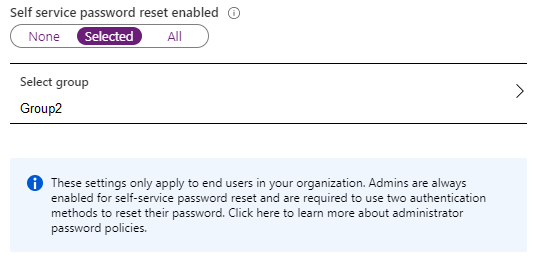
You enable password reset for contoso.onmicrosoft.com as shown in the Password Reset exhibit. (Click the Password Reset tab.)

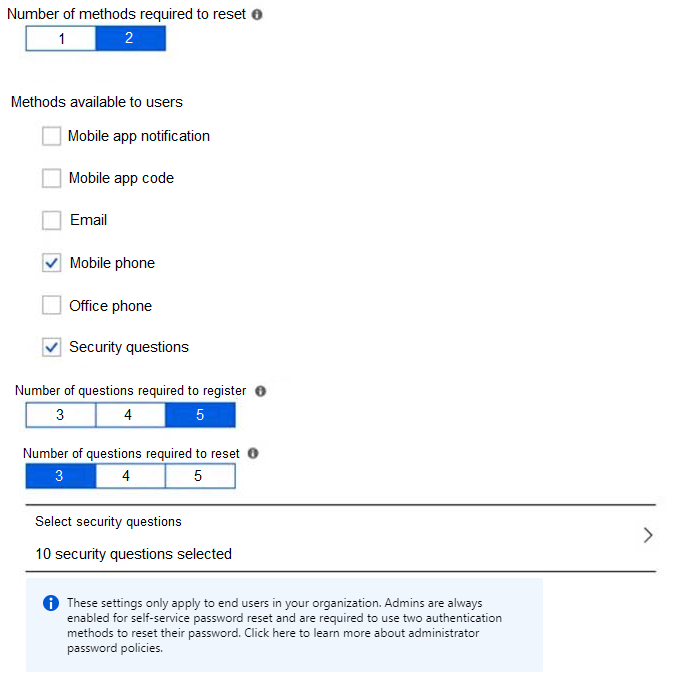
You configure the authentication methods for password reset as shown in the Authentication Methods exhibit. (Click the Authentication Methods tab.)
diagram

For each of the following statements, select Yes if the statement is true. Otherwise, select No. NOTE: Each correct selection is worth one point. Hot Area:

Parte 1:

Select the correct answer(s) in the image below.

question-image

Pass is appropriate because the exhibits provide enough information to determine each outcome deterministically. Key facts visible in the images: - SSPR is enabled for “Selected” users and the selected group is Group2. - Enabled methods are only Mobile phone and Security questions. - Number of methods required to reset is set to 2. - Security questions require 3 correct answers to reset. - A note indicates admins are always enabled for SSPR and must use two methods. With these, you can evaluate each user based on group membership (User1 in Group1 only; User2 in Group2; User3 is an admin and in both groups) and then apply the method requirements. There’s no missing dependency (like licensing) required to answer the logic in this exam-style scenario.

Parte 2:

After User2 answers three security questions correctly, he can reset his password immediately.

User2 is a member of Group2, and SSPR is enabled for the selected group Group2, so User2 is in scope for self-service password reset. However, the authentication methods policy requires two methods to reset a password. Answering three security questions correctly satisfies only the security questions method, not the full reset requirement. Therefore, User2 cannot reset the password immediately after only answering the security questions and must complete a second allowed method such as mobile phone.

Parte 3:

If User1 forgets her password, she can reset the password by using the mobile phone app.

User1 is only a member of Group1, while SSPR is enabled only for the selected group Group2. Because User1 is not in scope for SSPR and does not hold an administrator role, she cannot use self-service password reset. In addition, the mobile phone app methods are not enabled in the authentication methods configuration; only Mobile phone and Security questions are enabled. Therefore, the statement is false.

Parte 4:

User3 can add security questions to the password reset process.

User3 is a User administrator, which is a privileged Azure AD role. For administrator accounts, Azure AD SSPR requires two authentication methods and does not allow security questions as a reset method for admins. Although security questions are enabled for end users in the tenant, that setting does not apply to administrator password reset scenarios. Therefore, User3 cannot add security questions to the password reset process; admin users must use other allowed methods such as mobile phone or app-based methods if enabled.

10
Pregunta 10

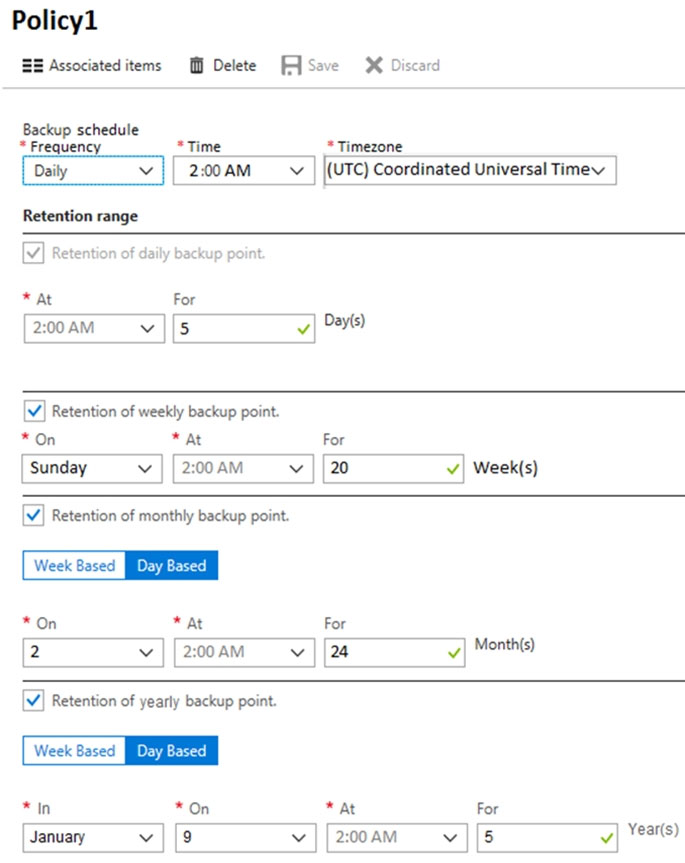
HOTSPOT - You have an Azure virtual machine named VM1 and a Recovery Services vault named Vault1. You create a backup policy named Policy1 as shown in the exhibit. (Click the Exhibit tab.)

You configure the backup of VM1 to use Policy1 on Thursday, January 1 at 1:00 AM. You need to identify the number of available recovery points for VM1. How many recovery points are available on January 8 and January 15? To answer, select the appropriate options in the answer area. NOTE: Each correct selection is worth one point. Hot Area:

Parte 1:

Select the correct answer(s) in the image below.

question-image

Pass is appropriate because the recovery point count can be derived deterministically from the policy settings and the timeline. To solve these, you: 1) List all scheduled backup times that have occurred by the target timestamp. 2) Apply retention: daily points older than the daily retention window expire unless they are also marked for longer retention (weekly/monthly/yearly). 3) Count remaining unique recovery points. Here, the policy is clear (daily at 2:00 AM UTC; daily retention 5 days; weekly on Sunday). The target times (Jan 8 and Jan 15 at 14:00) are well after the 2:00 AM backups on those days, so the day’s backup has already occurred. Monthly/yearly settings don’t trigger within the first two weeks in a way that adds extra points. Therefore, the correct answers can be computed reliably.

Parte 2:

January 8 at 2:00 PM (14:00): ______

By Jan 8 at 14:00 UTC, backups have run daily at 2:00 AM from Jan 1 through Jan 8 inclusive (8 total created). Now apply retention. Daily retention is 5 days, meaning only the last 5 daily recovery points remain as daily points: Jan 4, 5, 6, 7, and 8 (5 points). Weekly retention: every Sunday 2:00 AM backup is also retained as a weekly point for 20 weeks. In this period, Sunday is Jan 4. That recovery point (Jan 4 2:00 AM) is already included in the 5 daily points list, so it does not add an additional separate recovery point; it just ensures Jan 4 will remain available even after it ages out of daily retention. Therefore, the number of available recovery points on Jan 8 is 5.

Parte 3:

January 15 at 2:00 PM (14:00): ______

By Jan 15 at 2:00 PM, backups have occurred daily from Jan 1 through Jan 15 at 2:00 AM. With 5-day daily retention, the daily points still retained are Jan 11, 12, 13, 14, and 15. Weekly retention keeps Sunday backups for 20 weeks, so Jan 4 is still available even though it is outside the daily retention window, while Jan 11 is already included in the daily-retained set. Monthly retention on day 2 preserves Jan 2, and yearly retention on Jan 9 preserves Jan 9, so the full set of unique retained recovery points is Jan 2, Jan 4, Jan 9, Jan 11, Jan 12, Jan 13, Jan 14, and Jan 15, which totals 8.

Otros exámenes de práctica

Practice Test #1

50 Preguntas·100 min·Aprobación 700/1000

Practice Test #2

50 Preguntas·100 min·Aprobación 700/1000

Practice Test #3

50 Preguntas·100 min·Aprobación 700/1000

Practice Test #4

50 Preguntas·100 min·Aprobación 700/1000

Practice Test #5

50 Preguntas·100 min·Aprobación 700/1000

Practice Test #7

50 Preguntas·100 min·Aprobación 700/1000

Practice Test #8

50 Preguntas·100 min·Aprobación 700/1000

Practice Test #9

50 Preguntas·100 min·Aprobación 700/1000
← Ver todas las preguntas de Microsoft AZ-104

Comienza a practicar ahora

Descarga Cloud Pass y comienza a practicar todas las preguntas de Microsoft AZ-104.

Get it on Google PlayDownload on the App Store
Cloud PassCloud Pass

App de práctica para certificaciones TI

Get it on Google PlayDownload on the App Store

Certificaciones

AWSGCPMicrosoftCiscoCompTIADatabricks

Legal

Preguntas frecuentesPolítica de privacidadTérminos de servicio

Empresa

ContactoEliminar cuenta

© Copyright 2026 Cloud Pass, Todos los derechos reservados.

¿Quieres practicar todas las preguntas en cualquier lugar?

Obtén la app

Descarga Cloud Pass — incluye exámenes de práctica, seguimiento de progreso y más.