
Manage a security operations environmentPondération 25%

Microsoft
Microsoft · Associate
Microsoft SC-200
Microsoft Security Operations Analyst
Questions d'entraînement
Parcourir les 502+ questions
Chaque réponse est vérifiée par 3 modèles d'IA de pointe pour garantir une précision maximale. Obtenez des explications détaillées par option et une analyse approfondie des questions.
1
Question 1
There are several servers connected to the Storage Center through Fibre Channel (FC) fabrics using WWN zoning. The engineer has recently replaced a servers FC HB. This server can no longer connect to the Storage Center. What is causing the problem?
Unlikely. “Fault Domains” are not a standard Fibre Channel zoning construct, and Storage Center connectivity through an FC fabric is primarily controlled by the fabric zoning and storage-side host/initiator mappings. Even if the array tracks initiators, the question emphasizes WWN zoning; the immediate failure after HBA replacement is typically that the new WWPN is not zoned.
Incorrect for WWN zoning. Updating a zone with a new switch port applies to port-based zoning (by physical switch port). With WWN zoning, moving to a different switch port does not require zoning changes as long as the same WWPN remains. Here, the HBA was replaced, so the WWPN changed, not merely the port.
Not relevant. “Virtual Port mode” is not a typical requirement to restore FC connectivity after an HBA replacement, and it does not address the fundamental access control issue in the fabric. The problem described aligns with zoning membership based on WWPN, not a storage controller port virtualization setting.
Correct. Replacing an FC HBA changes the HBA port’s WWN/WWPN. Because the environment uses WWN zoning, the zone membership still contains the old WWPN, so the new initiator is blocked from seeing the storage targets. Updating the server’s zone to include the new HBA WWN (and activating the zoneset) restores access.
Analyse de la question
Core concept: This question tests Fibre Channel SAN access control using WWN zoning. In FC fabrics, zoning determines which initiators (server HBA ports) can communicate with which targets (storage array front-end ports). The most common and recommended approach is “single initiator zoning” based on the initiator port WWPN/WWN. Why the answer is correct: When the engineer replaces the server’s FC HBA, the HBA’s port WWN (WWPN) changes. If the fabric zoning was built using the old HBA WWPN, the new HBA port is not a member of the zone set. As a result, the switch will not allow the new initiator to see the storage targets, so the server cannot log in to the Storage Center and cannot discover LUNs. Updating the zone to include the new HBA’s WWN restores connectivity. Key features / best practices: WWN zoning is preferred over port-based zoning because it survives switch port moves; however, it does not survive HBA replacement because the WWPN changes. Best practice is to document initiator WWPNs, use consistent naming, and implement single-initiator/single-target (or single-initiator/multiple-target) zoning depending on vendor guidance. After hardware changes, validate: (1) HBA WWPN, (2) zoning membership and active zoneset, (3) fabric login (FLOGI/PLOGI), and (4) storage-side host/initiator registration. Common misconceptions: It’s tempting to think the issue is the switch port (port zoning) or a storage “fault domain” setting. But the prompt explicitly says WWN zoning is used, which points directly to a WWPN mismatch after HBA replacement. Exam tips: If a question mentions WWN zoning and an HBA is replaced, assume the WWPN changed and zoning must be updated. If it mentions port zoning and cables/ports moved, then update the zone by port. Also remember that storage arrays often require host/initiator objects to be updated too, but the most immediate fabric-level blocker in WWN zoning is the missing WWPN in the zone. Note: Although this is labeled SC-200, the scenario is SAN networking/storage administration rather than Microsoft Sentinel/Defender operations; treat it as an infrastructure connectivity troubleshooting item.
2
Question 2
An engineer has created a replay profile in which one replay is taken every 10 minutes. The expiration time is set to 1 week. The engineer needs to improve space utilization without changing the 10-minute interval between the replays. Which step should the engineer take to meet the requirement?
Decreasing the expiration time reduces storage because fewer replays are retained. However, it changes the retention period (from 1 week to something shorter), which can negatively impact investigations and may violate implicit retention requirements. The question focuses on improving space utilization without changing the 10-minute interval, and the best fit is an optimization feature rather than reducing retention.
Allowing replays to coalesce into an active replay is a storage optimization approach. It keeps the 10-minute replay cadence but consolidates replay data so you don’t store as many separate replay artifacts. This improves space utilization while preserving the required interval and generally maintains investigative value, aligning with cost optimization without sacrificing collection frequency.
Setting the minimum allowed replay interval to 15 minutes directly conflicts with the requirement to keep a 10-minute interval. Even if it reduces storage by capturing fewer replays, it changes the collection cadence and therefore does not meet the stated constraint.
Changing the interval to 24 hours drastically reduces the number of replays and storage usage, but it violates the explicit requirement to keep the 10-minute interval. It would also significantly reduce investigative granularity and is not an acceptable solution given the constraints.
Analyse de la question
Core concept: This question is about Microsoft Defender for Endpoint (MDE) Live Response “replay” capability and how replay profiles affect storage consumption. A replay profile defines how frequently replays are captured (every 10 minutes here) and how long they are retained (expiration time of 1 week). Storage utilization is primarily driven by the number of replay artifacts retained and whether multiple replays can be consolidated. Why the answer is correct: Selecting “Allow Replays to coalesce into active Replay” improves space utilization without changing the 10-minute capture interval. Coalescing is designed to reduce storage overhead by merging/rolling up replay data into an active replay rather than keeping many discrete replay instances. You still collect at the same cadence (every 10 minutes), but the backend can consolidate data, reducing the number of separate stored replay objects and associated metadata overhead. Key features and best practices: - Replay interval controls capture frequency; changing it would violate the requirement. - Expiration time controls retention; reducing it saves space but changes the retention requirement (and may conflict with investigation needs or policy). - Coalescing is a space-optimization feature that preserves the capture cadence while reducing storage footprint. From an Azure Well-Architected Framework perspective (Cost Optimization and Operational Excellence), coalescing is the preferred lever because it optimizes resource consumption without reducing security visibility or altering operational requirements. Common misconceptions: A common trap is to pick “decrease the expiration time” because it obviously reduces storage. However, the question does not ask to change retention; it asks to improve space utilization while keeping the 10-minute interval. In exam scenarios, “space utilization” often implies using a built-in optimization feature rather than weakening retention or changing collection settings. Exam tips: - When a requirement says “without changing the interval,” eliminate any option that changes the interval (C and D). - If retention is not explicitly allowed to change, avoid reducing expiration time unless the question states retention can be modified. - Look for platform features like coalescing/deduplication/aggregation that reduce storage while preserving collection behavior.
3
Question 3
(Sélectionnez 2)Which two of the following actions are required to successfully update Storage Center OS using the Storage Center Update Utility? (Choose two.)
Not required. Storage Center Update Utility usage is generally not gated by a simple “enable utility” checkbox in Storage Center settings. While some products have feature toggles, SCOS update workflows typically rely on correct connectivity, credentials, and validated upgrade paths rather than a GUI checkbox. This option is a plausible distractor because “enable feature” steps are common in admin tools.
Required. A SCOS pre-upgrade check validates system health, compatibility, and prerequisites before applying the update. Using SupportAssist (or the support workflow it enables) is commonly part of ensuring the upgrade path is supported and that known issues are identified early. This reduces failed upgrades and aligns with best practices for controlled change management.
Required. Live Volume replication can be sensitive during controller/OS updates because replication sessions may drop, resync, or trigger failover behaviors. Pausing replication prior to the update helps maintain data consistency and prevents replication-related conflicts or heavy resynchronization after the upgrade. This is a typical prerequisite in storage upgrade runbooks.
Not required and generally incorrect. Disabling SupportAssist would not normally be needed for the update utility to communicate with the Storage Center; if anything, SupportAssist improves supportability and diagnostics. Communication issues are usually solved by network/proxy/firewall configuration, correct ports, and credentials—not by disabling support tooling.
Not required. Applying a special license to use the Storage Center Update Utility is not typically a prerequisite for SCOS updates. Licensing may apply to advanced features (replication, Live Volume, etc.), but the ability to update the system software is generally part of standard platform maintenance and support entitlement, not an add-on license.
Analyse de la question
Core concept: This question is about safely performing a platform update using a vendor update utility (Storage Center Update Utility for Dell EMC SC Series/SCOS). Even though it’s labeled as SC-200, it’s not an Azure/Microsoft Sentinel scenario; it’s an infrastructure operations question focused on change management, pre-upgrade validation, and replication/availability considerations. Why the answer is correct: B is required because a SCOS pre-upgrade check is a standard prerequisite to validate readiness (health, firmware compatibility, configuration state, and known blockers) before applying an OS update. In many environments this is initiated/validated through SupportAssist (or equivalent support channel tooling) so Dell can confirm the upgrade path and identify issues that would cause the update to fail or risk data availability. C is required because Live Volume replications introduce additional state and coordination across systems. During an SCOS update, replication links and Live Volume relationships can be impacted (planned failover behavior, link interruptions, or resync requirements). Pausing/suspending replication is a common required step to prevent replication conflicts, reduce risk of split-brain conditions, and ensure the update process can proceed without replication-related locks or resynchronization storms. Key features / best practices: Pre-upgrade checks align with operational excellence and reliability principles (similar to the Azure Well-Architected Framework): validate prerequisites, reduce blast radius, and ensure rollback planning. Replication pause aligns with reliability: protect data consistency and avoid unintended failovers/resync. Common misconceptions: Options A, D, and E sound like “enablement” steps, but the update utility typically doesn’t require a special checkbox, disabling SupportAssist, or an extra license just to perform an OS update. Disabling SupportAssist would usually reduce supportability rather than help. Exam tips: For update/upgrade questions, look for two recurring requirements: (1) pre-check/health validation and (2) actions that stabilize data movement/replication (pause/suspend) to maintain consistency. If an option suggests disabling support tooling, it’s usually a red flag unless explicitly required by documented network/proxy constraints.
4
Question 4
(Sélectionnez 3)A storage administrator is setting up replication between two Storage Centers for the first time and needs to determine the proper zoning for the two systems to communicate. Both Storage Centers are using Virtual Port mode. Which three zones are the proper zones to set up in each fabric? (Choose three.)
Incorrect. This option creates a cross-zone between the physical WWPNs of system B and the virtual WWPNs of system A, but that is not one of the required standard zones for this replication setup. The documented requirement is based on physical-to-physical, virtual-to-virtual, and combined physical-and-virtual zoning rather than asymmetric cross-zones. On its own, this zone does not provide the complete or correct connectivity model expected for Virtual Port mode replication.
Correct. This zone includes all physical WWPNs from both Storage Centers, which is required because the physical ports still participate in the replication communication model even when Virtual Port mode is enabled. The arrays need physical-port visibility for proper peer discovery and path establishment. Excluding the physical WWPNs would leave the zoning incomplete for the documented Virtual Port replication setup.
Correct. This zone includes all virtual WWPNs from both systems, which is essential because Virtual Port mode presents virtual identities for communication. Replication sessions and peer interactions rely on those virtual WWPNs being able to log in across the fabric. Without this zone, the arrays would not have the required virtual-port connectivity for replication.
Correct. This zone includes both physical and virtual WWPNs from both systems and is part of the required zoning set for initial replication configuration in Virtual Port mode. It ensures the full identity set used by the arrays is visible where needed during setup and operation. Although this would be excessive for ordinary host zoning, it is appropriate here because the question asks for the proper vendor-specific replication zones.
Incorrect. This is the mirror image of option A, zoning the physical WWPNs of system A to the virtual WWPNs of system B. While it may sound plausible if one assumes physical-to-virtual communication is required, it is not part of the standard required three-zone pattern for this scenario. The exam is testing recognition of the vendor-specific zoning layout, which does not use these cross-zones as the correct answer set.
Analyse de la question
Core concept: This question tests Fibre Channel zoning for Dell Storage Center replication when both arrays are configured in Virtual Port mode. In this mode, both the physical WWPNs and the virtual WWPNs are relevant for inter-array communication, and Dell guidance requires specific zones so the peer arrays can discover and maintain replication connectivity across fabrics. The correct set includes a zone for all virtual WWPNs from both systems, a zone for all physical WWPNs from both systems, and a zone containing both physical and virtual WWPNs from both systems. Why correct: Option C is required because Virtual Port mode uses virtual WWPNs as the presented identities for communication, so the arrays must be able to see each other’s virtual ports. Option B is also required because the underlying physical ports still participate in the connectivity model and must be zoned together for proper peer communication and failover behavior. Option D is the combined physical-and-virtual zone that completes the required zoning pattern for first-time replication setup in Virtual Port mode. Key features: - Virtual Port mode introduces both physical and virtual WWPN identities. - Replication zoning must account for communication using both identity types. - Proper zoning must be created in each fabric for resilient dual-fabric operation. - The goal is functional peer discovery and stable replication pathing between the two Storage Centers. Common misconceptions: A common mistake is assuming only virtual WWPNs matter in Virtual Port mode, which leads to choosing only virtual-to-virtual or physical-to-virtual cross-zones. Another misconception is treating this as a least-privilege host zoning question; this is array-to-array replication zoning, where Dell’s required pattern is broader than simple host target zoning. Physical-to-virtual cross-zones alone do not represent the documented required set. Exam tips: When a Storage Center replication question mentions Virtual Port mode, remember that both physical and virtual WWPNs are involved. Look for the answer set that explicitly covers virtual connectivity, physical connectivity, and the combined zoning requirement. Be careful not to over-apply generic SAN zoning best practices when the vendor-specific replication design calls for a particular zone layout.
5
Question 5
An administrator needs to replicate data to an off-site Storage Center. Data on both sides must always match. The administrator must have the data sent to the remote system as soon as the data is written. If the communication to the remote system fails, all writes to the local system must stop. Which option should the administrator choose to meet the requirements?
Synchronous replication with High Consistency meets all requirements: the write is committed to both local and remote before acknowledgment, ensuring the datasets always match. If the replication link fails, the system must stop/hold writes to prevent divergence, exactly as stated. This provides near-zero RPO but increases latency and reduces availability during link outages.
Synchronous replication with High Availability conflicts with the requirement to stop all local writes when remote communication fails. “High Availability” typically implies continuing operations despite failures (often allowing local writes to proceed or failing over), which can risk divergence or require complex quorum/failover behavior. The question explicitly prioritizes consistency over availability.
Asynchronous replication of the Active Replay cannot guarantee that data on both sides always matches because replication is decoupled from the write acknowledgment. Even if changes are shipped quickly, there is always a potential lag (non-zero RPO). If the link fails, local writes usually continue, which directly violates the requirement to stop writes on communication failure.
Asynchronous replication with frequent replays reduces lag but still does not provide the strict guarantee that both sides always match at every moment. Frequent replays can improve RPO, but it remains non-zero and depends on replay intervals and network conditions. Additionally, asynchronous designs typically allow local writes during link failure, contradicting the requirement.
Analyse de la question
Core concept: This question tests understanding of replication modes and consistency guarantees for storage systems. The key design choice is synchronous vs. asynchronous replication and what happens to local writes when the remote site is unavailable. This maps to classic RPO/RTO thinking and the Azure Well-Architected Framework reliability pillar: choosing the right data replication strategy to meet business requirements. Why the answer is correct: The requirements state: (1) data on both sides must always match, (2) data must be sent to the remote system as soon as it is written, and (3) if communication fails, all writes to the local system must stop. These are the defining characteristics of synchronous replication with strict/strong consistency. In synchronous replication, a write is not acknowledged to the application until it has been committed locally and confirmed at the remote site. If the replication link fails, the system cannot safely guarantee identical copies, so it must halt or fail writes (a “write-stall” or “I/O freeze”) to preserve consistency. “High Consistency” aligns with this behavior. Key features / best practices: Synchronous replication provides near-zero RPO (no data loss) because every acknowledged write exists in both locations. The tradeoff is higher write latency (round-trip to the remote site) and dependency on network reliability and distance (typically best within metro/low-latency ranges). Architecturally, this is a CP-style choice (consistency over availability) during a network partition: the system prefers to stop writes rather than diverge. This is consistent with Well-Architected guidance: explicitly choose consistency requirements and understand availability/latency impacts. Common misconceptions: “High Availability” sounds like the goal, but the requirement explicitly says writes must stop if the remote link fails—this is the opposite of maximizing availability. Asynchronous options can send data quickly and replay frequently, but they inherently allow a lag window where the remote copy may not match the primary at all times. Exam tips: Look for phrases like “must always match,” “as soon as written,” and “stop writes on link failure.” Those point to synchronous replication with strong consistency (zero/near-zero RPO) and a willingness to sacrifice availability during outages. If the question instead emphasized “keep local running even if remote is down,” that would indicate asynchronous replication.
Envie de vous entraîner partout ?
Téléchargez Cloud Pass — inclut des tests d'entraînement, le suivi de progression et plus encore.
6
Question 6
(Sélectionnez 2)What are two effects of pre-allocating space on a volume? (Choose two.)
Correct. Pre-allocating space can improve performance consistency for certain applications by avoiding on-demand extent allocation and related metadata operations during writes. This can reduce latency spikes and fragmentation risk, which is especially beneficial for write-heavy, latency-sensitive workloads (for example, databases or high-ingest logging). It’s not guaranteed for every workload, but it is a recognized effect of pre-allocation.
Correct. Thin provisioning allocates physical storage as data is written. Pre-allocating space reserves/commits the capacity up front, which effectively makes the volume no longer thin provisioned (often considered thick provisioned). This reduces the risk of overcommitment at the storage pool level but consumes capacity immediately.
Incorrect. RAID level is determined by the underlying storage configuration (disk group/aggregate/pool) and is not typically changed by a volume-level action like pre-allocating space. Pre-allocation affects how capacity is reserved for the volume, not the redundancy/performance layout of disks (RAID 0/1/5/6/10).
Incorrect. Data progression (tiering/moving data between performance and capacity tiers) is generally controlled by storage policies and access patterns, not by whether the volume is thin or thick. While some platforms may have specific interactions, pre-allocating space alone does not inherently disable data progression on a volume.
Analyse de la question
Core concept: This question tests storage provisioning behavior—specifically what happens when you pre-allocate space on a volume. In many enterprise storage systems, volumes can be thin provisioned (physical capacity is consumed only as data is written) or thick/eager provisioned (capacity is reserved up front). “Pre-allocating space” typically means reserving/allocating the backing storage capacity immediately rather than on-demand. Why the answers are correct: A is correct because pre-allocation can improve performance predictability for certain workloads. Thin provisioning may introduce allocation overhead during writes (metadata updates, extent allocation, potential fragmentation, and background zeroing depending on the platform). By allocating space ahead of time, the storage system reduces or eliminates allocation work during peak I/O, which can lower latency and reduce performance variability—especially for write-heavy or latency-sensitive applications. B is correct because pre-allocating space effectively removes the thin-provisioned behavior for that volume (or converts it to thick provisioning, depending on the platform’s terminology). Once space is pre-allocated, the volume is no longer relying on “allocate-on-write” semantics; the physical capacity is reserved/committed. Key features and best practices: Pre-allocation is commonly used for databases, high-ingest logging, and other workloads where consistent write performance is important. It also reduces the risk of thin-provisioning overcommitment causing out-of-space conditions at the storage pool level. From an operational perspective (aligned with Well-Architected reliability and performance efficiency principles), pre-allocation trades higher upfront capacity consumption for more predictable performance and reduced capacity risk. Common misconceptions: Learners sometimes assume pre-allocation changes RAID level or disables tiering/data progression. Those are separate storage features. RAID is a property of the underlying disk group/aggregate, not something a volume-level pre-allocation toggle typically changes. Similarly, data progression/tiering is usually controlled by policy and access patterns, not by whether the volume is thin or thick. Exam tips: When you see “pre-allocate,” think “thick/eager allocation,” “less allocation overhead,” and “more predictable performance,” but also “uses capacity immediately.” Don’t conflate provisioning type with RAID configuration or tiering features unless the question explicitly ties them together.
7
Question 7
You have an existing Azure logic app that is used to block Azure Active Directory (Azure AD) users. The logic app is triggered manually. You deploy Azure Sentinel. You need to use the existing logic app as a playbook in Azure Sentinel. What should you do first?
A scheduled query rule (analytics rule) creates alerts/incidents from log queries. While analytics rules can be paired with automation rules to run playbooks, this does not address the core blocker: the Logic App is manually triggered and not yet compatible as a Sentinel playbook trigger. You would typically create/adjust detections after the playbook is usable, not as the first step to convert it.
A data connector is used to ingest data sources into Microsoft Sentinel (for example, Entra ID, Microsoft 365 Defender, or Azure Activity). Data ingestion is important for detections and investigations, but it does not change how a Logic App is triggered. Adding a connector won’t make a manually triggered Logic App callable as a Sentinel playbook.
Threat Intelligence connectors are for ingesting TI indicators (STIX/TAXII, platforms, etc.) into Sentinel for correlation and detection. They are unrelated to incident response automation and do not affect whether an existing Logic App can be used as a playbook. This option confuses threat intel ingestion with SOAR execution requirements.
To use a Logic App as a Sentinel playbook, it must have a Sentinel-supported trigger (commonly the Microsoft Sentinel incident trigger) so Sentinel can invoke it and pass incident context. Since the existing Logic App is manually triggered, the first required action is to modify the trigger accordingly. After that, you can attach it via automation rules or run it from incidents.
Analyse de la question
Core concept: Microsoft Sentinel playbooks are Azure Logic Apps that are invoked by Sentinel (typically from an automation rule, incident, or alert). For Sentinel to call a Logic App as a playbook, the Logic App must use a Sentinel-supported trigger (for example, the Microsoft Sentinel incident trigger) rather than a purely manual trigger. Why the answer is correct: Your existing Logic App is triggered manually. A manually triggered Logic App cannot be executed automatically by Sentinel as a playbook because Sentinel needs a trigger endpoint it can invoke in the expected way (incident/alert entity context, or a supported request trigger pattern). Therefore, the first step is to modify the Logic App trigger to a Sentinel playbook trigger (commonly “When a response to a Microsoft Sentinel incident is triggered” / incident trigger). After that, you can attach it to incidents via Automation rules or run it manually from an incident. Key features and best practices: - Playbooks are used for incident response automation (SOAR) in Sentinel and are typically executed from Automation rules. - The Logic App must be in the same tenant and have appropriate permissions (managed identity or connections) to perform actions like blocking an Entra ID (Azure AD) user. - Follow Azure Well-Architected Framework (Security and Reliability): least privilege for Graph/Entra actions, audit logging, and idempotent design (avoid blocking the same user repeatedly without checks). Common misconceptions: - Creating analytics rules (scheduled query rules) is for detection, not for making an existing Logic App eligible as a playbook. - Data connectors ingest data; they don’t convert a manual Logic App into a Sentinel playbook. - Threat Intelligence connectors are unrelated to executing response automation. Exam tips: If a question asks how to “use an existing Logic App as a Sentinel playbook,” check the trigger type first. Sentinel playbooks require Sentinel-compatible triggers so Sentinel can pass incident/alert context and invoke the workflow. Detection configuration (analytics rules) and ingestion (data connectors) are separate steps from SOAR enablement.
8
Question 8
You have a Microsoft 365 subscription that uses Azure Defender. You have 100 virtual machines in a resource group named RG1. You assign the Security Admin roles to a new user named SecAdmin1. You need to ensure that SecAdmin1 can apply quick fixes to the virtual machines by using Azure Defender. The solution must use the principle of least privilege. Which role should you assign to SecAdmin1?
Security Reader at the subscription scope is read-only for security information. SecAdmin1 could view Defender for Cloud recommendations, alerts, and secure score data, but cannot execute remediation actions or deploy extensions/agents to VMs. This fails the requirement to “apply quick fixes,” because those actions require write permissions on the underlying resources.
Contributor at the subscription scope would allow SecAdmin1 to remediate VMs, but it grants broad write access across the entire subscription (all resource groups and resources). This violates the principle of least privilege given the requirement is only for the 100 VMs in RG1. It’s a common trap: correct capability, wrong scope.
Contributor on RG1 provides the necessary write permissions to modify the VMs in that resource group (including installing agents/extensions and changing configurations), which is typically required for Defender for Cloud quick fixes. It also limits access to only RG1, aligning with least privilege and good governance practices.
Owner on RG1 would also allow applying quick fixes, but it is more privileged than necessary because it includes Microsoft.Authorization/* permissions (ability to grant access to others). Unless the scenario requires SecAdmin1 to manage RBAC assignments, Owner is excessive and does not meet least privilege compared to Contributor.
Analyse de la question
Core concept: This question tests Azure role-based access control (RBAC) and Microsoft Defender for Cloud (formerly Azure Defender) remediation capabilities. “Quick fixes” in Defender for Cloud (e.g., enable endpoint protection, install agents/extensions, apply recommended configurations) typically require write permissions on the target resources (VMs and sometimes related resources like extensions, network settings, or policy assignments). The principle of least privilege means granting only the minimum scope and permissions needed. Why the answer is correct: Assigning the Contributor role at the RG1 scope (option C) gives SecAdmin1 the ability to make changes to the virtual machines in RG1, including deploying VM extensions/agents and applying configuration changes that Defender for Cloud quick fixes often perform. It limits permissions to only the resource group containing the 100 VMs, rather than the entire subscription. The user already has Security Admin, which is oriented toward managing security policies and settings, but it does not inherently grant full write access to compute resources needed to remediate. Key features / best practices: - Defender for Cloud recommendations and remediation actions frequently require Microsoft.Compute/* write actions (VM/extension changes) and sometimes Microsoft.Network/* changes depending on the fix. - Use scoped RBAC assignments (resource group or specific resources) to align with Azure Well-Architected Framework governance and security principles (least privilege, separation of duties). - In real environments, you may further refine with custom roles if Contributor is broader than required, but among the given options, RG-scoped Contributor is the least-privileged role that still enables remediation. Common misconceptions: - “Security Admin” sounds like it should be enough to fix issues, but it mainly covers security configuration/management, not necessarily modifying VMs. - “Security Reader” can view recommendations but cannot apply fixes. - “Owner” is excessive because it includes role assignment permissions. Exam tips: When a question mentions applying fixes/remediation to Azure resources, assume write permissions are required on those resources. Choose the smallest scope that includes the target resources (RG1 vs subscription) and avoid Owner unless role delegation is explicitly needed. References to study: - Defender for Cloud remediation and recommendations - Azure RBAC built-in roles (Security Admin, Security Reader, Contributor, Owner) and scope inheritance
9
Question 9
(Sélectionnez 2)You provision a Linux virtual machine in a new Azure subscription. You enable Azure Defender and onboard the virtual machine to Azure Defender. You need to verify that an attack on the virtual machine triggers an alert in Azure Defender. Which two Bash commands should you run on the virtual machine? Each correct answer presents part of the solution. NOTE: Each correct selection is worth one point.
Correct. This copies a harmless binary (/bin/echo) to a new executable name (asc_alerttest_662jfi039n). The test relies on the process name matching a known pattern used for Defender/MDE alert simulation. Creating the correctly named executable is the first step to generating the expected test alert without introducing real malware.
Incorrect. Although it includes the keyword “eicar”, it attempts to run a program named “alerttest”, which is not created by any other correct step in this option set unless you also run option C. Even if created, the process name may not match the specific test harness name expected for this Defender simulation scenario.
Incorrect. This creates an executable named “alerttest”, not the expected “asc_alerttest_662jfi039n”. While renaming /bin/echo is a safe way to create a runnable file, the alert simulation in this question is tied to the specific filename shown in the other options, so this step alone (or paired with B) may not trigger the intended Defender alert.
Correct. This executes the renamed test binary and passes arguments including “eicar”, which is commonly used to trigger a safe test detection/alert. When the VM is properly onboarded and telemetry is flowing, this should generate an alert that can be observed in Defender for Cloud (via integrated endpoint alerts) to confirm detection is working.
Analyse de la question
Core concept: This question tests how to validate Microsoft Defender for Cloud (formerly Azure Defender) alerting on a Linux VM by generating a safe, simulated malware/attack signal. Defender for Cloud integrates with the Defender for Endpoint (MDE) sensor on supported machines. When onboarded, MDE can generate test alerts using a known “EICAR” test string. This is a standard way to confirm the end-to-end pipeline: sensor -> cloud service -> alert in Defender portal. Why the answer is correct: On Linux, the common test method is to execute a binary named with a specific pattern used by Defender/MDE test tooling and pass arguments that include the EICAR keyword. The two-step process in the options is: 1) Copy a benign binary (/bin/echo) to a new filename that matches the expected test executable name (asc_alerttest_662jfi039n). This is done with: cp /bin/echo ./asc_alerttest_662jfi039n (Option A). 2) Run that renamed executable with parameters that include “eicar” to trigger the test detection: ./asc_alerttest_662jfi039n testing eicar pipe (Option D). This produces a harmless event that should generate an alert in Defender for Cloud/MDE, allowing you to verify alert ingestion and visibility. Key features / best practices: - Ensure the VM is properly onboarded to Defender for Endpoint (or Defender for Cloud’s endpoint integration) and has network access to required endpoints. - Alerts may take several minutes to appear; validate in Microsoft Defender portal and/or Defender for Cloud security alerts. - Use test methods like EICAR rather than real malware to avoid risk. Common misconceptions: A frequent mistake is using the wrong filename. Some detections rely on specific process names/paths used by test harnesses. Options B and C use “alerttest” rather than the expected “asc_alerttest_662jfi039n”, which may not trigger the intended test alert. Exam tips: For SC-200, remember that “verification” questions often use safe simulation artifacts (EICAR) and require both creating the test condition and executing it. Also distinguish between Defender for Cloud vs. Defender for Endpoint: Defender for Cloud can surface endpoint alerts, but the underlying signal often comes from MDE on the machine.
10
Question 10
DRAG DROP -
You create a new Azure subscription and start collecting logs for Azure Monitor.
You need to configure Microsoft Defender for Cloud to validate detection of possible threats related to suspicious sign-ins to Azure virtual machines.
Which option shows the correct order?
Partie 1 :
Choose the correct sequence.
A is correct. Defender for Servers must be enabled before Defender for Cloud can generate server threat alerts. The ASC_AlertTest_662jfi039N.exe test file is then copied and renamed on the VM, and running it triggers the validation alert. The other choices either test before the plan is enabled or use Sentinel/suppression features that do not validate Defender for Servers threat detection.
Envie de vous entraîner partout ?
Téléchargez Cloud Pass — inclut des tests d'entraînement, le suivi de progression et plus encore.
11
Question 11
Your company uses Azure Security Center and Azure Defender.
The security operations team at the company informs you that it does NOT receive email notifications for security alerts. What should you configure in Security Center to enable the email notifications?
Security solutions is used to discover, connect, or manage integrated security products and protections, not to define who receives email notifications. It focuses on security tooling and integrations rather than administrative contact settings. Even if a solution generates findings, this section does not control Security Center's built-in alert email recipients. Therefore it cannot be used to enable email notifications for the security operations team.
Security policy is the correct answer because Azure Security Center stores alert email notification behavior under the security contact configuration associated with policy settings. This is where administrators specify email recipients and configure whether notifications are sent for security alerts. The feature is tied to the subscription or management scope's security configuration rather than to the alert investigation interface. On exams, questions about enabling alert emails in Security Center typically map to Security policy or security contacts.
Pricing & settings is primarily used to enable Defender plans, select coverage, and manage subscription-level onboarding or pricing-related configuration. Although it affects what protections are active, it is not the location used to define security contact email notifications for alerts. Confusing plan configuration with notification configuration is a common mistake. Enabling services here alone would not cause alert emails to be sent to the operations team.
Security alerts is the workspace for viewing, triaging, and investigating alerts that have already been generated. It is an operational dashboard, not a settings page for configuring notification recipients. Users can analyze incidents and remediation guidance there, but they cannot enable alert emails from that blade. As a result, it does not solve the problem described in the question.
Azure Defender refers to the advanced threat protection capabilities within Security Center/Defender for Cloud. Turning it on increases detection and alert generation, but it does not specify who should receive email notifications. Notification recipients and alert email behavior are configured separately in policy/security contact settings. Therefore Azure Defender itself is not the correct place to enable email notifications.
Analyse de la question
Core concept: In Azure Security Center (now Microsoft Defender for Cloud), email notifications for security alerts are configured as part of the security contact settings within Security policy. These settings determine who receives alert emails and for which severity levels. Why correct: The Security policy area includes the email notifications and security contacts configuration used to notify administrators and other recipients about security alerts. Key features: You can define security contacts, enable email notifications, and choose whether notifications are sent for high-severity alerts or all alert severities depending on the portal/version. Common misconceptions: Many candidates confuse Pricing & settings with notification configuration because it controls plan enablement and scope settings, but it does not directly manage alert email recipients. Exam tips: When a question asks where to configure alert emails or security contacts in Security Center, think of Security policy/security contacts rather than alert viewing pages or Defender plan enablement.
12
Question 12
Note: This question is part of a series of questions that present the same scenario. Each question in the series contains a unique solution that might meet the stated goals. Some question sets might have more than one correct solution, while others might not have a correct solution. After you answer a question in this section, you will NOT be able to return to it. As a result, these questions will not appear in the review screen. You use Azure Security Center. You receive a security alert in Security Center. You need to view recommendations to resolve the alert in Security Center. Solution: From Security alerts, you select the alert, select Take Action, and then expand the Mitigate the threat section. Does this meet the goal?
This option is correct because Azure Security Center allows you to open a security alert and use the Take Action area to review recommended remediation steps. The Mitigate the threat section is specifically intended to provide guidance on how to respond to and reduce the impact of the detected threat. Since the goal is to view recommendations to resolve the alert, this navigation path directly satisfies the requirement. It is an alert-centric workflow rather than a general security posture view, which makes it the right choice.
This option is incorrect because the described solution does in fact meet the goal. In Azure Security Center, selecting a security alert and then reviewing the Take Action and Mitigate the threat sections is a valid way to see remediation guidance. Saying "No" would imply that this path does not provide recommendations, which is not true. The platform is designed to surface alert-specific mitigation steps in exactly this location.
Analyse de la question
Core concept: This question tests your knowledge of how Azure Security Center (now part of Microsoft Defender for Cloud) presents remediation guidance for security alerts. Specifically, it checks whether you know where to find the recommended actions associated with an alert so you can investigate and mitigate the detected threat. Why the answer is correct: In Azure Security Center, when you open a security alert, the Take Action area provides response guidance for that alert. Expanding the Mitigate the threat section shows recommendations and remediation steps that help address the issue identified by Security Center. This is the correct workflow for viewing alert-specific recommendations, so the proposed solution meets the stated goal. Key features / configurations: - Security alerts provide incident details, affected resources, severity, and detection context. - The Take Action pane is designed to guide responders through investigation and remediation. - The Mitigate the threat section contains recommended steps to reduce risk and remediate the detected issue. - Azure Security Center / Microsoft Defender for Cloud surfaces both posture recommendations and alert-specific response guidance. Common misconceptions: - Candidates often confuse general Secure Score or security recommendations with alert-specific mitigation guidance. - Some assume recommendations are only available from the Recommendations blade, but alert remediation guidance can also be accessed directly from the alert. - Others think Security Center only reports alerts and does not provide response actions, which is incorrect. Exam tips: - For alert remediation steps, start from the specific security alert rather than the general recommendations page. - Look for action-oriented sections such as Take Action or Mitigate the threat. - Distinguish between posture improvement recommendations and incident/alert response guidance. - In Azure exam questions, wording like "resolve the alert" usually points to alert-specific mitigation guidance.
13
Question 13
DRAG DROP - You plan to connect an external solution that will send Common Event Format (CEF) messages to Azure Sentinel. You need to deploy the log forwarder. Which three actions should you perform in sequence? To answer, move the appropriate actions form the list of actions to the answer area and arrange them in the correct order. Select and Place:
Partie 1 :
Select the correct answer(s) in the image below.
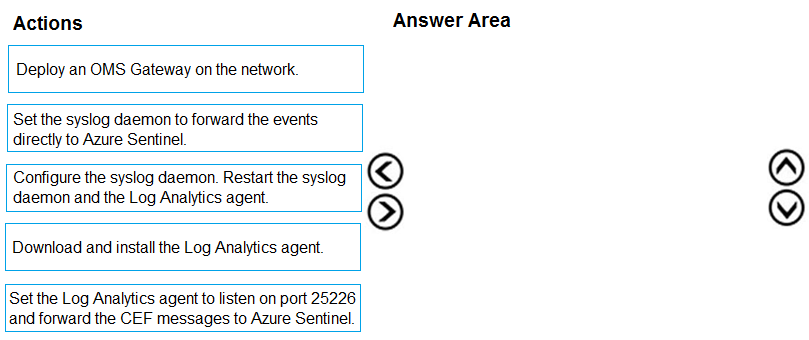
Pass is appropriate because the correct sequence is well-defined for the Sentinel CEF connector/log forwarder deployment. Correct 3-step sequence: 1) Download and install the Log Analytics agent. 2) Set the Log Analytics agent to listen on port 25226 and forward the CEF messages to Azure Sentinel (Log Analytics workspace). 3) Configure the syslog daemon. Restart the syslog daemon and the Log Analytics agent. Why: You must install the agent before it can receive/forward data. Then you configure the agent’s CEF/syslog collection (port 25226 is the common TCP listener used by the CEF forwarder setup). Finally, you configure rsyslog/syslog-ng to forward/route the incoming CEF messages appropriately and restart services so configuration changes take effect. Why others are wrong: “Set the syslog daemon to forward events directly to Azure Sentinel” is incorrect because Sentinel ingests via Log Analytics, not a direct syslog endpoint. “Deploy an OMS Gateway” is optional (proxy scenario) and not required in the standard forwarder deployment.
14
Question 14
Your company uses Azure Sentinel to manage alerts from more than 10,000 IoT devices. A security manager at the company reports that tracking security threats is increasingly difficult due to the large number of incidents. You need to recommend a solution to provide a custom visualization to simplify the investigation of threats and to infer threats by using machine learning. What should you include in the recommendation?
Built-in queries in Microsoft Sentinel are prewritten KQL queries that help analysts quickly hunt or investigate common scenarios. They improve speed and consistency, but they are primarily query templates and do not inherently provide advanced custom visualizations or a machine learning environment. They are useful for triage and hunting, but they don’t meet the requirement to infer threats using ML.
Livestream in Microsoft Sentinel is used for near-real-time monitoring of events as they arrive, helping analysts observe activity and quickly pivot during active investigations. While it can simplify monitoring, it is not designed for building custom visualizations beyond standard query results, nor does it provide a notebook-style environment to run machine learning models for threat inference.
Notebooks (Jupyter notebooks integrated with Microsoft Sentinel) are designed for advanced hunting and investigation using Python and data science libraries. They enable custom visualizations, enrichment, correlation across large datasets, and applying machine learning techniques (e.g., anomaly detection, clustering) to infer threats. This directly satisfies both requirements: custom visualization and ML-based inference at IoT scale.
Bookmarks in Microsoft Sentinel let analysts save and tag interesting events, query results, or investigation artifacts to preserve evidence and collaborate. They help manage investigations and document findings, but they do not provide custom visualization capabilities or machine learning-based analytics. Bookmarks are about investigation workflow and record-keeping rather than advanced analytics.
Analyse de la question
Core concept: This question tests Microsoft Sentinel investigation tooling that goes beyond basic KQL queries—specifically, capabilities for custom visualization and machine learning-assisted threat inference at scale. In Sentinel, this is addressed by Notebooks (Jupyter notebooks integrated with Sentinel/Log Analytics), which support advanced analytics, enrichment, and visualization. Why the answer is correct: With alerts from 10,000+ IoT devices, analysts need a way to reduce investigation complexity and apply data science techniques. Microsoft Sentinel Notebooks provide an interactive environment (typically Python) to pull data from Log Analytics, enrich it with external sources, run ML models (e.g., clustering, anomaly detection, classification), and create custom visualizations (timelines, graphs, entity relationships, geo maps). This directly matches the requirement to “provide a custom visualization” and “infer threats by using machine learning.” Key features and best practices: - Notebooks are built on Azure Machine Learning/Jupyter and integrate with Sentinel data via APIs and the Log Analytics workspace. - They enable repeatable investigation playbooks: parameterized notebooks can standardize triage across many similar incidents. - They support advanced visualizations (e.g., matplotlib/plotly) and graph analysis (e.g., network relationships between devices, IPs, and alerts), which is useful for IoT-scale correlation. - From an Azure Well-Architected perspective, notebooks improve Operational Excellence (repeatable analysis), Reliability (consistent workflows), and Security (better detection/investigation depth). Use RBAC and least privilege for notebook access and data connectors. Common misconceptions: Built-in queries and bookmarks are helpful for investigation efficiency, but they don’t provide a full ML-enabled, custom visualization environment. Livestream focuses on near-real-time monitoring and hunting, not ML-driven inference and rich custom visuals. Exam tips: When you see “custom visualization” plus “machine learning” in Sentinel, think Notebooks. When you see “save evidence/important results,” think Bookmarks. When you see “real-time view,” think Livestream. When you see “KQL starting points,” think built-in queries.
15
Question 15
The issue for which team can be resolved by using Microsoft Defender for Office 365?
Executives are high-value targets for phishing and BEC, so they benefit from Defender for Office 365 protections (Safe Links, anti-phishing). However, they typically do not administer security policies or perform investigations/remediation. The security/SOC team uses MDO to analyze threats, run investigations, and remove malicious messages from mailboxes.
Marketing users often receive external emails, attachments, and links, increasing exposure to phishing and malware. Defender for Office 365 helps protect them, but marketing is not the team that configures MDO policies or resolves incidents. Security operations manages alert triage, threat hunting in Explorer, and remediation actions like quarantine or message removal.
The security team is responsible for configuring and operating Microsoft Defender for Office 365. They create and tune anti-phishing, Safe Links, and Safe Attachments policies; monitor alerts and incidents in Microsoft 365 Defender; investigate campaigns using Threat Explorer; and remediate by quarantining or removing malicious content. These are core SOC/security operations responsibilities tested in SC-200.
Sales teams are frequent targets of credential phishing and invoice fraud, so they benefit from MDO protections. But sales is not responsible for security tooling operations. The security team uses Defender for Office 365 to investigate suspicious emails, identify affected users, and take remediation actions (quarantine, delete, block URLs/senders) to resolve the issue.
Analyse de la question
Core concept: Microsoft Defender for Office 365 (MDO) is an email and collaboration security service for Microsoft 365 that helps detect, prevent, investigate, and respond to threats delivered through Exchange Online, SharePoint Online, OneDrive, and Microsoft Teams. In SC-200, it’s commonly tested as a security operations tool used by SOC analysts to reduce phishing, malware, and business email compromise (BEC) risk. Why the answer is correct: The team that would resolve issues using Microsoft Defender for Office 365 is the security team. MDO provides security-focused controls (Safe Links, Safe Attachments, anti-phishing policies), threat hunting/investigation (Threat Explorer/Real-time detections), automated response (Automated Investigation and Response), and incident correlation (integration with Microsoft 365 Defender). These are owned and operated by security operations, not business functions like marketing or sales. Key features, configurations, and best practices: 1) Protection: Configure anti-phishing, anti-malware, and anti-spam policies; enable Safe Links (time-of-click URL detonation/rewriting) and Safe Attachments (detonation in sandbox). Use preset security policies (Standard/Strict) for faster, best-practice-aligned deployment. 2) Detection and response: Use Threat Explorer to investigate campaigns, identify impacted users, and remediate (quarantine, soft delete, hard delete). AIR can automatically investigate and remediate messages and files. 3) Operational alignment: Integrate with Microsoft 365 Defender incidents and Microsoft Sentinel for centralized SOC workflows. This supports Azure Well-Architected Framework security pillar goals: improved threat protection, detection, and response. Common misconceptions: Executives, marketing, and sales are frequent targets of phishing/BEC, so it may seem like the tool “belongs” to them. However, they are consumers of the protection, not the operators. The security team configures policies, monitors alerts, investigates, and performs remediation. Exam tips: When a question asks “which team can resolve the issue using Defender for Office 365,” map the product to its operator: MDO is a security control and SOC investigation tool. Business teams may report suspicious emails, but security teams use MDO to investigate, hunt, and remediate. Also remember MDO focuses on email/collaboration threats, not endpoint-only issues (Defender for Endpoint) or identity-only issues (Defender for Identity).
Envie de vous entraîner partout ?
Téléchargez Cloud Pass — inclut des tests d'entraînement, le suivi de progression et plus encore.
16
Question 16
You need to implement the Azure Information Protection requirements. What should you configure first?
Incorrect. Device health and compliance reports in Microsoft Defender Security Center relate to endpoint posture and compliance reporting (often tied to Defender for Endpoint and Intune). They do not establish or enable Azure Information Protection scanning. AIP requirements around discovering/classifying on-prem files are met through AIP scanner configuration, not Defender device compliance report settings.
Correct. Scanner clusters are the foundational AIP scanner management construct. You configure a cluster first so you can register scanner nodes (servers) into that cluster and centrally manage scanner settings. Once the cluster exists and nodes are associated, you can then define content scan jobs to specify repositories, schedules, and labeling/protection actions.
Incorrect. Content scan jobs define what to scan (repositories/paths), when to scan, and what actions to take (discover, label, protect). However, you can’t effectively create and run scan jobs until the scanner infrastructure is established—specifically the scanner cluster and registered scanner nodes. Jobs are a later step built on top of the cluster.
Incorrect. Advanced features in Microsoft Defender Security Center typically enable additional endpoint capabilities (for example, advanced hunting, automated investigation, or integration features depending on the product context). These do not configure Azure Information Protection scanning. AIP scanner setup is done in AIP/Microsoft Purview Information Protection tooling, not by toggling Defender advanced features.
Analyse de la question
Core concept: Azure Information Protection (AIP) scanning (often via the AIP unified labeling scanner) is used to discover, classify, and optionally protect on-premises data repositories (for example, file shares and SharePoint Server) using sensitivity labels and policies. In AIP’s scanning workflow, you must establish the scanner infrastructure (including how scanners are grouped and managed) before you can define what content to scan. Why the answer is correct: The first configuration step is to set up scanner clusters in Azure Information Protection. A scanner cluster is the logical management boundary that groups one or more scanner nodes (servers running the scanner service) and provides centralized configuration and reporting for those nodes. Without a cluster, you don’t have the foundational container to register scanner nodes, apply scanner settings consistently, or target scan configurations. Only after the cluster exists can you create content scan jobs that define the repositories (paths/URLs), schedules, label policies, and actions (discover-only vs. enforce labeling/protection). Key features, configurations, and best practices: - Scanner clusters enable scale-out and resiliency: multiple scanner nodes can be added to the same cluster for throughput and high availability. - Clusters support consistent configuration: scanner settings (such as network discovery, labeling behavior, and logging) are applied at the cluster level. - After clusters, configure content scan jobs: define data sources, include/exclude rules, scheduling, and whether to apply labels automatically. - Align with Azure Well-Architected Framework (Operational Excellence and Reliability): use multiple nodes, monitor scanner health, and separate clusters by environment (prod/test) or by administrative boundary. Common misconceptions: Options referencing Microsoft Defender for Endpoint (Defender Security Center) settings can look relevant because Defender is part of the broader Microsoft security stack, but AIP scanner setup is not performed by enabling Defender advanced features or device compliance reports. Those settings relate to endpoint management and telemetry, not to AIP’s on-prem content classification workflow. Exam tips: For AIP scanner questions, remember the order of operations: (1) prepare prerequisites (service account, permissions, labeling/policies), (2) configure/register scanner infrastructure (cluster and nodes), then (3) create content scan jobs to target repositories. If the question asks “what first,” choose the step that enables all subsequent scanning configuration.
17
Question 17
You need to receive a security alert when a user attempts to sign in from a location that was never used by the other users in your organization to sign in. Which anomaly detection policy should you use?
Impossible travel detects sign-ins for the same user from geographically distant locations within a time window that makes travel unrealistic (for example, sign-in from the US and then Europe minutes later). It is about velocity and physical plausibility between consecutive sign-ins, not whether the location is new to the organization. It would not reliably trigger just because a country was never used by other users.
Activity from anonymous IP addresses flags sign-ins coming from IPs associated with anonymization services such as Tor, VPN endpoints, or known proxy infrastructure. This detection focuses on IP reputation and obfuscation rather than geographic novelty. A sign-in from a new country could occur from a normal ISP IP and would not necessarily be detected as anonymous IP activity.
Activity from infrequent country is designed to detect sign-ins originating from countries/regions that are rarely or not typically seen in the organization’s tenant sign-in patterns. This directly matches the requirement to alert when a user signs in from a location that other users in the organization have not used. It is an organization-wide baseline anomaly rather than a per-user travel/velocity check.
Malware detection is not an Identity Protection sign-in anomaly policy. Malware-related detections typically come from Microsoft Defender for Endpoint, Defender for Office 365, or other threat protection signals indicating malicious code execution or delivery. It does not address geographic sign-in anomalies and would not be the correct control for detecting unusual sign-in locations.
Analyse de la question
Core Concept: This question targets Microsoft Entra ID (Azure AD) Identity Protection anomaly detections and the associated risk policies/alerts. Identity Protection uses built-in machine learning signals to detect suspicious sign-in patterns (for example, unfamiliar locations, anonymous IPs, impossible travel) and can generate alerts and user/sign-in risk. Why the Answer is Correct: The requirement is: alert when a user attempts to sign in from a location that was never used by other users in the organization. That is an organization-wide rarity signal, not a per-user baseline. The Identity Protection detection that matches “a country/region that is not commonly used in your tenant” is “Activity from infrequent country.” It flags sign-ins originating from countries that are rarely seen across the organization’s sign-in history, aligning directly with “never used by the other users in your organization.” Key Features / How it’s used: - Identity Protection provides built-in detections and surfaces them as risk detections and alerts. - “Activity from infrequent country” is tenant-contextual: it compares the sign-in’s country against what is typical for the organization. - You can respond by configuring Conditional Access risk-based policies (for example, require MFA, require password change, or block) based on sign-in risk/user risk, and integrate alerts into Microsoft Sentinel for SOC workflows. - Best practice (Azure Well-Architected Framework—Security pillar): use layered controls—Identity Protection detections + Conditional Access + MFA + monitoring/incident response. Common Misconceptions: Many confuse “Impossible travel” with “new location.” Impossible travel is about time/distance between two sign-ins for the same user being physically implausible, not about whether the location is new to the organization. Others may pick anonymous IPs, but that is about IP reputation/obfuscation (VPN/Tor/proxies), not organizational novelty. Exam Tips: Map the wording carefully: - “Never used by other users in your organization” => organization rarity => infrequent country. - “User signed in from two far locations too quickly” => impossible travel. - “Tor/VPN/anonymous proxy” => anonymous IP. - “Malware” => endpoint/email signals, not sign-in geography. Also remember Identity Protection detections are built-in; you typically configure response via Conditional Access and alerting/automation via Sentinel/Defender.
18
Question 18
(Sélectionnez 3)Your company uses Microsoft Defender for Endpoint. The company has Microsoft Word documents that contain macros. The documents are used frequently on the devices of the company's accounting team. You need to hide false positive in the Alerts queue, while maintaining the existing security posture. Which three actions should you perform? Each correct answer presents part of the solution. NOTE: Each correct selection is worth one point.
Resolve the alert automatically is part of the correct solution because it ensures future alerts that match the suppression criteria are handled without manual analyst intervention. In Microsoft Defender for Endpoint, suppression rules can be configured so matching alerts are automatically resolved, which keeps the Alerts queue clean for recurring false positives. This reduces operational noise while preserving the underlying detection logic and protection settings. It is different from disabling a rule or creating a broad exclusion, both of which would weaken security posture.
Hide the alert is correct because it removes the current false-positive alert from the Alerts queue, addressing the immediate requirement to hide existing noise. This action affects analyst visibility rather than endpoint protection, so it does not reduce the organization’s defensive controls. It is useful for already-investigated alerts that are known to be benign. However, it must be paired with suppression-related tuning to address future occurrences.
Create a suppression rule scoped to any device is incorrect because it is overly broad and would suppress similar alerts across the entire environment. That would weaken security posture by potentially hiding real malicious macro activity on devices outside the accounting team. The question explicitly requires maintaining the existing security posture, which implies using the narrowest effective scope. A device group is the appropriate boundary for this scenario.
Create a suppression rule scoped to a device group is correct because it limits the tuning to the accounting team’s devices, where the macro-enabled Word documents are expected and frequently used. This narrow scope maintains the existing security posture for the rest of the organization by continuing to surface similar alerts elsewhere. Device-group scoping is a best practice in Defender for Endpoint when handling known benign behavior for a specific population. It avoids creating unnecessary blind spots across unrelated users and systems.
Generate the alert is incorrect because it is not an alert-tuning or queue-management action used to hide false positives in Microsoft Defender for Endpoint. The scenario asks what actions should be performed to suppress or hide known benign alerts, not how to reproduce or validate them. While observing an alert may help an analyst understand it, generating an alert is not part of the operational solution described by Defender’s suppression and alert-handling features. Therefore, it should not be selected as one of the required actions.
Analyse de la question
Core concept: This question is about reducing false-positive alert noise in Microsoft Defender for Endpoint without weakening protection. The correct approach is to tune alert handling rather than disable detections, using alert suppression and narrow scoping. Why correct: You should hide the existing false-positive alert from the queue, create a suppression rule limited to the accounting team’s device group, and configure the alert to be resolved automatically so recurring matches do not continue to require analyst action. Key features: Hide removes current noise from analyst view, suppression rules prevent or auto-resolve future matching alerts, and device-group scoping preserves protection elsewhere in the environment. Common misconceptions: Broad suppression across any device is too risky, and generating an alert is not a remediation or tuning action. Exam tips: When a question says 'maintain the existing security posture,' prefer the most targeted suppression scope and avoid tenant-wide exclusions or disabling detections.
19
Question 19
You have an Azure Sentinel workspace. You need to test a playbook manually in the Azure portal. From where can you run the test in Azure Sentinel?
Playbooks is where you create, view, and manage the Logic Apps that Sentinel uses for automation, but it is not the standard Sentinel location for manually running a playbook in context. From this blade, you can access the underlying Logic App resource, but that is management rather than the Sentinel execution surface referenced by the question. In exam terms, this option confuses administration of playbooks with manual execution from within Sentinel operations. Therefore, it is not the best answer for where to run the test in Azure Sentinel.
Analytics is used to create and manage detection rules, including configuring automation that may invoke playbooks when alerts or incidents are generated. However, it does not provide the primary interface for manually running a playbook on demand. Its purpose is detection engineering rather than incident response execution. For this reason, Analytics is not the correct place to manually test a playbook in Sentinel.
Threat intelligence is used to manage indicators of compromise and related intelligence data within Microsoft Sentinel. It has no role in manually executing Logic Apps or testing playbooks. Although threat intelligence can influence detections and investigations, it is not an automation execution surface. Therefore, this option is clearly incorrect.
Incidents is the correct answer because Microsoft Sentinel lets analysts manually trigger a playbook from an incident during investigation or response. This is the normal Sentinel workflow when you want to test or execute automation in the context of a real security case. Running the playbook from the incident ensures the playbook receives the expected Sentinel incident entity and related context. It also reflects how incident-triggered playbooks are commonly validated in the portal.
Analyse de la question
Core concept: This question tests where, within Microsoft Sentinel in the Azure portal, an analyst can manually execute a playbook. In Sentinel, playbooks are commonly run in response to incidents, either automatically through automation rules or manually by an analyst during investigation. Why correct: The correct answer is Incidents because Sentinel allows analysts to select an incident and manually run an associated playbook from that incident. This is the standard in-portal Sentinel workflow for testing or invoking a playbook in context, especially for incident-triggered automation. Key features: - Playbooks in Sentinel are Azure Logic Apps used for response and enrichment actions. - Manual execution in Sentinel is typically contextual, meaning it is launched from an incident record. - The Playbooks blade is mainly for viewing, creating, and managing playbooks, while execution in Sentinel commonly occurs from incidents. Common misconceptions: - Many candidates confuse managing a playbook with manually running it in Sentinel. Although the underlying Logic App can be opened from the Playbooks area, Sentinel’s manual run experience is tied to incidents. - Analytics rules can attach automation, but they are not where you manually execute a playbook on demand. - Threat intelligence is unrelated to running automation workflows. Exam tips: If the question asks where in Microsoft Sentinel you manually run a playbook, think about the operational workflow: analysts investigate incidents and then trigger response actions from the incident. Distinguish between managing Logic Apps (Playbooks) and executing them in Sentinel context (Incidents).
20
Question 20
Note: This question is part of a series of questions that present the same scenario. Each question in the series contains a unique solution that might meet the stated goals. Some question sets might have more than one correct solution, while others might not have a correct solution. After you answer a question in this section, you will NOT be able to return to it. As a result, these questions will not appear in the review screen. You are configuring Microsoft Defender for Identity integration with Active Directory. From the Microsoft Defender for identity portal, you need to configure several accounts for attackers to exploit. Solution: From Entity tags, you add the accounts as Honeytoken accounts. Does this meet the goal?
Yes is correct because Microsoft Defender for Identity supports tagging accounts as Honeytoken accounts through Entity tags in the portal. Honeytoken accounts are intentionally exposed or discoverable decoy accounts that attackers may attempt to enumerate or use during reconnaissance and lateral movement. When these accounts are accessed or queried, Defender for Identity treats that activity as highly suspicious and can generate strong alerts. This directly satisfies the requirement to configure several accounts for attackers to exploit as part of a deception-based detection strategy.
No is incorrect because adding accounts as Honeytoken accounts from Entity tags is exactly the supported method for marking deceptive accounts in Microsoft Defender for Identity. This feature is specifically intended to identify accounts that should never be used legitimately and to trigger alerts when attackers interact with them. The scenario asks for configuring accounts for attackers to exploit, which aligns with the purpose of honeytokens. Therefore, saying the solution does not meet the goal misunderstands how Defender for Identity deception features work.
Analyse de la question
Core concept: This question tests knowledge of Microsoft Defender for Identity deception capabilities, specifically how to configure decoy accounts that can be monitored for suspicious use by attackers. It focuses on whether adding accounts as Honeytoken accounts in the Defender for Identity portal is the correct way to mark them as attractive targets for malicious activity. Why the answer is correct: Honeytoken accounts in Microsoft Defender for Identity are designed to act as deceptive entities that should never be used during normal operations. By tagging selected Active Directory accounts as Honeytoken accounts from Entity tags, Defender for Identity increases monitoring sensitivity around those accounts and generates high-confidence alerts if they are queried, authenticated, or otherwise used suspiciously. This directly matches the goal of configuring accounts for attackers to exploit, because the purpose is to detect reconnaissance, credential theft, and lateral movement attempts against decoy identities. Key features / configurations: - Entity tags in Microsoft Defender for Identity allow administrators to classify sensitive or deceptive accounts. - Honeytoken accounts are decoy AD accounts intended to attract attacker activity. - Any interaction with a honeytoken account is considered highly suspicious because legitimate users and services should not use it. - Defender for Identity uses these tags to improve detections and raise alerts tied to reconnaissance and credential misuse. - This is part of identity-based threat detection in hybrid or on-premises Active Directory environments. Common misconceptions: - Candidates often confuse Honeytoken accounts with privileged accounts. Privileged accounts are real administrative identities, while honeytokens are decoys created specifically for detection. - Some assume the accounts must be configured in Active Directory only. In reality, Defender for Identity tagging in the portal is an important part of enabling the deception-based detection behavior. - Others think honeytokens prevent attacks. They do not block attackers directly; instead, they provide high-signal detection when attackers interact with them. Exam tips: - If the goal is to create decoy identities for attacker detection, think Honeytoken accounts. - In Defender for Identity, Entity tags are used to classify accounts such as sensitive or honeytoken. - Honeytoken usage should be rare or nonexistent in legitimate operations, making alerts high confidence. - Distinguish between protection controls and detection/deception controls on the exam.
Domaines de l'examen
Entraînez-vous aux questions d'examen de certification Microsoft avec des réponses vérifiées par IA et des explications détaillées. 4 certifications disponibles.
Configure protections and detectionsPondération 20%
Manage incident responsePondération 30%
Manage security threatsPondération 25%
Tests d'entraînement
2 Tests d'entraînement · 50 Questions · 100 Minutes
Autres certifications Microsoft




Commencer à s'entraîner
Téléchargez Cloud Pass et commencez à vous entraîner sur toutes les questions Microsoft SC-200.

