
CloudPass LogoCloud Pass
AWSGoogle CloudMicrosoftCiscoCompTIADatabricks
Certifications
AWSGoogle CloudMicrosoftCiscoCompTIADatabricks
PL-300: Microsoft Power BI Data Analyst

Practice Test #1

Simulasikan pengalaman ujian sesungguhnya dengan 50 soal dan batas waktu 100 menit. Berlatih dengan jawaban terverifikasi AI dan penjelasan detail.

50Soal100Menit700/1000Skor Kelulusan
Jelajahi Soal Latihan

Didukung AI

Jawaban & Penjelasan Terverifikasi oleh 3 AI

Setiap jawaban diverifikasi silang oleh 3 model AI terkemuka untuk memastikan akurasi maksimum. Dapatkan penjelasan detail per opsi dan analisis soal mendalam.

GPT Pro
Claude Opus
Gemini Pro
Penjelasan per opsi
Analisis soal mendalam
Akurasi konsensus 3 model

Soal Latihan

1
Soal 1

You have a Microsoft SharePoint Online site that contains several document libraries. One of the document libraries contains manufacturing reports saved as Microsoft Excel files. All the manufacturing reports have the same data structure. You need to use Power BI Desktop to load only the manufacturing reports to a table for analysis. What should you do?

Correct. SharePoint Folder is designed to enumerate files in SharePoint Online document libraries and exposes Folder Path for filtering. Using Transform lets you filter to only the manufacturing reports library/folder before combining, which improves performance and prevents mixing files from other libraries. After filtering, you can use Combine Files to create a single table from identically structured Excel reports.

Incorrect. SharePoint List is intended for importing list item data (columns/rows) rather than combining the contents of Excel files stored in a document library. Although document libraries are implemented as lists in SharePoint, this connector typically won’t provide the same file-binary combine experience as SharePoint Folder, and filtering by folder path is not the primary pattern here.

Incorrect. SharePoint Folder is the right connector, but selecting Combine & Load immediately (without first filtering in Transform) risks combining Excel files from multiple libraries/folders across the site. That can lead to incorrect data, more complex cleanup, and slower refresh because Power Query evaluates more files than necessary.

Incorrect. SharePoint List is not the appropriate connector for loading and combining Excel files from a document library. Combine & Load also implies quickly combining without the critical step of filtering to the specific library/folder, increasing the chance of pulling irrelevant content and creating refresh/performance issues.

Analisis Soal

Core concept: This question tests choosing the correct Power BI connector and Power Query approach to ingest multiple Excel files stored in SharePoint Online. When files are in a document library (not a SharePoint List), you typically use the SharePoint Folder connector to enumerate files and then filter to the specific library/folder before combining. Why the answer is correct: Option A uses Get data > SharePoint folder, provides the SharePoint site URL, then uses Transform to open Power Query and filter by Folder Path to the manufacturing reports library. This is the standard pattern: (1) connect to the site, (2) narrow the file set to only the target library/folder, and (3) then combine/transform the Excel binaries into a single table. Filtering first is important because it reduces the number of files Power Query evaluates, improves refresh performance, and avoids accidentally combining unrelated Excel files from other libraries. Key features / best practices: - SharePoint Folder returns metadata (Name, Extension, Folder Path) plus a Content (binary) column for each file. - Filtering by Folder Path (or by library name within the path) isolates only the manufacturing reports. - After filtering, you typically use Combine Files (from the Content column) to apply a consistent transform to all files with the same structure. - This aligns with Power BI performance best practices (minimize data scanned, filter early) and the Azure Well-Architected Framework performance efficiency principle (optimize resource usage and refresh time). Common misconceptions: - “SharePoint list” is for list items, not document library file binaries. While document libraries are technically lists in SharePoint, Power BI’s SharePoint List connector is not the right tool for combining Excel file contents. - “Combine & Load” without filtering can pull in all Excel files across the site, causing incorrect results and slower refresh. Exam tips: - If the source is files in a document library: prefer SharePoint Folder. - If the source is list rows/columns: use SharePoint Online List. - Look for wording like “document library” and “Excel files with same structure” → filter to the folder/library, then combine in Power Query.

2
Soal 2

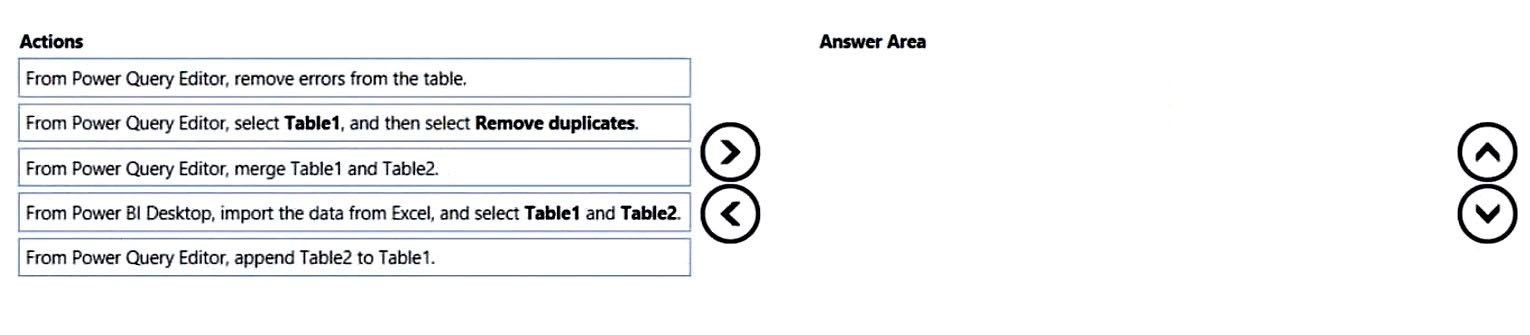
DRAG DROP - You have a Microsoft Excel workbook that contains two sheets named Sheet1 and Sheet2. Sheet1 contains the following table named Table1. Products abc def ghi jkl mno Sheet2 contains the following table named Table2. Products abc xyz tuv mno pqr stu You need to use Power Query Editor to combine the products from Table1 and Table2 into the following table that has one column containing no duplicate values. Products abc xyz tuv mno pqr stu def ghi jkl Which three actions should you perform in sequence? To answer, move the appropriate actions from the list of actions to the answer area and arrange them in the correct order. Select and Place:
Bagian 1:

Select the correct answer(s) in the image below.

question-image

To create one Products column from both tables, you must first load both Excel tables into Power Query. Next, use Append because append stacks rows from tables with the same schema; Merge is incorrect because it performs a join and is used to add columns based on matching keys. After appending, remove duplicates on the combined query so repeated values such as abc and mno appear only once. Removing errors is irrelevant because the scenario does not mention any errors, and removing duplicates before appending would not eliminate duplicates that exist across both tables.

3
Soal 3

You have a project management app that is fully hosted in Microsoft Teams. The app was developed by using Microsoft Power Apps. You need to create a Power BI report that connects to the project management app. Which connector should you select?

Microsoft Teams Personal Analytics is intended for personal productivity and activity insights in Teams, not for accessing the business data behind a Power Apps application. Even though the app is hosted in Teams, its data is not stored in a Teams Personal Analytics dataset. The hosting surface and the storage platform are different concepts, which makes this option incorrect.

SQL Server database would only be correct if the app were explicitly using SQL Server as its backend data source. The scenario gives no indication of that and instead points to a Teams-hosted Power Apps solution, which typically uses Dataverse for Teams. Without evidence of SQL Server storage, this is not the best connector choice.

Dataverse is correct because Power Apps applications that are fully hosted in Microsoft Teams commonly use Dataverse for Teams as their underlying data store. Power BI can connect to that business data by using the Dataverse connector, which is designed for Dataverse tables and metadata. This makes it the most appropriate connector for reporting on the app’s data in this scenario.

Dataflows are used to ingest, transform, and prepare data for reuse in Power BI and other Power Platform services. They are not the native source connector you would choose to connect directly to the data behind a Power Apps app. In this case, a dataflow could potentially consume Dataverse data later, but the correct source connector remains Dataverse.

Analisis Soal

Core concept: This question tests whether you recognize the default data platform used by Power Apps apps that are built and hosted entirely inside Microsoft Teams. Such apps commonly use Dataverse for Teams as their underlying storage, and Power BI connects to that data by using the Dataverse connector. Why correct: Because the app is fully hosted in Microsoft Teams and was developed with Power Apps, the most likely underlying data source is Dataverse for Teams rather than SQL Server or a Teams analytics dataset. Power BI provides a connector for Dataverse, which is the correct choice for accessing the app’s tables and data model. Therefore, Dataverse is the best answer. Key features: Dataverse for Teams is a built-in low-code data platform for Teams-based Power Apps solutions. It stores relational business data in tables and integrates with the Power Platform ecosystem, including Power BI. Using the Dataverse connector aligns with how Teams-hosted Power Apps solutions are typically built. Common misconceptions: A common mistake is assuming that because the app runs in Teams, the data should be accessed through a Teams-related connector such as Microsoft Teams Personal Analytics. Another misconception is choosing SQL Server just because Power Apps can connect to SQL Server in some scenarios; the question does not indicate that SQL Server is the app’s backend. Dataflows are also incorrect because they are a transformation and ingestion feature, not the source connector itself. Exam tips: On PL-300, when you see a Power Apps app hosted in Teams, think first of Dataverse for Teams unless another storage technology is explicitly named. Focus on the underlying data platform, not the user interface where the app runs. If the question does not mention SQL Server, SharePoint, or another external source, Dataverse is usually the intended answer in this scenario.

4
Soal 4

HOTSPOT - You are creating a Microsoft Power BI imported data model to perform basket analysis. The goal of the analysis is to identify which products are usually bought together in the same transaction across and within sales territories. You import a fact table named Sales as shown in the exhibit. (Click the Exhibit tab.) SalesRowID | ProductKey | OrderDateKey | OrderDate | CustomerKey | SalesTerritoryKey | SalesOrderNumber | SalesOrderLineNumber | OrderQuantity | LineTotal | TaxAmt | Freight | LastModified | AuditID 1 | 310 | 20101229 | 2010-12-29 00:00:00.000 | 21768 | 6 | SO43697 | 1 | 1 | 3578.27 | 286.2616 | 89.4568 | 2011-01-10 00:00:00.000 | 127 2 | 346 | 20101229 | 2010-12-29 00:00:00.000 | 28389 | 7 | SO43698 | 1 | 1 | 3399.99 | 271.9992 | 84.9998 | 2011-01-10 00:00:00.000 | 127 3 | 346 | 20101229 | 2010-12-29 00:00:00.000 | 25863 | 1 | SO43699 | 1 | 1 | 3399.99 | 271.9992 | 84.9992 | 2011-01-10 00:00:00.000 | 127 4 | 336 | 20101229 | 2010-12-29 00:00:00.000 | 14501 | 4 | SO43700 | 1 | 1 | 699.0982 | 55.9279 | 17.4775 | 2011-01-10 00:00:00.000 | 127 5 | 346 | 20101229 | 2010-12-29 00:00:00.000 | 11003 | 9 | SO43701 | 1 | 1 | 3399.99 | 271.9992 | 84.9998 | 2011-01-10 00:00:00.000 | 127 6 | 311 | 20101230 | 2010-12-30 00:00:00.000 | 27645 | 4 | SO43702 | 1 | 1 | 3578.27 | 286.2616 | 89.4568 | 2011-01-11 00:00:00.000 | 127 7 | 310 | 20101230 | 2010-12-30 00:00:00.000 | 16624 | 9 | SO43703 | 1 | 1 | 3578.27 | 286.2616 | 89.4568 | 2011-01-11 00:00:00.000 | 127 The related dimension tables are imported into the model. Sales contains the data shown in the following table. Column name Data type Description SalesRowID Integer ID of the row from the source system, which represents a unique combination of SalesOrderNumber and SalesOrderLineNumber ProductKey Integer Surrogate key that relates to the product dimension OrderDateKey Integer Surrogate key that relates to the date dimension and is in the YYYYMMDD format OrderDate Datetime Date and time an order was processed CustomerKey Integer Surrogate key that relates to the customer dimension SalesTerritoryKey Integer Surrogate key that relates to the sales territory dimension SalesOrderNumber Text Unique identifier of an order SalesOrderLineNumber Integer Unique identifier of a line within an order OrderQuantity Integer Quantity of the product ordered LineTotal Decimal Total sales amount of a line before tax TaxAmt Decimal Amount of tax charged for the items on a specified line within an order Freight Decimal Amount of freight charged for the items on a specified line within an order LastModified Datetime The date and time that a row was last modified in the source system AuditID Integer The ID of the data load process that last updated a row You are evaluating how to optimize the model. For each of the following statements, select Yes if the statement is true. Otherwise, select No. NOTE: Each correct selection is worth one point. Hot Area:

Bagian 1:

The SalesRowID and AuditID columns can be removed from the model without impeding the analysis goals.

Yes. SalesRowID and AuditID are technical/operational columns that do not help identify products bought together. Basket analysis requires grouping lines into a transaction (SalesOrderNumber) and identifying the products in that transaction (ProductKey), then optionally slicing by territory/date/customer. SalesRowID is a source-system row identifier (unique combination of SalesOrderNumber and SalesOrderLineNumber). Since SalesOrderNumber and SalesOrderLineNumber already exist, SalesRowID is redundant for analysis and not needed for relationships. AuditID tracks the ETL/load process that last updated the row; it is useful for data engineering troubleshooting but not for analytical grouping, filtering, or measures related to co-purchase behavior. Removing both columns reduces model size and can improve refresh/query performance without impeding the stated analysis goals.

Bagian 2:

Both the OrderDateKey and OrderDate columns are necessary to perform the basket analysis.

No. Both OrderDateKey and OrderDate are not necessary for basket analysis. In a star schema, OrderDateKey is typically used to relate the Sales fact table to a Date dimension (which then provides year/quarter/month/day attributes for slicing). For basket analysis across time, that relationship is sufficient. The OrderDate (datetime) column is often redundant if you already have a proper Date dimension and do not need time-of-day granularity. Basket analysis is usually performed at the transaction level (SalesOrderNumber) and may be filtered by date, but that can be done via the Date dimension using OrderDateKey. You would keep OrderDate only if you specifically need the timestamp (hours/minutes) or if you lack a Date dimension/relationship. Given the prompt states related dimension tables are imported, OrderDateKey alone is enough.

Bagian 3:

The TaxAmt column must retain the current number of decimal places to perform the basket analysis.

No. TaxAmt does not need to retain the current number of decimal places to perform basket analysis. Basket analysis primarily evaluates which products co-occur in the same order; it relies on transaction identifiers and product identifiers, and sometimes quantities. Tax amount precision is not part of determining whether two products were bought together. Even if you were to include value-based metrics (e.g., total basket value), you could typically round currency values to a sensible precision (often 2 decimal places) without changing the co-occurrence results. In many basket-analysis models, TaxAmt is not required at all and could be removed to optimize the model. Therefore, retaining the exact current decimal precision is not a requirement for achieving the stated analysis goal.

5
Soal 5

You have a collection of reports for the HR department of your company. The datasets use row-level security (RLS). The company has multiple sales regions. Each sales region has an HR manager. You need to ensure that the HR managers can interact with the data from their region only. The HR managers must be prevented from changing the layout of the reports. How should you provision access to the reports for the HR managers?

Correct. Publishing the reports in a Power BI app is the standard way to distribute content to business users who need to consume reports but not author them. App users can interact with the report experience by applying filters, using slicers, drilling, and navigating pages, while the report layout itself remains read-only. Because the underlying dataset already uses row-level security, each HR manager will only see the data for their assigned sales region when accessing the app. This approach aligns with least-privilege access and separates report consumption from workspace collaboration.

Incorrect. Creating a new workspace and adding HR managers as Members gives them collaborative permissions rather than simple consumption access. Members can modify reports and other workspace content, which conflicts with the requirement that they must be prevented from changing report layout. Duplicating datasets and reports into another workspace also creates unnecessary administrative overhead, such as duplicate refresh schedules and duplicated RLS management. This design is harder to govern and is not the recommended pattern for distributing secured reports to consumers.

Incorrect. Publishing reports to a different workspace does not by itself make the reports read-only or enforce the correct security model. The ability to edit still depends on what permissions users receive in that workspace, so this option does not directly satisfy the requirement to prevent layout changes. It also does not improve RLS behavior, because RLS is defined on the dataset and enforced based on dataset permissions rather than report location alone. As a result, moving the reports to another workspace is unnecessary and does not address the core access-control requirement.

Incorrect. Adding HR managers as Members of the existing workspace grants them edit rights, which allows them to modify report layout and collaborate on content. That directly violates the requirement that they must not be able to change the reports. Member access is intended for authors and maintainers, not for secured report consumers. For users who should only view region-specific data under RLS, app access is the appropriate provisioning method.

Analisis Soal

Core concept: This question tests Power BI content distribution and security: using Row-Level Security (RLS) to restrict data by region, and using Power BI Apps/viewer permissions to prevent report layout changes. It also touches workspace roles (Admin/Member/Contributor/Viewer) and how they affect the ability to edit content. Why the answer is correct: Publishing the reports in a Power BI app and granting HR managers access ensures they consume the reports in a controlled, read-only experience. App users are typically viewers: they can interact with filters, slicers, drillthrough, and other report interactions, while being prevented from editing the report layout in the Power BI service. RLS is enforced at the dataset level, so when HR managers access the report through the app, they only see rows permitted by their RLS role (for example, region-based roles mapped to users or Azure AD groups). Key features and best practices: - RLS is defined on the dataset and applies regardless of where the report is consumed (workspace, app, or embedded), as long as the user is not granted elevated permissions that bypass RLS. - Distribute to broad audiences via Apps; keep workspaces for authoring and governance. This aligns with least privilege and the Azure Well-Architected Framework security pillar. - Use Azure AD security groups per region (e.g., “HR-West”, “HR-East”) and map those groups to RLS roles to simplify administration. - Ensure HR managers have only app access (or workspace Viewer at most) and do not have Build permission on the dataset unless needed, because Build enables creating new reports from the dataset. Common misconceptions: Many assume adding users to a workspace is required for access. However, workspace membership (Member/Contributor) enables editing and can expose dataset permissions that are inappropriate for consumers. Another misconception is that moving reports to a different workspace changes RLS behavior; RLS remains tied to the dataset and permissions. Exam tips: For PL-300, remember: use Apps for consumption, workspaces for collaboration/authoring. To prevent layout changes, avoid Member/Contributor roles and prefer app access (or Viewer). RLS is always enforced at the dataset; manage it with groups for scalable regional security.

Ingin berlatih semua soal di mana saja?

Unduh Cloud Pass — termasuk tes latihan, pelacakan progres & lainnya.

6
Soal 6

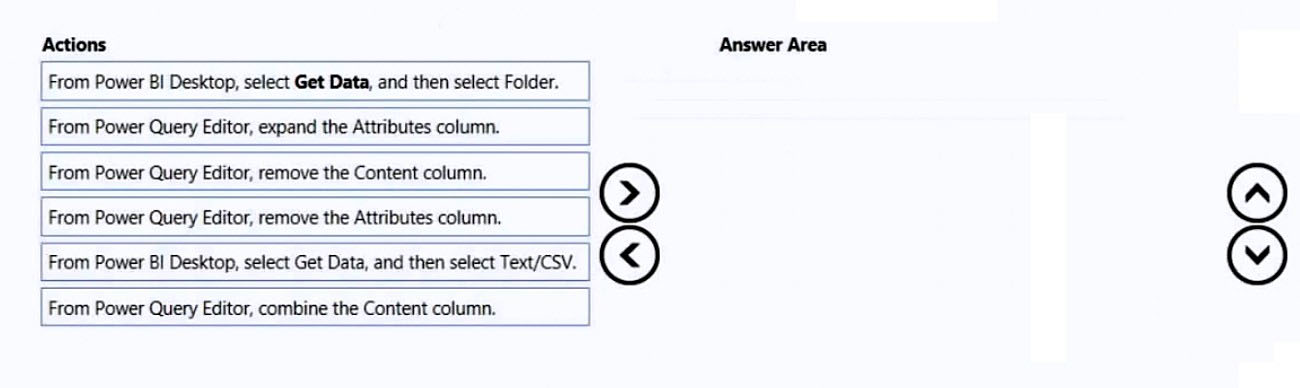
DRAG DROP - You have a folder that contains 100 CSV files. You need to make the file metadata available as a single dataset by using Power BI. The solution must NOT store the data of the CSV files. Which three actions should you perform in sequence. To answer, move the appropriate actions from the list of actions to the answer area and arrange them in the correct order. Select and Place:
Bagian 1:

Select the correct answer(s) in the image below.

question-image

Answer A (Pass) is appropriate because the correct sequence of actions is clear from Power BI Folder connector behavior. Correct sequence (three actions): 1) From Power BI Desktop, select Get Data, and then select Folder. 2) From Power Query Editor, remove the Content column. 3) From Power Query Editor, expand the Attributes column. Why: The Folder connector produces a file listing; Content is the binary file payload. Removing Content ensures the dataset does not ingest/store CSV data. Expanding Attributes exposes additional metadata (for example, size, hidden, read-only flags) as columns, creating a single metadata dataset across all 100 files. Why others are wrong: Get Data > Text/CSV would connect to a single CSV, not a folder. Combining the Content column would read and append the CSV contents, violating the “must NOT store the data” requirement. Removing Attributes would discard useful metadata rather than exposing it.

7
Soal 7

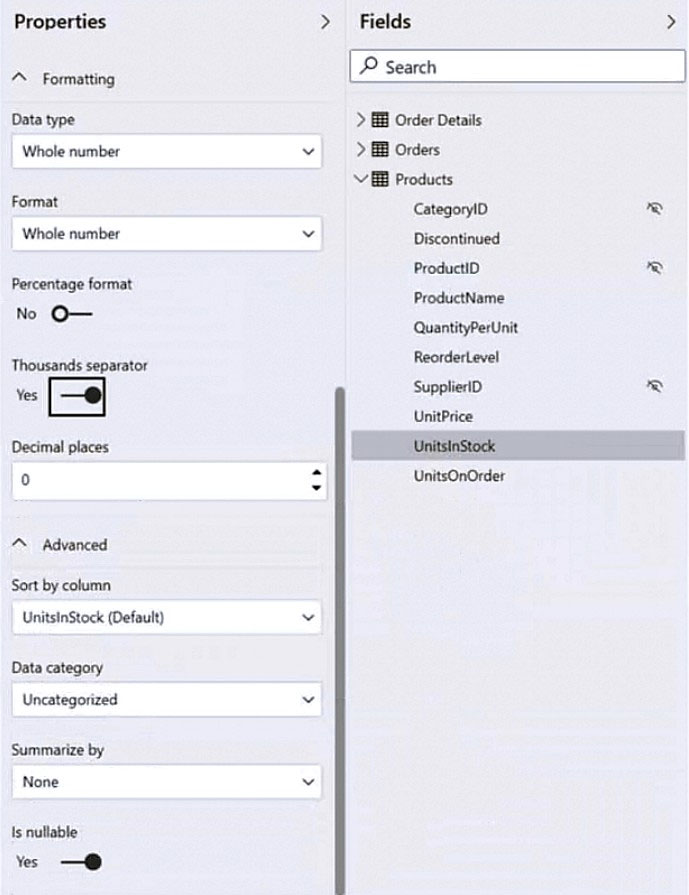
HOTSPOT - You have a column named UnitsInStock as shown in the following exhibit.
diagram

UnitsInStock has 75 non-null values, of which 51 are unique. Use the drop-down menus to select the answer choice that completes each statement based on the information presented in the graphic. NOTE: Each correct selection is worth one point. Hot Area:

Bagian 1:

When a table visual is created in a report and UnitsInStock is added to the values, there will be ______ in the table.

Correct answer: D (75 rows). Because UnitsInStock has “Summarize by” set to None (Don’t summarize), adding it to a table visual will display the detail-level values rather than an aggregation. With no other grouping fields in the visual, Power BI will list the column’s values per underlying row in the model. The prompt states there are 75 non-null values, so the table will show 75 rows (nulls would not appear as separate numeric values in this context). Why the others are wrong: - A (0 rows): There is data, so the visual will render rows. - B (1 row): You’d typically get 1 row only if the field were aggregated (e.g., Sum) and it was the only field in the visual. - C (51 rows): 51 is the count of unique values, but a table visual does not automatically de-duplicate a non-aggregated column; it shows row-level records, not distinct values, unless you explicitly use a distinct-count/summary approach.

Bagian 2:

Changing the Summarize by setting of the UnitsInStock column, and then adding the column to a table visual, will ______ the number of rows in the table visual.

Correct answer: B (reduce). Changing the column’s “Summarize by” setting from None to an aggregation (such as Sum, Average, Min, Max, Count) changes the default behavior when the field is added to a visual. If you then add UnitsInStock (by itself) to a table visual, Power BI will return a single aggregated value for the current filter context, which typically results in 1 row instead of many detail rows. Therefore, the number of rows is reduced. Why the others are wrong: - A (maintain): The row count would only be maintained if the field remained non-summarized or if additional grouping columns were added that force detail rows. - C (increase): Aggregation collapses detail into fewer results; it does not create more rows. Even if you used a grouping field, aggregation generally reduces granularity compared to showing raw rows.

8
Soal 8

You have a Power BI report for the marketing department. The report reports on web traffic to a blog and contains data from the following tables. Table name Source Description Column name Posts Blog RSS feed An XML representation of all the blog posts from • Publish Date your company’s website • URL • Title • Full Text • Summary Traffic Website logs Activity data from your company’s entire website • DateTime • URL Visited • IP Address • Browser Agent • Referring URL There is a one-to-many relationship from Posts to Traffic that uses the URL and URL Visited columns. The report contains the visuals shown in the following table.

The dataset takes a long time to refresh. You need to modify Posts and Traffic queries to reduce load times. Which two actions will reduce the load times? Each correct answer presents part of the solution. NOTE: Each correct selection is worth one point.

Bagian 1:

Top 10 blog posts of all time uses Posts[Title] and Traffic[DateTime] with no filter.

No. This visual uses Posts[Title] and Traffic[DateTime] with no filter, and it is explicitly “Top 10 blog posts of all time.” To support this, the model must be able to count/aggregate traffic across the full history of Traffic for blog posts. If you applied a query-level DateTime filter (for example, last 7/30/90 days) to reduce refresh time, you would change the meaning of “all time” and the visual would become incorrect. However, you can still reduce load time by filtering Traffic to only blog-related rows (URL Visited contains “blog”), because the visual is about blog posts, not the entire website. That filter keeps the “all time” requirement intact while reducing rows. So the correct response to whether you can apply a time-based reduction for this visual is No.

Bagian 2:

Top 10 blog posts from the last seven days uses Posts[Title] and Traffic[DateTime] with Traffic[DateTime] is in the last 7 days filter.

No. Although this single visual is filtered to the last seven days, modifying the shared Traffic query to keep only the last seven days would break other visuals that require all-time traffic data. Query changes must preserve the requirements of the whole report, not just one visual. Therefore, a global DateTime filter is not an appropriate refresh optimization in this scenario.

Bagian 3:

Blog visits over time uses Traffic[DateTime] and Traffic[URL Visited] with Traffic[URL Visited] contains 'blog' filter.

Yes. This visual is “Blog visits over time” and includes a filter Traffic[URL Visited] contains “blog.” Since the report is for the marketing department and focuses on blog traffic, pushing this filter into the Traffic query is a classic refresh optimization: it reduces the number of rows imported from website logs (which are usually very large) and reduces the work needed for relationship matching and compression. From an exam perspective, this is one of the most defensible query changes because it does not change the meaning of any blog-only visual; it simply removes non-blog website traffic that the report does not analyze. It also tends to preserve query folding when the source is a database or log store that can filter server-side.

Bagian 4:

Top 10 external referrals to the blog of all time uses Traffic[Referring URL] with Traffic[URL Visited] contains 'blog' and Traffic[Referring URL] does not start with '/' filter.

Yes. This visual only analyzes visits to blog pages that came from external referrers, as indicated by URL Visited contains 'blog' and Referring URL does not start with '/'. Applying these filters in Power Query reduces the number of rows loaded and can improve refresh performance without changing the meaning of this visual. The other visuals shown do not require non-blog traffic or internal referrals, so removing those rows is a valid optimization for this report scenario.

9
Soal 9

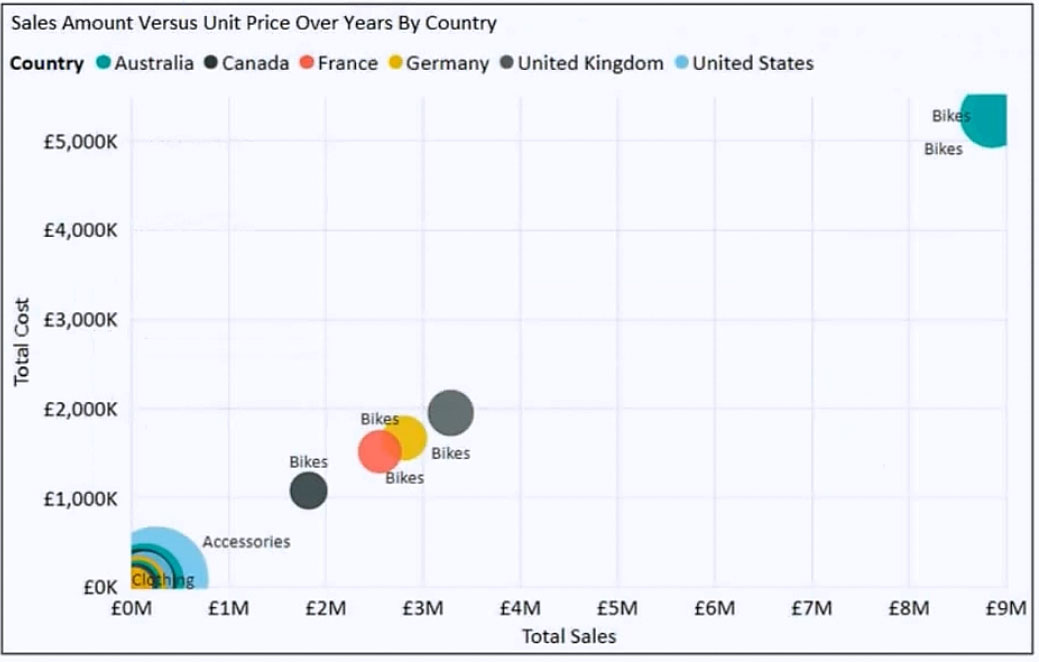
You have the visual shown in the exhibit. (Click the Exhibit tab.)
diagram

You need to show the relationship between Total Cost and Total Sales over time. What should you do?

A Play axis is the correct way to show how points in a scatter chart move over time. By adding a Year (or Date) field to the Play axis well, Power BI animates the bubbles across the X (Total Sales) and Y (Total Cost) axes, making the time-based relationship and trajectory easy to understand. This is purpose-built for “relationship over time” in scatter visuals.

An Average line from the Analytics pane adds a statistical reference (mean) across the visual, helping compare values to an average. However, it does not introduce a time dimension or show how the relationship between Total Cost and Total Sales changes year by year. It’s useful for benchmarking, not for visualizing progression over time.

A Year slicer can filter the scatter chart to a selected year, but it does not inherently show change over time. Users must manually select different years and compare results themselves, which is less effective than an animated or sequential view. The requirement is to show the relationship over time, not just filter by time.

A DAX year-over-year growth measure calculates change between periods and is valuable for KPI or trend analysis. But it doesn’t directly enable a scatter chart to show the relationship between Total Cost and Total Sales over time. The question is about visual behavior (time progression), which is best addressed by the Play axis rather than a new measure.

Analisis Soal

Core concept: This question tests how to visualize change over time in a scatter (bubble) chart in Power BI. A scatter chart shows the relationship between two numeric measures (here, Total Cost on Y and Total Sales on X). To show how that relationship evolves over time, you need a time-based animation or sequencing mechanism. Why the answer is correct: Adding a Play axis to the scatter chart is the built-in Power BI feature designed specifically to show movement of data points over time. When you place a date field (typically Year, Quarter, or Month) into the Play axis well, Power BI animates the bubbles across the X/Y plane as the time value changes. This directly answers “show the relationship between Total Cost and Total Sales over time” because viewers can see both the relationship at each time slice and the trajectory across years. Key features and configuration details: - Use a scatter chart with Total Sales (X) and Total Cost (Y). - Put the time field (Year) into the Play axis bucket. - Optionally use Legend (e.g., Country) and Details (e.g., Category) to track multiple entities. - Bubble size can represent another measure (e.g., Units or Profit) if needed, but is not required for the time relationship. This approach is interactive and preserves context: you see the same entities moving rather than filtering them out. Common misconceptions: A Year slicer (option C) can filter the chart by year, but it does not inherently show progression; it forces the user to manually switch years and compare mentally. An Average line (option B) is an analytic overlay for reference, not a time progression tool. A YoY growth measure (option D) is a modeling calculation that can support analysis, but it doesn’t solve the visualization requirement of showing the relationship between two measures over time. Exam tips: For PL-300, remember: “over time” in a scatter chart usually implies the Play axis. Slicers are for filtering, Analytics pane items are for statistical reference lines, and DAX measures are for calculations—not for animating or sequencing a visual. When the question emphasizes showing change/trajectory, look for Play axis or small multiples (if offered).

10
Soal 10

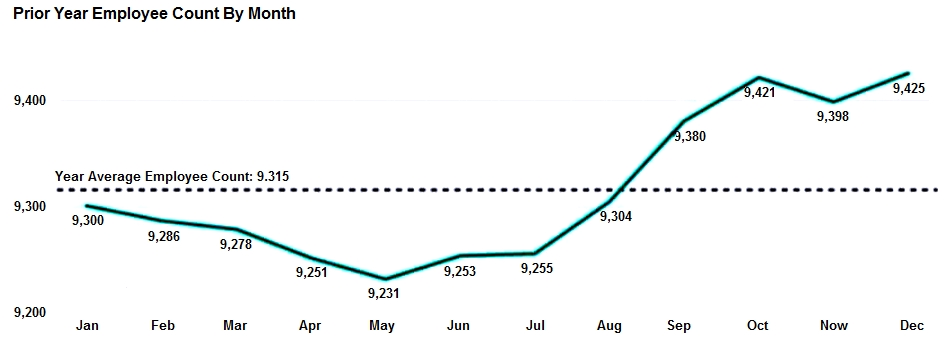
HOTSPOT - You are creating a line chart in a Power BI report as shown in the following exhibit.
diagram

Use the drop-down menus to select the answer choice that completes each statement based on the information presented in the graphic. NOTE: Each correct selection is worth one point. Hot Area:

Bagian 1:

The dashed line representing the Year Average Employee Count was created by using ______.

The dashed line labeled “Year Average Employee Count” is created using an average reference line from the Analytics pane. In Power BI line charts, reference lines can be configured as Average, Median, Min, Max, Constant, etc., and they commonly render as a horizontal dashed line with an optional label showing the computed value. This matches the exhibit: a single horizontal dashed line spanning the chart with an average value. Why others are wrong: - A (trend line): a trend line typically slopes (linear regression) and is used to show direction over time, not a constant horizontal average. - B (secondary axis): a secondary axis is used when plotting measures with different scales; it doesn’t inherently create an average line. - D (two measures in the Values bucket): adding a second measure would plot another series (another line) that varies by month, not a constant dashed average across all months unless you specifically engineered a constant measure; the standard feature for this is the Analytics reference line.

Bagian 2:

To enable users to drill down to weeks or days, add the Weeks and Days field to the ______ bucket.

To enable drill down to weeks or days, you add the Weeks and Days fields to the Axis bucket (X-axis) to form a hierarchy. Power BI drill-down works by having multiple categorical levels on the axis; users can then use Drill Down/Expand controls to navigate from Month to Week to Day within the same visual. Why others are wrong: - B (Values): Values contains measures (what is being aggregated and plotted), not the categorical levels used for drill navigation. - C (Legend): Legend splits the measure into multiple series (e.g., by department), but it does not create drill levels. - D (Secondary values): this is not the standard mechanism for drill-down; drill-down is driven by axis hierarchies (or sometimes by using the built-in Date hierarchy), not by secondary value wells.

Tes Latihan Lainnya

Practice Test #2

50 Soal·100 mnt·Lulus 700/1000

Practice Test #3

50 Soal·100 mnt·Lulus 700/1000

Practice Test #4

50 Soal·100 mnt·Lulus 700/1000

Practice Test #5

50 Soal·100 mnt·Lulus 700/1000
← Lihat Semua Soal PL-300: Microsoft Power BI Data Analyst

Mulai Latihan Sekarang

Unduh Cloud Pass dan mulai berlatih semua soal PL-300: Microsoft Power BI Data Analyst.

Get it on Google PlayDownload on the App Store
Cloud PassCloud Pass

Aplikasi Latihan Sertifikasi IT

Get it on Google PlayDownload on the App Store

Sertifikasi

AWSGCPMicrosoftCiscoCompTIADatabricks

Hukum

FAQKebijakan PrivasiSyarat dan Ketentuan

Perusahaan

KontakHapus Akun

© Hak Cipta 2026 Cloud Pass, Semua hak dilindungi.

Ingin berlatih semua soal di mana saja?

Dapatkan aplikasi

Unduh Cloud Pass — termasuk tes latihan, pelacakan progres & lainnya.