CloudPass LogoCloud Pass
AWSGoogle CloudMicrosoftCiscoCompTIADatabricks
Certifications
AWSGoogle CloudMicrosoftCiscoCompTIADatabricks
Microsoft SC-300
Microsoft SC-300

Practice Test #2

Simulasikan pengalaman ujian sesungguhnya dengan 50 soal dan batas waktu 100 menit. Berlatih dengan jawaban terverifikasi AI dan penjelasan detail.

50Soal100Menit700/1000Skor Kelulusan
Jelajahi Soal Latihan

Didukung AI

Jawaban & Penjelasan Terverifikasi oleh 3 AI

Setiap jawaban diverifikasi silang oleh 3 model AI terkemuka untuk memastikan akurasi maksimum. Dapatkan penjelasan detail per opsi dan analisis soal mendalam.

GPT Pro
Claude Opus
Gemini Pro
Penjelasan per opsi
Analisis soal mendalam
Akurasi konsensus 3 model

Soal Latihan

1
Soal 1

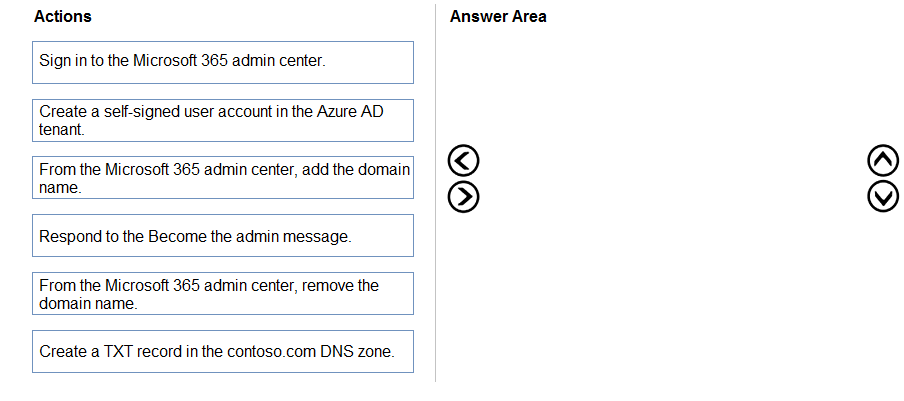
DRAG DROP - You have an on-premises Microsoft Exchange organization that uses an SMTP address space of contoso.com. You discover that users use their email address for self-service sign-up to Microsoft 365 services. You need to gain global administrator privileges to the Azure Active Directory (Azure AD) tenant that contains the self-signed users. Which four actions should you perform in sequence? To answer, move the appropriate actions from the list of actions to the answer area and arrange them in the correct order. Select and Place:

Bagian 1:

Select the correct answer(s) in the image below.

question-image

Pass. The correct sequence to gain global admin in a self-service (unmanaged/viral) tenant is the admin takeover process: 1) Create a self-signed user account in the Azure AD tenant (a user in the unmanaged tenant using contoso.com). 2) Sign in to the Microsoft 365 admin center with that user. 3) Respond to the “Become the admin” message (this initiates takeover and prompts for domain verification). 4) Create a TXT record in the contoso.com DNS zone to prove domain ownership and complete verification. Why other listed actions are wrong/not needed: “Add the domain name” in the admin center is typically part of managed tenant setup, but in takeover the domain is already present in the tenant; the critical step is verifying ownership via the TXT record prompted by the takeover flow. “Remove the domain name” is unrelated and would not grant admin rights; it could also disrupt users/services.

2
Soal 2

You have an Azure Active Directory (Azure AD) tenant named contoso.com. All users who run applications registered in Azure AD are subject to conditional access policies. You need to prevent the users from using legacy authentication. What should you include in the conditional access policies to filter out legacy authentication attempts?

Cloud apps or actions determines which resource(s) the policy applies to (e.g., Exchange Online, SharePoint, Azure management). While you can target Exchange Online to reduce exposure, this condition does not identify whether the sign-in used legacy/basic authentication. You still need Client apps to distinguish legacy protocols from modern authentication flows.

User risk is an Entra ID Identity Protection signal indicating the likelihood that a user account is compromised (based on detections like leaked credentials). It is useful for requiring password change or blocking high-risk users, but it does not classify authentication methods or protocols, so it can’t specifically filter legacy authentication attempts.

Client apps is the correct condition to filter legacy authentication attempts. By selecting “Other clients” (and optionally “Exchange ActiveSync clients”), you target sign-ins using legacy/basic authentication protocols that don’t support modern auth. You can then block access, effectively preventing users from using legacy authentication across the targeted apps.

Sign-in risk is an Identity Protection signal about the risk level of a particular sign-in (e.g., unfamiliar location, atypical travel, anonymous IP). It helps drive adaptive access decisions like requiring MFA or blocking risky sign-ins. However, it does not detect whether the client used legacy/basic authentication, so it’s not the right filter.

Analisis Soal

Core concept: This question tests Microsoft Entra ID (Azure AD) Conditional Access conditions used to detect and control legacy authentication. Legacy authentication refers to older client protocols that don’t support modern authentication (OAuth 2.0/OpenID Connect) and therefore can’t enforce MFA and other controls reliably (for example: IMAP, POP, SMTP AUTH, older Office clients using basic auth). Why the answer is correct: To filter out (target) legacy authentication attempts in a Conditional Access policy, you use the Client apps condition. In Conditional Access, “Client apps” lets you specify whether the sign-in is coming from: - Browser - Mobile apps and desktop clients - Exchange ActiveSync clients - Other clients (this is the key category for legacy/basic auth) By selecting “Other clients” (and often also Exchange ActiveSync if applicable) you can create a policy that applies specifically to legacy authentication attempts and then block access. This directly addresses the requirement to prevent users from using legacy authentication. Key features / configuration notes: - Create a Conditional Access policy with Users/Groups targeted appropriately. - Under Conditions > Client apps, select “Other clients” (and optionally “Exchange ActiveSync clients” depending on your environment). - Under Access controls, choose “Block access.” - This aligns with Zero Trust and the Azure Well-Architected Framework security pillar by reducing exposure to weak authentication methods. - In parallel, many organizations also disable basic auth at the workload level where possible (e.g., Exchange Online authentication policies) for defense in depth. Common misconceptions: Risk conditions (user risk/sign-in risk) are Identity Protection signals and are not designed to identify protocol type (legacy vs modern). Cloud apps/actions targets the resource (e.g., Exchange Online, SharePoint) but doesn’t distinguish the authentication protocol used. The protocol distinction is made via Client apps. Exam tips: For SC-300, remember: “legacy auth” in Conditional Access almost always maps to Conditions > Client apps > Other clients. If the question says “filter out legacy authentication attempts,” think “Client apps condition,” then block. Also be aware that legacy auth can bypass MFA, so blocking it is a common baseline control.

3
Soal 3

HOTSPOT - You have an Azure Active Directory (Azure AD) tenant named contoso.com that contains a user named User1. User1 has the devices shown in the following table.

On November 5, 2020, you create and enforce terms of use in contoso.com that has the following settings: ✑ Name: Terms1 ✑ Display name: Contoso terms of use ✑ Require users to expand the terms of use: On ✑ Require users to consent on every device: On ✑ Expire consents: On ✑ Expire starting on: December 10, 2020 ✑ Frequency: Monthly On November 15, 2020, User1 accepts Terms1 on Device3. For each of the following statements, select Yes if the statement is true. Otherwise, select No. NOTE: Each correct selection is worth one point. Hot Area:

Bagian 1:

Device1 with Platform Windows 10 is Registered in contoso.com.

Yes. Device1 is registered in contoso.com based on the device inventory table in the prompt. In Azure AD, “Registered” indicates the device has a device object in Entra ID associated to a user (common for BYOD scenarios) and can be used in Conditional Access device-based conditions. This is distinct from “Azure AD joined” (corporate-owned, joined directly to Entra ID) and “Hybrid Azure AD joined” (joined to on-prem AD and registered with Entra ID). The question’s first three sub-questions are simply validating the device state shown in the table; they are not derived from the Terms of Use settings. Therefore, the correct selection is Yes for Device1.

Bagian 2:

Device2 with Platform Windows 10 is Registered in contoso.com.

No. Device2 is not registered in contoso.com per the table. If a Windows 10 device is Azure AD joined or Hybrid Azure AD joined, it is typically not described as “Registered” in the device list; it would show as “Azure AD joined” or “Hybrid Azure AD joined.” Conversely, if it is unmanaged and only used to sign in via a browser without device registration, it would not appear as registered either. Since the table indicates Device2 is not in the “Registered” state, the correct answer is No. This matters later only if Conditional Access policies require a compliant or hybrid-joined device; however, Terms of Use itself can still be presented regardless of registration, as long as the user can authenticate and the CA policy applies.

Bagian 3:

Device3 with Platform iOS is Registered in contoso.com.

Yes. Device3 (iOS) is registered in contoso.com according to the table. iOS devices commonly become Azure AD registered when a user adds a work account to an app like Microsoft Authenticator, enrolls via Intune Company Portal, or otherwise establishes a workplace join/registration. This creates a device object in Entra ID tied to the user, enabling device identity signals for Conditional Access. The platform (iOS) does not prevent registration; it simply changes how registration occurs compared to Windows 10. Since the question explicitly states the device list and asks whether Device3 is registered, the correct selection is Yes.

Bagian 4:

On November 20, 2020, User1 can accept Terms1 on Device1.

Yes. On November 20, 2020, User1 can accept Terms1 on Device1. Because “Require users to consent on every device” is enabled, accepting Terms1 on Device3 on November 15 does not satisfy the requirement for Device1. When User1 signs in from Device1 and hits the Conditional Access policy that enforces Terms1, Azure AD will prompt for Terms1 acceptance for that device. Nothing in the settings prevents acceptance before the expiration start date. Expiration is configured to start on December 10, 2020, so on November 20 the consent process works normally and the user can accept. The “Require users to expand the terms of use” setting only affects the UX (they must expand before accepting), not whether acceptance is possible.

Bagian 5:

On December 11, 2020, User1 can accept Terms1 on Device2.

Yes. User1 can accept Terms1 on Device2 on December 11, 2020 because consent is required on every device, and the prior acceptance on Device3 does not satisfy the requirement for Device2. When User1 accesses a resource from Device2 and the Conditional Access policy applies, Azure AD can prompt for Terms1 and allow acceptance. The expiration setting does not block acceptance; it only determines when an existing consent must be renewed. The acceptance on Device3 is irrelevant for Device2 because consent is tracked separately per device.

Bagian 6:

On December 7, 2020, User1 can accept Terms1 on Device3.

No. On December 7, 2020, User1 cannot (does not need to) accept Terms1 again on Device3 because the existing consent on Device3 (accepted November 15, 2020) is still valid at that time. The expiration start date is December 10, 2020, meaning consents are not considered expired before that date. Since December 7 is prior to December 10, the consent record for Device3 remains valid and Azure AD would not prompt for re-acceptance during normal sign-in flows. Important nuance for exam context: users can only accept when prompted by a policy evaluation (there isn’t typically a self-service “re-accept now” action). Because the consent is still valid on December 7, the prompt would not appear, so the practical answer is No.

4
Soal 4

You have an Azure Active Directory (Azure AD) tenant that contains the following objects. ✑ A device named Device1 ✑ Users named User1, User2, User3, User4, and User5 Five groups named Group1, Group2, Group3, Group4, and Group5

The groups are configured as shown in the following table.

diagram

How many licenses are used if you assign the Microsoft 365 Enterprise E5 license to Group1?

Bagian 1:

Select the correct answer(s) in the image below.

question-image

Correct selection is Pass because the number of licenses used can be determined from the group configuration. When Microsoft 365 E5 is assigned to Group1, Azure AD group-based licensing assigns the license only to direct user members of Group1. Group1’s direct members are User1 and User3, plus Group2 and Group4 (which are groups). Nested group membership is not evaluated for group-based licensing, so User2 (in Group2) and User4 (in Group4) do not receive licenses via Group1. Group3 contains a device (Device1), but devices do not consume Microsoft 365 user licenses, and Group3 isn’t even nested under Group1. Group5 is unrelated. Therefore, only User1 and User3 get licensed, so 2 licenses are used. The “Fail” option would be incorrect because this is a standard, testable rule: no nested groups for group-based licensing.

5
Soal 5

HOTSPOT - You need to identify which roles to use for managing role assignments. The solution must meet the delegation requirements. What should you do? To answer, select the appropriate options in the answer area. NOTE: Each correct selection is worth one point. Hot Area:

Bagian 1:

To manage Azure AD built-in role assignments, use: ______

Correct: Privileged role administrator. This Microsoft Entra ID (Azure AD) directory role is specifically intended to manage role assignments for Entra ID roles. It allows a delegated admin to assign and remove built-in directory roles without needing full Global Administrator privileges, aligning with least privilege. Why others are wrong: - Global administrator can manage role assignments, but it is overly privileged and typically not the best delegation choice when a more scoped role exists. - Security administrator focuses on security features (e.g., security policies, alerts) and is not the standard role for managing Entra ID role assignments. - User access administrator is an Azure RBAC role for managing access to Azure resources (ARM), not for managing Entra ID directory role assignments.

Bagian 2:

To manage Azure built-in role assignments, use: ______

Correct: User access administrator. This is an Azure RBAC built-in role that can manage access to Azure resources by creating and managing role assignments at subscription/resource group/resource scope. It includes permissions to write role assignments (Microsoft.Authorization/roleAssignments/*), which is exactly what you need to delegate RBAC administration. Why others are wrong: - Global administrator and Privileged role administrator are Microsoft Entra ID directory roles; they do not automatically grant Azure RBAC permissions to manage role assignments in subscriptions. - Security administrator is also a directory role focused on security administration and does not provide the required Azure RBAC permissions to manage role assignments. In practice, you often combine Entra ID governance (directory roles) with Azure RBAC (resource roles), but you must assign the correct role in the correct plane.

Ingin berlatih semua soal di mana saja?

Unduh Cloud Pass — termasuk tes latihan, pelacakan progres & lainnya.

6
Soal 6

You have an Azure Active Directory (Azure AD) tenant named contoso.com that has Azure AD Identity Protection enabled. You need to implement a sign-in risk remediation policy without blocking user access. What should you do first?

Access reviews are part of Microsoft Entra ID Governance and are used to periodically validate whether users should retain access to groups, applications, or roles. They do not participate in real-time authentication flows and cannot remediate a risky sign-in event. Because the question is specifically about sign-in risk remediation, access reviews are unrelated to the required control. This option addresses entitlement governance, not authentication risk response.

Azure AD Password Protection helps prevent users from choosing weak or banned passwords by enforcing password quality rules. Although it is a valuable preventive security feature, it does not provide a mechanism to challenge or remediate a risky sign-in during authentication. Sign-in risk remediation requires a real-time control such as MFA, not stronger password policy alone. Therefore, this is not the first step for the stated requirement.

Configuring self-service password reset (SSPR) for all users is important when implementing user risk policies that require a secure password change after suspected credential compromise. However, the question asks about sign-in risk remediation, which is typically handled by requiring MFA during the risky authentication attempt. SSPR does not validate the legitimacy of a current sign-in in real time and therefore does not satisfy the primary remediation requirement here. This option confuses user risk remediation with sign-in risk remediation.

Implementing multi-factor authentication (MFA) for all users is the correct first step because Azure AD Identity Protection sign-in risk policies use MFA as the remediation control for risky sign-ins. When a sign-in is flagged as risky, requiring MFA allows the legitimate user to verify their identity and continue access without being blocked. This directly matches the requirement to remediate sign-in risk while still permitting access after additional verification. In contrast, password reset is associated with user risk remediation rather than sign-in risk remediation.

Analisis Soal

Core concept: This question tests the distinction between Azure AD Identity Protection sign-in risk policies and user risk policies. In Identity Protection, sign-in risk represents the likelihood that a given authentication attempt is not authorized by the legitimate user, while user risk represents the likelihood that the user's credentials are compromised. Why correct: To remediate sign-in risk without blocking access, the standard control is to require multi-factor authentication (MFA). MFA allows the user to prove their identity during the risky sign-in and continue access if they successfully complete the challenge. This satisfies the requirement to remediate risk without outright denying access. Key features: - Sign-in risk policies can require MFA for medium or high-risk sign-ins. - User risk policies typically require a secure password change, which depends on SSPR. - MFA is a real-time step-up authentication control used during sign-in. - SSPR is a self-service credential recovery and password reset capability, not the primary remediation for sign-in risk. Common misconceptions: - A frequent mistake is confusing sign-in risk with user risk. Password reset and SSPR are tied to user risk remediation, not sign-in risk remediation. - Password Protection improves password quality but does not remediate risky sign-ins. - Access reviews are governance features and unrelated to authentication risk response. Exam tips: - If the question says sign-in risk, think MFA. - If the question says user risk or compromised credentials, think secure password change and SSPR. - Pay close attention to whether the policy is evaluating the sign-in event or the user account itself.

7
Soal 7

You have an Azure subscription that contains the resources shown in the following table.

For which resources can you create an access review?

Bagian 1:

Group1 is a Group that has the Assigned membership type.

Yes. You can create an access review for a group, including a security group with Assigned membership. Group access reviews are one of the primary access review scenarios in Microsoft Entra ID Identity Governance: reviewers validate whether each user should remain a member of the group. The group’s membership type (Assigned vs Dynamic) does not prevent creating an access review. Why “No” is wrong: Access reviews are not limited to dynamic groups or privileged groups. Assigned membership groups are commonly used to grant access to apps, SharePoint sites, and Azure resources, and therefore are a standard target for periodic review. In practice, reviewing group membership is often the first governance control implemented because group membership frequently drives downstream access.

Bagian 2:

App1 is an Enterprise application in Azure Active Directory (Azure AD).

Yes. You can create an access review for an enterprise application (service principal) to review user and group assignments to that application. This is a core Identity Governance capability: ensuring that only appropriate users retain access to applications, especially high-impact SaaS apps integrated with SSO. Why “No” is wrong: Enterprise applications are explicitly supported in access reviews as “Applications” (review assigned users/groups). This is distinct from reviewing app registrations (which are developer objects). The access review targets the enterprise application’s assignments (who can sign in / has app roles), not the app registration configuration.

Bagian 3:

Contributor is an Azure subscription role.

Yes. Contributor is an Azure subscription role (an Azure RBAC built-in role). Access reviews can be created for Azure resource roles (Azure RBAC roles) to periodically validate role assignments at scopes such as subscription, resource group, or resource. This is commonly used to ensure powerful roles like Contributor remain tightly controlled. Why “No” is wrong: While Azure RBAC is not the same as Microsoft Entra directory roles, Identity Governance supports access reviews for Azure resource roles (often integrated with PIM). The exam expects you to recognize that Azure RBAC assignments are reviewable, not just group/app access.

Bagian 4:

Role1 is an Azure Active Directory (Azure AD) role.

Yes. Role1 as an Azure Active Directory (Microsoft Entra ID) role (directory role) can have its assignments reviewed using access reviews. This is especially important for privileged roles (e.g., Global Administrator, User Administrator), but access reviews can apply to role assignments generally depending on configuration and licensing. Why “No” is wrong: Access reviews are a key control for governing directory role assignments, often used alongside Privileged Identity Management (PIM) to ensure that only the right administrators retain role assignments over time. This supports least privilege and reduces standing administrative access.

8
Soal 8

HOTSPOT - Your network contains an on-premises Active Directory domain named contoso.com. The domain contains the objects shown in the following table.

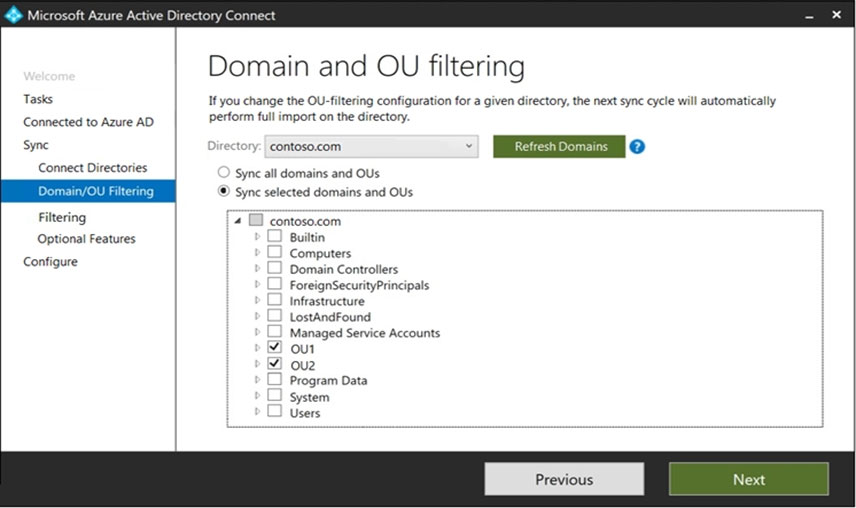
You install Azure AD Connect. You configure the Domain and OU filtering settings as shown in the Domain and OU Filtering exhibit. (Click the Domain and OU Filtering tab.)

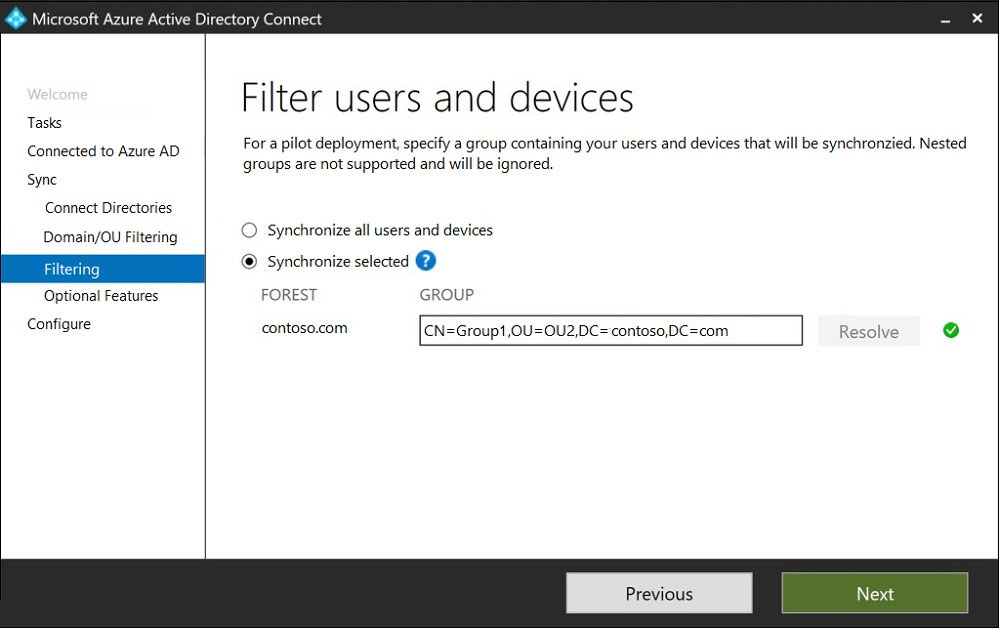
You configure the Filter users and devices settings as shown in the Filter Users and Devices exhibit. (Click the Filter Users and Devices tab.)
diagram

For each of the following statements, select Yes if the statement is true. Otherwise, select No. NOTE: Each correct selection is worth one point. Hot Area:

Bagian 1:

User1 is a member of Group1.

The exhibits shown do not provide the object table that would prove User1 is a member of Group1. Because the statement asks whether that membership is true, and the visible configuration screens only show that Group1 is the selected filtering group, the statement cannot be validated from the provided evidence. Therefore the current 'Yes' is unsupported. The filtering configuration affects synchronization scope, but it does not by itself establish group membership facts for User1.

Bagian 2:

User2 is not a member of any groups.

The visible exhibits do not show the object table or User2's memberships. The Azure AD Connect filtering screens only show that OU1 and OU2 are selected and that Group1 is used for group-based filtering; they do not prove that User2 belongs to no groups. Because the statement is about an AD fact rather than sync behavior, answering 'Yes' requires evidence that is not present in the provided material. Therefore the current answer is not justified by the exhibits.

Bagian 3:

User1 and Group2 are members of Group1.

The provided screenshots do not include the object table that would show Group1 membership. While the filter is configured to use Group1, that does not establish which objects are members of Group1. Since the statement combines two membership claims, both would need to be explicitly shown to answer 'Yes'. Without that evidence, the current answer is unsupported.

Bagian 4:

Group2 is a member of Group1.

The filtering exhibit identifies Group1 as the selected synchronization group, but it does not list Group1's members. Therefore, there is no direct evidence in the provided material that Group2 is a member of Group1. The note about nested groups being ignored explains behavior if such nesting exists, but it does not prove that it exists in this scenario. As a result, 'Yes' is not supported by the visible exhibits.

Bagian 5:

Select the correct answer(s) in the image below.

question-image

The screenshots show the Azure AD Connect configuration needed to evaluate synchronization scope: only OU1 and OU2 are selected, and Group1 is the selected group for group-based filtering. They also show the important rule that nested groups are not supported for expanding membership. However, determining the truth of membership statements about User1, User2, and Group2 still requires the object table referenced in the scenario. The images are sufficient to understand the filtering logic, but not to infer unseen membership facts by themselves.

Bagian 6:

User1 syncs to Azure AD.

User1 syncs to Azure AD only if two conditions are both true: User1 must be located in a selected OU, and User1 must be a direct member of Group1. The screenshots confirm the filtering rules but do not show User1's OU location or actual group membership. Therefore, the explanation should not state those facts as proven by the exhibits alone. OU filtering defines the candidate scope, and group-based filtering then limits synchronization to direct members of Group1.

Bagian 7:

User2 syncs to Azure AD.

User2 would not sync to Azure AD if User2 is not a direct member of Group1, even if User2 is in OU1 or OU2. The screenshots establish that group-based filtering is enabled for Group1 and that nested groups are ignored for membership expansion. However, they do not independently prove User2's group memberships. The correct reasoning is that synchronization depends on direct membership in Group1 plus OU scope, not merely OU placement.

Bagian 8:

Group2 syncs to Azure AD.

Group2 syncs only if the Group2 object itself is within a selected OU and is a direct member of Group1. The note that nested groups are ignored means Azure AD Connect does not expand membership through Group2 to include objects inside it; it does not by itself prove whether Group2 is a member of Group1. The screenshots show the filtering configuration, but not Group2's actual membership or OU location. Therefore, the explanation should describe the rule rather than assert unseen facts.

9
Soal 9

Note: This question is part of a series of questions that present the same scenario. Each question in the series contains a unique solution that might meet the stated goals. Some question sets might have more than one correct solution, while others might not have a correct solution. After you answer a question in this section, you will NOT be able to return to it. As a result, these questions will not appear in the review screen. You have a Microsoft 365 tenant. All users must use the Microsoft Authenticator app for multi-factor authentication (MFA) when accessing Microsoft 365 services. Some users report that they received an MFA prompt on their Microsoft Authenticator app without initiating a sign-in request. You need to block the users automatically when they report an MFA request that they did not initiate. Solution: From the Azure portal, you configure the Block/unblock users settings for multi-factor authentication (MFA). Does this meet the goal?

Yes is correct because Azure MFA includes a fraud alert capability that allows users to report an MFA request they did not initiate. When this feature is configured, the user can be automatically blocked from completing MFA after reporting the suspicious prompt. The Block/unblock users settings in the Azure portal are the administrative controls used to manage those blocked accounts. This directly aligns with the requirement to block users automatically when they report an unsolicited MFA request.

No is incorrect because the described solution is tied to the Azure MFA fraud alert workflow rather than being only a manual block list. Although administrators can manually block or unblock users there, the same feature set supports automatic blocking when a user reports fraud during MFA. Therefore, saying the solution does not meet the goal ignores the intended fraud-reporting behavior of Azure MFA. On the exam, this scenario maps to MFA fraud alert rather than Conditional Access or Identity Protection policies.

Analisis Soal

Core concept: This question tests knowledge of Azure MFA fraud alert and how administrators manage users who report fraudulent authentication prompts. In Microsoft Entra ID, users who receive an MFA request they did not initiate can report it as fraud, and the system can automatically block them from using MFA until an administrator intervenes. Why correct: Yes, this meets the goal because the MFA service settings in the Azure portal support fraud alert behavior that automatically blocks users when they report an MFA request as fraudulent. The Block/unblock users settings are used to manage those blocked users after the fraud report occurs. This is the built-in mechanism intended for exactly this scenario. Key features: Azure MFA fraud alert lets users indicate that an MFA prompt was not initiated by them. Once reported, the user can be automatically blocked for MFA, and administrators can later review and unblock the account if appropriate. This helps respond quickly to suspicious MFA activity such as MFA fatigue or unsolicited push notifications. Common misconceptions: Some candidates assume Block/unblock users is only a manual admin action and therefore cannot satisfy an automatic-blocking requirement. However, the blocked state can be triggered automatically by fraud reporting, while the admin interface is used to manage the result. Another common confusion is mixing this feature up with sign-in risk policies or Conditional Access, which are separate identity protection controls. Exam tips: For SC-300, when a question mentions users reporting unexpected MFA prompts, think of Azure MFA fraud alert. If the requirement is to automatically block users after they report fraud, the MFA service settings in Azure are the relevant place to configure and manage that behavior.

10
Soal 10

Note: This question is part of a series of questions that present the same scenario. Each question in the series contains a unique solution that might meet the stated goals. Some question sets might have more than one correct solution, while others might not have a correct solution. After you answer a question in this section, you will NOT be able to return to it. As a result, these questions will not appear in the review screen. You use Azure Monitor to analyze Azure Active Directory (Azure AD) activity logs. You receive more than 100 email alerts each day for failed Azure AD user sign-in attempts. You need to ensure that a new security administrator receives the alerts instead of you. Solution: From Azure AD, you create an assignment for the Insights administrator role. Does this meet the goal?

Yes is incorrect because Azure AD role assignments do not control Azure Monitor alert delivery. Even if the new administrator has the Insights administrator role, Azure Monitor will continue sending emails to the addresses defined in the existing alert action group until that configuration is updated. To meet the goal, you would modify the action group or alert rule notification settings to include the new security administrator instead of the current recipient.

No. Creating an assignment for the Insights administrator role in Azure AD does not change the recipients of Azure Monitor email alerts. Azure Monitor sends notifications based on the action group attached to the alert rule, and those recipients must be explicitly configured there. Role assignment only grants permissions to view or manage monitoring data and settings; it does not subscribe the assignee to alert emails.

Analisis Soal

Core concept: Azure Monitor alert emails are sent to recipients configured in alert action groups, not based on Azure AD directory role assignments. Why correct: Assigning the Insights administrator role in Azure AD does not redirect or subscribe that user to existing Azure Monitor alert notifications. Key features: Azure Monitor uses alert rules and action groups to define who gets emails, SMS, webhooks, or other notifications; Azure AD roles control permissions, not alert delivery. Common misconceptions: It is easy to confuse administrative roles with notification subscriptions, but roles such as Insights administrator or Security administrator do not automatically make someone an alert recipient. Exam tips: For SC-300, when a question asks who receives Azure Monitor alerts, think action groups and alert configuration rather than Azure AD role assignment.

Tes Latihan Lainnya

Practice Test #1

50 Soal·100 mnt·Lulus 700/1000

Practice Test #3

50 Soal·100 mnt·Lulus 700/1000
← Lihat Semua Soal Microsoft SC-300

Mulai Latihan Sekarang

Unduh Cloud Pass dan mulai berlatih semua soal Microsoft SC-300.

Get it on Google PlayDownload on the App Store
Cloud PassCloud Pass

Aplikasi Latihan Sertifikasi IT

Get it on Google PlayDownload on the App Store

Sertifikasi

AWSGCPMicrosoftCiscoCompTIADatabricks

Hukum

FAQKebijakan PrivasiSyarat dan Ketentuan

Perusahaan

KontakHapus Akun

© Hak Cipta 2026 Cloud Pass, Semua hak dilindungi.

Ingin berlatih semua soal di mana saja?

Dapatkan aplikasi

Unduh Cloud Pass — termasuk tes latihan, pelacakan progres & lainnya.