
CloudPass LogoCloud Pass
AWSGoogle CloudMicrosoftCiscoCompTIADatabricks
Certifications
AWSGoogle CloudMicrosoftCiscoCompTIADatabricks
PL-300: Microsoft Power BI Data Analyst

Practice Test #5

Simulate the real exam experience with 50 questions and a 100-minute time limit. Practice with AI-verified answers and detailed explanations.

50Questions100Minutes700/1000Passing Score
Browse Practice Questions

AI-Powered

Triple AI-Verified Answers & Explanations

Every answer is cross-verified by 3 leading AI models to ensure maximum accuracy. Get detailed per-option explanations and in-depth question analysis.

GPT Pro
Claude Opus
Gemini Pro
Per-option explanations
In-depth question analysis
3-model consensus accuracy

Practice Questions

1
Question 1

You have a Microsoft Power BI report. The size of PBIX file is 550 MB. The report is accessed by using an App workspace in shared capacity of powerbi.com. The report uses an imported dataset that contains one fact table. The fact table contains 12 million rows. The dataset is scheduled to refresh twice a day at 08:00 and 17:00. The report is a single page that contains 15 AppSource visuals and 10 default visuals. Users say that the report is slow to load the visuals when they access and interact with the report. You need to recommend a solution to improve the performance of the report. What should you recommend?

Incorrect. Iterator functions (for example, SUMX, AVERAGEX) often increase CPU cost because they evaluate row-by-row over a table expression. While there are cases where iterators are necessary, recommending “change measures to use iterator functions” is not a general performance optimization and commonly makes measures slower compared to using native aggregations (SUM, COUNT, etc.) with proper model design.

Incorrect. Enabling visual interactions (cross-filtering/highlighting) typically increases the number of queries and re-render operations when users click or select data points. That can make a report feel slower, not faster—especially on a page already containing 25 visuals. If anything, limiting interactions can improve performance, but that is the opposite of this option.

Incorrect. AppSource visuals are custom visuals and can introduce additional rendering overhead and sometimes less-optimized query patterns compared to built-in visuals. Replacing default visuals with AppSource visuals would likely degrade performance further. A common best practice is to prefer built-in visuals where possible and use custom visuals sparingly.

This is the best recommendation because the report has 25 visuals on a single page, including 15 AppSource custom visuals, all of which must load, query, and render together. Splitting the visuals across multiple pages reduces the number of visuals rendered at one time, which lowers query concurrency, browser rendering overhead, and cross-filtering workload. This is especially important in shared capacity, where CPU and memory resources are limited and heavily shared. Reducing visuals per page is a standard Power BI performance optimization for slow-loading and slow-interacting reports.

Question Analysis

Core concept: This question is about report rendering and interaction performance in Power BI, especially when a single report page contains many visuals. In Import mode, each visual can trigger its own query and rendering workload, and custom AppSource visuals often add extra client-side overhead. Why correct: Splitting 25 visuals across multiple pages reduces the number of visuals that must load, query, and render simultaneously, which improves initial page load and interaction responsiveness. Key features: Fewer visuals per page means fewer concurrent queries, less cross-filtering activity, and less browser rendering work; this is especially important in shared capacity where compute resources are limited. Common misconceptions: Using more AppSource visuals does not improve performance, and iterator functions usually increase calculation cost rather than reduce it. Exam tips: For PL-300, when a report page has many visuals and users complain about slow loading and interaction, first consider reducing the number of visuals on a page, limiting interactions, and preferring built-in visuals over custom ones.

2
Question 2

HOTSPOT - You have a Power BI report. You have the following tables. Name Description Balances The table contains daily records of closing balances for every active bank account. The closing balances appear for every day the account is live, including the last day. Date The table contains a record per day for the calendar years of 2000 to 2025. There is a hierarchy for financial year, quarter, month, and day. You have the following DAX measure. Accounts := CALCULATE ( DISTINCTCOUNT (Balances[AccountID]), LASTDATE ('Date'[Date]) For each of the following statements, select Yes if the statement is true. Otherwise, select No. NOTE: Each correct selection is worth one point. Hot Area:

Part 1:

A table visual that displays the date hierarchy at the year level and the [Accounts] measure will show the total number of accounts that were live throughout the year.

At the year level, the filter context includes all dates in that year. LASTDATE('Date'[Date]) returns only the final date of that year (e.g., 31-Dec for calendar year, or the last day of the financial year if the hierarchy uses financial year boundaries). CALCULATE then evaluates DISTINCTCOUNT(Balances[AccountID]) only for that single last date. So the visual will show the number of accounts that were live on the last day of the year, not the number of accounts that were live throughout the year. “Live throughout the year” would require accounts to have Balances rows for every day in the year (or to meet a start/end date condition spanning the whole year), which this measure does not test. Therefore, the statement is false.

Part 2:

A table visual that displays the date hierarchy at the month level and the [Accounts] measure will show the total number of accounts that were live throughout the month.

At the month level, the filter context includes all days in the selected month. LASTDATE returns the last day of that month in the current context. The measure then counts distinct accounts present in Balances on that last day only. That result is not “the total number of accounts that were live throughout the month.” It is “accounts live on the last day of the month.” Accounts that were active earlier in the month but closed before month-end will be excluded, and accounts opened mid-month but still active at month-end will be included (even though they were not live for the full month). To compute “throughout the month,” you’d need logic ensuring the account appears on every day of the month (or spans the full month). Hence, No.

Part 3:

A table visual that displays the date hierarchy at the day level and the [Accounts] measure will show the total number of accounts that were live that day.

At the day level, the filter context is already a single date (each row in the table visual corresponds to one day). In that context, LASTDATE('Date'[Date]) returns that same date. Therefore, CALCULATE applies a filter that effectively keeps the same single day. Because Balances contains a daily record for every account that is live on that day, DISTINCTCOUNT(Balances[AccountID]) for that date returns the number of accounts live that day. This matches the statement exactly. Therefore, Yes.

3
Question 3
(Select 2)

You have a Microsoft Excel file in a Microsoft OneDrive folder. The file must be imported to a Power BI dataset. You need to ensure that the dataset can be refreshed in powerbi.com. Which two connectors can you use to connect to the file? Each correct answer presents a complete solution. NOTE: Each correct selection is worth one point.

Excel Workbook is a valid connector for an Excel file stored in OneDrive or SharePoint Online when you connect using the cloud location rather than a local disk path. Power BI can access the workbook contents directly and refresh the dataset in the Power BI service because the source is hosted in Microsoft 365, not on-premises. This connector is specifically designed to read Excel workbook structures such as sheets, tables, and named ranges. For exam purposes, it is a supported and expected choice for Excel files stored in OneDrive.

Text/CSV is intended for delimited text files rather than native Excel workbook files such as .xlsx. The scenario explicitly states that the source is a Microsoft Excel file, so this connector does not match the file type. Using it would require converting the source to another format, which changes the scenario rather than solving it as given. Therefore, it is not a complete solution.

Folder is used for file system folders, typically local drives or network shares, rather than SharePoint Online or OneDrive cloud document libraries. While OneDrive may sync files locally, that approach would generally depend on a local path and often require gateway considerations for service refresh. The question asks for connectors that can be used directly against the OneDrive-hosted file for refresh in powerbi.com. As a result, Folder is not the correct cloud-based connector here.

SharePoint folder is a supported connector for files stored in SharePoint Online and OneDrive for Business, since OneDrive for Business is built on SharePoint Online. It allows Power BI to connect to the document library, locate the target Excel file, and refresh it in the Power BI service using organizational authentication. This is a common best-practice connector when working with files in Microsoft 365 storage. It is especially useful when you may need to filter among multiple files in a library or folder.

Web can retrieve content from a URL, but it is not the standard expected connector for this OneDrive Excel refresh scenario in PL-300. In practice, web links to OneDrive or SharePoint files can be unstable, indirect, or require special handling, and they are not the canonical answer when dedicated connectors exist. Microsoft exam questions typically expect use of Excel Workbook for the Excel file itself or SharePoint folder for the SharePoint/OneDrive location. Therefore, Web is not considered a complete supported solution for this question.

Question Analysis

Core concept: This question is about choosing Power BI connectors that support importing an Excel file stored in OneDrive and allowing refresh in the Power BI service. OneDrive for Business files are stored in SharePoint Online, and Power BI can refresh cloud-hosted files when using supported cloud-aware connectors. The correct answers are Excel Workbook and SharePoint folder because both can connect to Excel content stored in OneDrive/SharePoint Online in a way the service can refresh. A common misconception is assuming Excel Workbook only means a local file; in Power BI, it can also be used against files hosted in OneDrive or SharePoint URLs. Exam tip: when the source is OneDrive or SharePoint Online, favor connectors that explicitly support those Microsoft 365 locations and service refresh without an on-premises gateway.

4
Question 4

HOTSPOT - You have a Power BI imported dataset that contains the data model shown in the following exhibit.
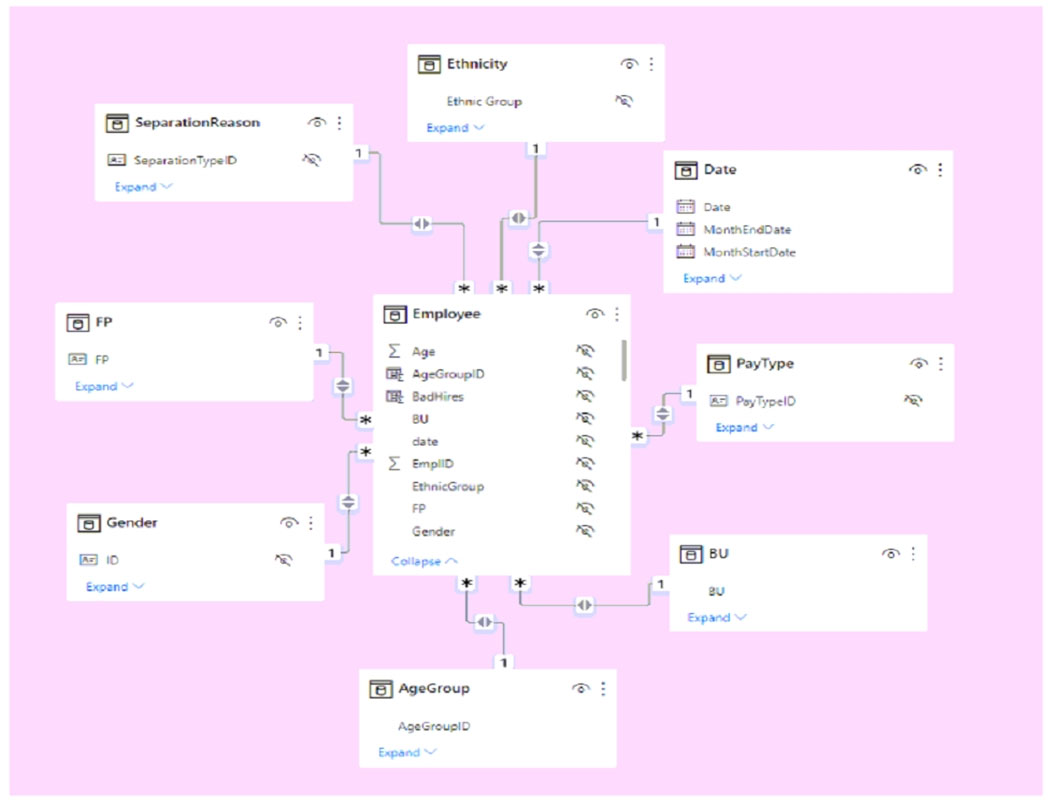
diagram

Use the drop-down menus to select the answer choice that completes each statement based on the information presented in the graphic. NOTE: Each correct selection is worth one point. Hot Area:

Part 1:

Changing the ______ setting of the relationships will improve report query performance.

Correct answer: B (Cross filter direction). In an imported Power BI model, setting relationships to single direction (from the 1-side dimension tables to the *-side fact/transaction table) typically improves query performance and reduces ambiguity. Bidirectional (Both) cross-filtering can cause more complex filter propagation, larger intermediate result sets, and can introduce ambiguous paths that force the engine to do extra work or require additional logic in DAX. In the exhibit, several relationships appear to use bidirectional filtering (the icon in the relationship line), which is a common cause of slower visuals. Why not A (Cardinality): Cardinality should reflect the true data relationship (1:* vs *:*). Changing it incorrectly can break correctness; it’s not a general performance “tuning knob.” Why not C (Assume Referential Integrity): This setting is primarily relevant for DirectQuery (enables INNER JOIN optimizations). The dataset is explicitly imported, so it won’t provide the same performance benefit here.

Part 2:

The data model is organized into a ______.

Correct answer: A (star schema). A star schema consists of a central fact table connected directly to multiple dimension tables, with 1:* relationships from each dimension to the fact. In the diagram, Employee is the central table and it connects directly to Date, BU, PayType, Gender, AgeGroup, Ethnicity, SeparationReason, and FP. Those surrounding tables look like classic dimensions (descriptive attributes used for slicing/filtering), while Employee contains the keys and measures/attributes used for analysis. Why not B (snowflake schema): A snowflake schema would show normalized dimensions where a dimension links to other dimensions (for example, a Geography dimension linking to Country/Region tables). The exhibit does not show dimension-to-dimension chains; most tables connect directly to Employee. Why not C (denormalized table): A denormalized model would typically have fewer tables (often one wide table) with repeated descriptive columns rather than separate lookup/dimension tables.

5
Question 5

HOTSPOT - You plan to create Power BI dataset to analyze attendance at a school. Data will come from two separate views named View1 and View2 in an Azure SQL database. View1 contains the columns shown in the following table. Name Data type Attendance Date Date Student ID Bigint Period Number Tinyint Class ID Int View2 contains the columns shown in the following table.

The views can be related based on the Class ID column. Class ID is the unique identifier for the specified class, period, teacher, and school year. For example, the same class can be taught by the same teacher during two different periods, but the class will have a different class ID. You need to design a star schema data model by using the data in both views. The solution must facilitate the following analysis: ✑ The count of classes that occur by period ✑ The count of students in attendance by period by day ✑ The average number of students attending a class each month In which table should you include the Teacher First Name and Period Number fields? To answer, select the appropriate options in the answer area. NOTE: Each correct selection is worth one point. Hot Area:

Part 1:

Class ID is of data type Bigint.

No. In the scenario description, View1 explicitly lists Class ID as data type Int (not Bigint). The question statement for this sub-item says “Class ID is of data type Bigint,” which contradicts the provided table for View1. Why this matters for modeling: in Power BI, relationship columns should have matching data types between tables. If Class ID were Bigint in one view and Int in another, you’d need to cast/convert in Power Query or in the SQL view to avoid relationship issues and potential performance problems. But based on the given metadata, Class ID is Int, so the statement is false.

Part 2:

Class Name is of data type Varchar(200).

No. The scenario does not provide the data type for Class Name, so you cannot conclude that it is VARCHAR(200). The only data types explicitly shown are for the columns listed from View1, and View2's detailed schema is not provided here. Therefore, the statement should be marked No because it is not supported by the given information.

Part 3:

Class Subject is of data type Varchar(100).

No. The scenario does not specify the data type of Class Subject. Although VARCHAR(100) may be plausible in a real system, PL-300 questions must be answered from the information provided, and that information is absent here. Because the schema details for View2 are not shown, the statement cannot be validated and should be answered No.

Part 4:

Teacher ID is of data type Int.

No. The scenario does not explicitly show Teacher ID or its data type. While Int is a common choice for identifier columns, the exam item must be answered based on stated metadata rather than assumptions. Since View2's schema is not fully visible, the statement is unsupported and should be marked No.

Part 5:

Teacher First Name is of data type Varchar(100).

No. The scenario does not provide the data type for Teacher First Name. Even though VARCHAR(100) would be reasonable for a name column, the question does not include that metadata. Because the type is not explicitly given, the correct response is No.

Part 6:

Teacher Last Name is of data type Varchar(100).

No. The data type for Teacher Last Name is not shown in the scenario. A text type such as VARCHAR would be typical, but the exact length cannot be inferred from the provided information. Since the statement is not supported by the visible schema, it should be answered No.

Part 7:

Period Number is of data type Tinyint.

Yes. Period Number is explicitly shown in View1 as Tinyint. Period numbers are small integers (e.g., 1–12), so Tinyint is an appropriate SQL type. For modeling, Period Number is a common grouping attribute for visuals like “count of classes by period” and “attendance by period by day.” Even though it appears in the attendance view, in a star schema you generally want period-related descriptors to be in a dimension (Class or Period) to support consistent slicing and potentially add attributes like start/end time.

Part 8:

School Year is of data type Varchar(50).

No. The scenario does not specify the data type for School Year. Although school year is often stored as text, it could also be represented in other ways, and the exact type is not given here. Because the metadata is missing, the statement should be marked No.

Part 9:

Period Start Time is of data type Time.

No. The scenario does not show the data type for Period Start Time. Time would be a sensible design choice, but the question provides no explicit schema details for that column. Since the type cannot be verified from the prompt, the correct answer is No.

Part 10:

Period End Time is of data type Time.

No. The scenario does not provide the data type for Period End Time. Although a SQL Time type would be appropriate in practice, the exam item must be answered from the stated metadata only. Because that metadata is not shown, the statement should be answered No.

Part 11:

Teacher First Name: ______

Teacher First Name should be in the Teacher dimension. It is a descriptive attribute (non-additive) that describes the teacher entity, not an event. Storing it in a fact table would repeat the same text for every attendance record and harm model size, compression, and performance. Why not the other options: - Attendance fact: would denormalize descriptive text into the fact and violate star schema best practice. - Class dimension: while a class is associated with a teacher, teacher name is not an attribute of the class entity itself; it’s an attribute of the teacher entity. Keeping a separate Teacher dimension supports reuse (a teacher teaches many classes) and cleaner relationships. - Teacher fact: “Teacher fact” is not a typical concept here; facts represent measurable events, not master data like names.

Part 12:

Period Number: ______

Period Number should be in the Class dimension (given the available choices). The prompt states that Class ID uniquely identifies the specified class, period, teacher, and school year. That means Period Number is functionally determined by Class ID and is a descriptive attribute of that class offering/schedule. Putting Period Number in the Class dimension supports “count of classes by period” by counting Class IDs grouped by Period Number. Why not the other options: - Attendance fact: although Period Number exists in View1, keeping it only in the fact can lead to duplicated attributes and makes it harder to attach additional period descriptors (start/end time) without repeating them. - Teacher dimension: period is not a teacher attribute. - Teacher fact: not applicable; period is not a measure/event about teachers.

Want to practice all questions on the go?

Download Cloud Pass — includes practice tests, progress tracking & more.

6
Question 6

You import two Microsoft Excel tables named Customer and Address into Power Query. Customer contains the following columns: ✑ Customer ID ✑ Customer Name ✑ Phone ✑ Email Address ✑ Address ID Address contains the following columns: ✑ Address ID ✑ Address Line 1 ✑ Address Line 2 ✑ City ✑ State/Region ✑ Country ✑ Postal Code Each Customer ID represents a unique customer in the Customer table. Each Address ID represents a unique address in the Address table. You need to create a query that has one row per customer. Each row must contain City, State/Region, and Country for each customer. What should you do?

Correct. Merge (join) Customer to Address on Address ID, using a Left Outer join to keep all customers. Then expand the merged Address column and select City, State/Region, and Country. This enriches each customer row with the related address attributes while maintaining one row per Customer ID, which matches the requirement.

Incorrect. Group By on Address ID would aggregate rows and change the granularity, potentially producing one row per address rather than one row per customer. Even if you grouped Customer by Address ID, you would still need to re-expand or aggregate customer fields, which is unnecessary and risks losing the one-row-per-customer requirement.

Incorrect. Transpose is used to rotate data (rows become columns and vice versa). It does not relate two tables via a key, and it would destroy the tabular structure needed for a customer-level dataset. It would also complicate subsequent modeling and is not appropriate for adding address attributes to customers.

Incorrect. Append combines tables by stacking rows, requiring the same (or compatible) column structure. Customer and Address have different schemas and represent different entities. Appending would create a single table with many nulls and mixed entity rows, not a customer table enriched with City/State/Country columns.

Question Analysis

Core concept: This question tests Power Query data shaping, specifically combining tables using a key column to enrich a fact-like table (Customer) with attributes from a related dimension-like table (Address). In Power Query, this is done with Merge Queries (a join), not append or reshape operations. Why the answer is correct: You need one row per customer, and each customer row must include City, State/Region, and Country. The Customer table already has one row per Customer ID and includes Address ID as a foreign key. The Address table has one row per Address ID and contains the location attributes. Therefore, the correct transformation is to merge Customer with Address on Address ID (typically a Left Outer join from Customer to Address). After the merge, you expand the nested Address table column and select City, State/Region, and Country. This preserves the Customer grain (one row per customer) while adding the required columns. Key features / configurations: - Use Power Query: Home > Merge Queries. - Join keys: Customer[Address ID] to Address[Address ID]. - Join kind: Left Outer (all customers, matching address when available). This is a best practice for retaining the primary table’s row count. - Expand merged column: select only City, State/Region, Country to avoid unnecessary columns and reduce model size. Common misconceptions: - Confusing Merge vs Append: Append stacks rows; it does not add columns from a related table. - Using Group By: Grouping is for aggregation and would either collapse customers incorrectly or require complex logic that is unnecessary given the 1-to-many/1-to-1 relationship via Address ID. - Transpose: Transpose swaps rows/columns and is unrelated to relational enrichment. Exam tips: When the requirement is “add columns from another table based on a matching key,” think Merge (join). When the requirement is “combine same-structure tables into more rows,” think Append. Also, pay attention to grain: because Customer ID is unique, start from Customer and use a Left Outer join to keep one row per customer.

7
Question 7

Note: This question is part of a series of questions that present the same scenario. Each question in the series contains a unique solution that might meet the stated goals. Some question sets might have more than one correct solution, while others might not have a correct solution. After you answer a question in this section, you will NOT be able to return to it. As a result, these questions will not appear in the review screen. You have five reports and two dashboards in a workspace. You need to grant all organizational users read access to one dashboard and three reports. Solution: You create an Azure Active Directory group that contains all the users. You share each selected report and the one dashboard to the group. Does this meet the goal?

Yes is correct because creating an Azure Active Directory group that contains all organizational users and then sharing the selected dashboard and reports to that group grants those users read access to exactly those items. Power BI supports sharing dashboards and reports with security groups, mail-enabled groups, and distribution lists, not just individual users. This approach also avoids granting workspace-level access, which would expose all reports and dashboards in the workspace. Because the requirement is to provide read access to one dashboard and three reports, direct sharing to the group satisfies the goal.

No is incorrect because the proposed solution is a supported and appropriate way to grant access to specific Power BI content. Sharing individual reports and dashboards to an Azure Active Directory group is a standard method for providing read access to many users at once. The scenario does not require app distribution specifically, nor does it require workspace membership, so there is no reason to reject the solution. Therefore, the solution does meet the stated goal.

Question Analysis

Core concept: This question tests Power BI content sharing methods for granting read access to specific dashboards and reports without granting broader workspace permissions. In Power BI, you can share individual dashboards and reports directly with users or Azure Active Directory security groups, which is appropriate when only selected items should be accessible. Key features include sharing to groups, read-only access to shared content, and the ability to target only certain reports and dashboards rather than the entire workspace. A common misconception is that you must use workspace roles or publish an app for every distribution scenario; however, direct sharing is valid for selected content. Exam tip: if the requirement is to give access to only some reports and dashboards, direct sharing to a security group is often the simplest valid solution, whereas workspace access would expose all workspace content.

8
Question 8

You need to create relationships to meet the reporting requirements of the customer service department. What should you create?

This creates Date -> Sales and Date -> Weekly_Returns, but it doesn’t address the common requirement of analyzing Sales by both order date and ship date. It also appears to relate Date[date_id] to Weekly_Returns[week_id], which is likely a mismatched grain/key (date vs. week). Even if Weekly_Returns needs a date relationship, it doesn’t solve the dual-date relationship problem in Sales.

This reverses the relationship direction (fact-to-dimension), which is not the recommended star schema pattern and can break filtering expectations. More importantly, connecting both Sales date columns to the same Date table would result in only one active relationship; the other becomes inactive, requiring USERELATIONSHIP in measures. The question implies a modeling solution for reporting, not a DAX workaround.

This introduces many-to-many relationships between Sales and the date tables. Dates should almost always be a dimension with unique keys, producing one-to-many relationships to facts. Many-to-many adds ambiguity and can lead to incorrect totals and confusing filter propagation. Creating a second date table is reasonable, but the relationship type here is incorrect for a standard date dimension scenario.

This option applies the standard role-playing date dimension pattern for a fact table with two date roles. Power BI allows only one active relationship between a given Date table and the Sales table, so a second date table is needed to support a second active date relationship. The one-to-many direction is correct because the date tables should contain unique date keys while the Sales table contains repeated foreign keys. This design enables customer service reports to filter and aggregate data correctly by both sales date and the ship-related date column listed in the option.

Question Analysis

Core concept: This question tests Power BI dimensional modeling, specifically how to model a fact table that contains multiple date foreign keys. When a fact table must be analyzed by more than one date role, such as sales date and ship date, the recommended approach is to use role-playing date dimensions. Why correct: A single Date table cannot provide two active relationships to the same fact table in Power BI. Creating an additional date table named ShipDate allows one active one-to-many relationship from Date[date_id] to Sales[sales_date_id] and another active one-to-many relationship from ShipDate[date_id] to Sales[sales_skip_date_id], matching the option as written. This supports filtering and reporting by each date role independently. Key features: - Date dimensions should be on the one side of one-to-many relationships. - Fact tables such as Sales should be on the many side. - Separate date tables are used when multiple active date contexts are required. - This follows star schema best practices and simplifies report behavior. Common misconceptions: Many candidates try to connect both date columns in the fact table to the same Date table. In Power BI, only one of those relationships can be active at a time, so that approach does not fully satisfy standard reporting requirements unless additional DAX is used. Another common mistake is using many-to-many relationships for dates, which is usually unnecessary and can create ambiguity. Exam tips: When you see multiple date columns in a fact table, think about role-playing dimensions. If the requirement is to support reporting by each date naturally through slicers and visuals, the best answer is usually to duplicate the Date table and create separate one-to-many relationships.

9
Question 9

You have a Power BI report that contains three pages named Page1, Page2, and Page3. All the pages have the same slicers. You need to ensure that all the filters applied to Page1 apply to Page1 and Page3 only. What should you do?

Edit interactions only changes how a slicer impacts other visuals on the same report page (e.g., filter vs highlight vs none). It does not propagate slicer selections to other pages. Therefore, it cannot ensure that filters on Page1 also apply to Page3 while excluding Page2. This option addresses intra-page behavior, not cross-page synchronization.

Slicer visibility controls whether the slicer visual is shown on a page, not whether the slicer state is shared across pages. Hiding a slicer on Page2 doesn’t prevent Page2 from being affected if the slicer were synced, and showing slicers on Page1 and Page3 alone doesn’t make their selections match. Visibility is separate from synchronization.

Syncing slicers between Page1 and Page3 is the correct way to ensure slicer selections (filters) are shared only across those pages. In the Sync slicers pane, you can enable Sync for Page1 and Page3 and leave Page2 unchecked. This meets the requirement precisely: Page1’s slicer selections apply to Page1 and Page3 only.

Question Analysis

Core concept: This question tests Power BI slicer synchronization across report pages. In Power BI, slicers are page-level visuals by default, but you can use the Sync slicers pane to synchronize a slicer’s selection state across specific pages. This is a common requirement when you want consistent filtering across some pages but not all. Why the answer is correct: To ensure filters applied on Page1 also apply to Page3 (but not Page2), you should sync the slicers between Page1 and Page3 only. Using the Sync slicers feature, you select the slicer on Page1 and configure it to sync with Page3 while leaving Page2 unsynced. This ensures that when a user changes the slicer on Page1, Page3 reflects the same selection automatically, and Page2 remains independent. Key features and configuration: - Use View > Sync slicers to open the Sync slicers pane. - For each slicer, check “Sync” for Page1 and Page3, and leave Page2 unchecked. - Optionally control “Visible” separately: you can keep the slicer visible on both pages, or hide it on Page3 while still syncing (useful when you want the filter applied but don’t want to show the slicer). - This approach aligns with good report usability (Azure Well-Architected “Operational Excellence” and “Performance Efficiency” analogs): consistent user experience where needed, without unnecessary visuals or interactions on unrelated pages. Common misconceptions: Many confuse slicer sync with visual interactions. “Edit interactions” controls how a slicer affects visuals on the same page, not how it affects other pages. Also, simply hiding a slicer does not prevent filtering; it only affects visibility. Without syncing, Page3 won’t automatically inherit Page1’s slicer selections. Exam tips: If the requirement mentions “apply across specific pages,” think Sync slicers. If it mentions “affect some visuals but not others on the same page,” think Edit interactions. If it mentions “filter the entire report,” consider report-level filters, but those apply to all pages and wouldn’t meet the “Page1 and Page3 only” requirement.

10
Question 10

You are creating a Power BI report by using Power BI Desktop. You need to include a visual that shows trends and other useful information automatically. The visual must update based on selections in other visuals. Which type of visual should you use?

Q&A enables users to type natural-language questions (for example, “sales by region last year”) and Power BI returns a visual. While it can respond to filters and can be influenced by the current context, it does not automatically display trends and insights without user prompts. It’s interactive querying, not an auto-generated narrative summary.

Smart narrative automatically generates a text summary of insights such as trends, increases/decreases, and key points based on the data in the current filter context. It updates dynamically when users select data points in other visuals, use slicers, or apply filters. This directly matches the requirement for an automatically updating visual that reflects selections elsewhere on the report.

Key influencers analyzes a metric and identifies factors that most influence it (for example, what drives customer churn). It’s excellent for explaining drivers and segments, but it is not primarily a trend-summary visual and does not produce a general narrative of “trends and useful information” automatically in the way smart narrative does.

Decomposition tree is used to break down a measure across multiple dimensions and supports AI-driven splits to find contributors. It’s ideal for root-cause analysis and exploring what contributes to a value, but it does not automatically generate a narrative of trends. It’s more of an interactive drill-down exploration tool than an auto-insight summary.

Question Analysis

Core Concept: This question tests knowledge of Power BI’s AI-assisted visuals that automatically generate insights and respond to report context (filters, slicers, and cross-highlighting). In PL-300, this sits in the “Visualize and Analyze the Data” domain because it’s about choosing the right visual to communicate insights. Why the Answer is Correct: The smart narrative visual is designed to automatically generate text-based insights such as trends, key takeaways, and notable changes. Crucially, it is context-aware: it updates dynamically based on filters and selections made in other visuals on the report page. That matches both requirements: (1) “shows trends and other useful information automatically” and (2) “must update based on selections in other visuals.” Smart narrative essentially provides an auto-generated executive summary that changes as the user interacts with the report. Key Features / Best Practices: Smart narrative can summarize measures, highlight increases/decreases over time, and describe comparisons. It respects the current filter context (page/report filters, slicers, and cross-filtering from other visuals). You can also edit the narrative, insert dynamic values, and format the text to align with business storytelling. Best practice is to pair it with well-defined measures (DAX) and a clean model so the narrative produces meaningful statements. Common Misconceptions: Q&A is also “automatic,” but it requires a user to ask questions (typed natural language) rather than automatically presenting trends. Key influencers and decomposition tree are AI visuals too, but they focus on explaining drivers of a metric or drilling into contributors—not producing an automatic narrative summary of trends. Exam Tips: When you see “automatically generates insights in text” or “auto summary that changes with selections,” think smart narrative. When you see “why did this happen / what influences this metric,” think key influencers. When you see “drill down into contributors with AI splits,” think decomposition tree. When you see “ask a question in natural language,” think Q&A.

Other Practice Tests

Practice Test #1

50 Questions·100 min·Pass 700/1000

Practice Test #2

50 Questions·100 min·Pass 700/1000

Practice Test #3

50 Questions·100 min·Pass 700/1000

Practice Test #4

50 Questions·100 min·Pass 700/1000
← View All PL-300: Microsoft Power BI Data Analyst Questions

Start Practicing Now

Download Cloud Pass and start practicing all PL-300: Microsoft Power BI Data Analyst exam questions.

Get it on Google PlayDownload on the App Store
Cloud PassCloud Pass

IT Certification Practice App

Get it on Google PlayDownload on the App Store

Certifications

AWSGCPMicrosoftCiscoCompTIADatabricks

Legal

FAQPrivacy PolicyTerms of Service

Company

ContactDelete Account

© Copyright 2026 Cloud Pass, All rights reserved.

Want to practice all questions on the go?

Get the app

Download Cloud Pass — includes practice tests, progress tracking & more.