CloudPass LogoCloud Pass
AWSGoogle CloudMicrosoftCiscoCompTIADatabricks
Certifications
AWSGoogle CloudMicrosoftCiscoCompTIADatabricks
Microsoft AZ-104
Microsoft AZ-104

Practice Test #1

Simulate the real exam experience with 50 questions and a 100-minute time limit. Practice with AI-verified answers and detailed explanations.

50Questions100Minutes700/1000Passing Score
Browse Practice Questions

AI-Powered

Triple AI-Verified Answers & Explanations

Every answer is cross-verified by 3 leading AI models to ensure maximum accuracy. Get detailed per-option explanations and in-depth question analysis.

GPT Pro
Claude Opus
Gemini Pro
Per-option explanations
In-depth question analysis
3-model consensus accuracy

Practice Questions

1
Question 1

You have an on-premises server that contains a folder named D:\Folder1. You need to copy the contents of D:\Folder1 to the public container in an Azure Storage account named contosodata. Which command should you run?

This is only a URL to the container endpoint, not a command. While the URL format is correct for a container in the contosodata storage account, it does not perform any action by itself. In practice, you would use this URL as the destination parameter in a tool like AzCopy (often with a SAS token appended) or in SDK/CLI operations.

`azcopy sync` is used to synchronize a source and destination so they match, which is different from a straightforward copy requirement. Additionally, `--snapshot` is not the appropriate flag for uploading a local folder to a container; snapshots apply to blobs. For simply copying folder contents to Blob Storage, `azcopy copy ... --recursive` is the expected command.

This is the correct command. `azcopy copy` supports uploading from a local folder to an Azure Blob container. The `--recursive` flag is required to include all files and subdirectories under D:\Folder1. This aligns with common AZ-104 expectations: use AzCopy for bulk transfers from on-premises to Azure Storage and use recursive copy for directories.

`az storage blob copy start-batch` is an Azure CLI command intended for starting server-side copy operations between blobs/containers (typically source and destination are in Azure and referenced by URLs). It is not designed to upload content from a local Windows path like D:\Folder1 directly into Blob Storage. For local-to-blob uploads, AzCopy is the appropriate tool.

Question Analysis

Core concept: This question tests how to upload data from an on-premises file system to an Azure Storage account blob container using the correct tool and syntax. For AZ-104, the expected approach is to use AzCopy for high-performance data transfer to Azure Blob Storage. Why the answer is correct: To copy the contents of a local folder (D:\Folder1) into a blob container (public) in the storage account contosodata, you use the AzCopy v10 command `azcopy copy` with the destination container URL and the `--recursive` flag. `--recursive` is required to traverse the directory and upload all files and subfolders. The command in option C correctly specifies a local source path and a blob container destination URL, and it includes `--recursive`, which is the key requirement when copying a directory. Key features / best practices: AzCopy is optimized for throughput, supports parallelism, and is the recommended tool for bulk uploads to Blob Storage. In real deployments, you typically authenticate using Azure AD (`azcopy login`) or a SAS token appended to the destination URL (common in automation). From an Azure Well-Architected Framework perspective (Performance Efficiency and Reliability), AzCopy is preferred over ad-hoc methods because it is resilient, restartable, and designed for large transfers. Common misconceptions: Many candidates confuse “copy” vs “sync.” `azcopy sync` is for mirroring and can delete destination files depending on flags; it’s not the simplest or safest choice when the requirement is just “copy the contents.” Another trap is using Azure CLI blob copy commands, which generally perform server-side copies between blobs/URLs, not uploads from local disk. Exam tips: When the source is on-prem/local and the target is Blob Storage, think AzCopy. If the source is a folder, look for `--recursive`. If you see `az storage blob copy start-batch`, remember it’s typically for copying existing blobs, not uploading local files. Also note that a plain container URL alone is not a command and authentication (AAD/SAS) is assumed unless explicitly asked.

2
Question 2

You have an Azure Active Directory (Azure AD) tenant that contains 5,000 user accounts. You create a new user account named AdminUser1. You need to assign the User administrator administrative role to AdminUser1. What should you do from the user account properties?

Incorrect. Assigning a license from the Licenses blade enables access to services and may unlock features (e.g., Entra ID P1/P2 capabilities), but it does not grant Azure AD administrative permissions. Administrative privileges are controlled by directory role assignments (or PIM eligibility/activation), not by product licensing alone.

Correct. From the user account properties, the Directory role (often shown as Assigned roles) blade is where you add or modify Azure AD directory role assignments for that user. Selecting User administrator here grants AdminUser1 the built-in administrative permissions associated with managing users and groups in the tenant.

Incorrect. Inviting or adding the user to a group does not inherently assign an Azure AD administrative role. Group membership only grants admin permissions if the group is specifically configured as a role-assignable group and then assigned the User administrator role (a different workflow than described).

Question Analysis

Core concept: This question tests Azure AD (Microsoft Entra ID) role-based access control for identity administration. Administrative permissions in Azure AD are granted through directory roles (Entra built-in roles such as User administrator), not through licenses or group invitations (unless using role-assignable groups, which is a different workflow). Why the answer is correct: To assign the User administrator role to AdminUser1 from the user account properties in the Azure portal, you use the user’s Directory role (or Assigned roles) blade and add/modify the directory role assignment. This directly grants AdminUser1 the permissions associated with the User administrator role across the tenant (subject to any scoped administrative units if used). With 5,000 users, the tenant size doesn’t change the method; role assignment is still done via directory roles. Key features / best practices: - Azure AD roles provide least-privilege administrative access. User administrator can manage users and groups but is less privileged than Global administrator. - Follow Azure Well-Architected Framework security principles: least privilege, separation of duties, and just-in-time access. In production, consider using Privileged Identity Management (PIM) to make the role eligible and require activation with approval/MFA. - Role assignments can be done at the user object level (as in this question) or via role-assignable groups (if enabled) to simplify administration. Common misconceptions: - Licenses enable product features (e.g., M365, Entra ID P1/P2 capabilities) but do not grant admin permissions by themselves. - Adding a user to a group only grants permissions if that group is assigned a role (role-assignable group) or used in an access policy; simply “inviting to a group” doesn’t assign an Azure AD admin role. Exam tips: - If the question says “assign an administrative role,” think “Directory role / Assigned roles,” not licenses. - Distinguish Azure RBAC roles (for Azure resources) from Azure AD directory roles (for tenant identity administration). User administrator is a directory role. - For modern exam scenarios, remember PIM is the recommended approach, but the portal blade for direct assignment remains Directory role/Assigned roles.

3
Question 3
(Select 2)

You plan to automate the deployment of a virtual machine scale set that uses the Windows Server 2016 Datacenter image. You need to ensure that when the scale set virtual machines are provisioned, they have web server components installed. Which two actions should you perform? Each correct answer presents part of the solution. NOTE: Each correct selection is worth one point.

Correct. You need a script (commonly PowerShell for Windows) that installs the Web Server (IIS) role/features (e.g., Install-WindowsFeature Web-Server). In VMSS automation, the script must be accessible to the instances (Azure Storage with SAS URI, GitHub, etc.). Uploading/providing the script is a required part of using the Custom Script Extension or DSC to configure VMs at provisioning time.

Incorrect. An Automation Account can run PowerShell runbooks and manage configuration, but it is not the typical mechanism to guarantee that every new VMSS instance runs a configuration task at provisioning. VMSS instances scale out dynamically; relying on external runbooks introduces timing/trigger complexity. For exam scenarios, provisioning-time configuration is best handled by VM extensions defined in the VMSS model/template.

Incorrect. Azure Policy can enforce standards and can sometimes deploy extensions using DeployIfNotExists, but it’s primarily a governance/compliance tool (audit/deny/remediate) rather than the direct, expected method for installing IIS during VMSS provisioning in an ARM template. The question asks for actions to automate deployment and ensure components are installed as VMs are provisioned—extensions in the template are the canonical approach.

Correct. In an ARM template for a VM scale set, the extensionProfile defines VM extensions that are applied to each instance. Adding the Custom Script Extension (or DSC extension) here ensures that when instances are provisioned (including scale-out), the extension runs and installs the required web server components. This is the key VMSS-specific configuration point for provisioning-time customization.

Incorrect. Creating a new VM scale set in the Azure portal is a manual deployment method and does not meet the requirement to automate deployment. Even though the portal can add extensions, the question emphasizes automation via deployment artifacts (ARM template) and provisioning-time configuration. For AZ-104, portal creation is not considered an automation action.

Question Analysis

Core concept: This question tests how to customize Azure Virtual Machine Scale Set (VMSS) instances at provisioning time using Azure Resource Manager (ARM) templates and VM extensions. For Windows VMSS, the standard approach to install roles/features (like IIS web server components) during deployment is to run a script via the Custom Script Extension (or DSC), defined in the VMSS model. Why the answer is correct: To ensure every scale set VM installs web server components when provisioned, you must (1) provide the configuration logic (a script) and (2) configure the scale set to execute it automatically during provisioning. Uploading a configuration script (A) provides the artifact (for example, a PowerShell script stored in a Storage account or GitHub) that installs IIS/Windows features. Modifying the extensionProfile section of the ARM template (D) is how you attach the Custom Script Extension (Microsoft.Compute/virtualMachineScaleSets/extensions) to the VMSS so that each instance runs the script on first boot/provisioning. Key features / best practices: - Use VMSS extensions (Custom Script Extension or DSC) to enforce consistent configuration across instances. - Store scripts in a reliable location (Azure Storage with SAS, or a trusted repo) and version them. - Ensure idempotency: scripts should be safe to run multiple times (important for reimage/upgrade scenarios). - This aligns with Azure Well-Architected Framework Operational Excellence: automate deployments, use repeatable infrastructure-as-code, and reduce configuration drift. Common misconceptions: - Automation Accounts (B) are great for post-deployment configuration or scheduled runbooks, but they don’t inherently guarantee execution at VM provisioning for each VMSS instance. - Azure Policy (C) can audit/deny configurations and deploy some extensions via DeployIfNotExists, but it’s not the primary/expected exam answer for installing IIS at provisioning in a VMSS deployment automation scenario. - Creating a VMSS in the portal (E) is manual and doesn’t address automated deployment requirements. Exam tips: For AZ-104, when you see “ensure software/components are installed when VMs are provisioned,” think “VM extensions + ARM/Bicep.” Look for “extensionProfile” (VMSS) or “resources -> extensions” (VM) and a script/DSC payload source (Storage/GitHub).

4
Question 4

Note: This question is part of a series of questions that present the same scenario. Each question in the series contains a unique solution that might meet the stated goals. Some question sets might have more than one correct solution, while others might not have a correct solution. After you answer a question in this section, you will NOT be able to return to it. As a result, these questions will not appear in the review screen. You have a computer named Computer1 that has a point-to-site VPN connection to an Azure virtual network named VNet1. The point-to-site connection uses a self-signed certificate. From Azure, you download and install the VPN client configuration package on a computer named Computer2. You need to ensure that you can establish a point-to-site VPN connection to VNet1 from Computer2. Solution: You modify the Azure Active Directory (Azure AD) authentication policies. Does this meet the goal?

Yes is incorrect because Azure AD authentication policies only matter when the Azure VPN gateway is configured to use Azure AD as the authentication method. In this scenario, the connection uses a self-signed certificate, so certificate trust and certificate installation are the deciding factors. The VPN client package alone does not replace the need for a client certificate on Computer2. Without the proper certificate, Computer2 cannot authenticate to VNet1 regardless of Azure AD policy changes.

No is correct because the P2S connection is using a self-signed certificate, which means authentication depends on certificates rather than Azure AD policies. Computer2 needs a valid client certificate installed, including the private key, that chains to the trusted root certificate configured on the Azure VPN gateway. Modifying Azure AD authentication policies does not provide Computer2 with the required certificate material. Therefore, the proposed action does not enable the VPN connection from Computer2.

Question Analysis

Core concept: This question tests Azure point-to-site (P2S) VPN authentication methods and what is required to connect from another client device when certificate authentication is used. In a P2S VPN configured with a self-signed certificate, the client computer must have a client certificate installed that chains to the trusted root certificate uploaded to the Azure VPN gateway. Why correct: The proposed solution does not meet the goal because modifying Azure Active Directory authentication policies has no effect on a P2S VPN connection that is using certificate-based authentication with a self-signed certificate. To connect from Computer2, you must export the client certificate (with private key) from Computer1 or generate a new client certificate from the same trusted root and install it on Computer2. Key features: Azure P2S supports several authentication methods, including certificate authentication, Azure AD authentication, and RADIUS. For certificate authentication, Azure validates that the client certificate presented by the device chains to a trusted root certificate configured on the VPN gateway. Simply installing the VPN client package is not sufficient unless the required client certificate is also present on the device. Common misconceptions: A common mistake is assuming the VPN client configuration package contains everything needed for connectivity. In certificate-based P2S setups, the package provides connection settings, but the client certificate and private key must still exist on the client machine. Another misconception is that Azure AD policy changes can help when the gateway is not using Azure AD authentication. Exam tips: For AZ-104, always identify the P2S authentication type first. If the scenario mentions self-signed certificates or root/client certificates, think certificate distribution and certificate chain trust, not Azure AD policy. If the question mentions Azure AD authentication explicitly, then Azure AD settings may be relevant.

5
Question 5

You plan to create an Azure virtual machine named VM1 that will be configured as shown in the following exhibit.

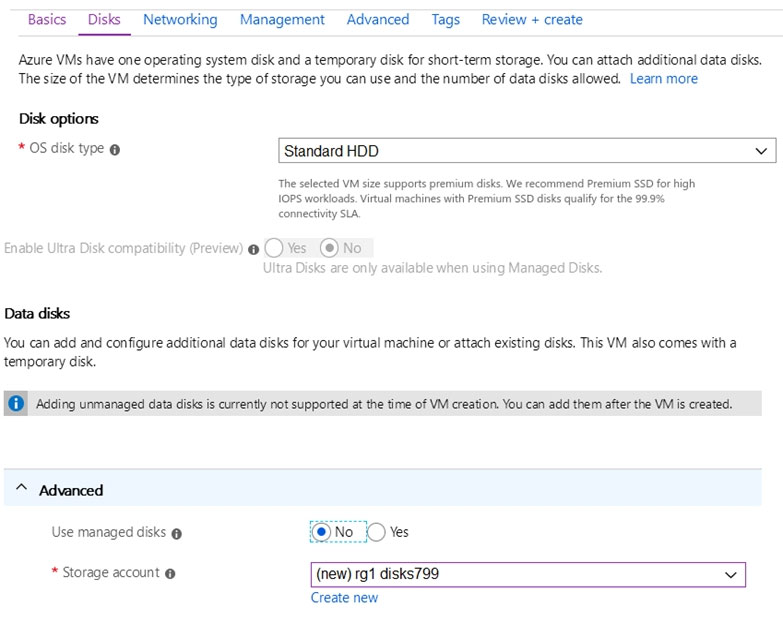
The planned disk configurations for VM1 are shown in the following exhibit.

You need to ensure that VM1 can be created in an Availability Zone. Which two settings should you modify? Each correct answer presents part of the solution. NOTE: Each correct selection is worth one point.

Part 1:

Select the correct answer(s) in the image below.

question-image

The exhibit shows the VM is configured with Use managed disks set to No and a storage account selected, which means it is using unmanaged disks. Azure VMs deployed in Availability Zones must use managed disks, so this setting must be changed. The other required change is on the Basics tab, where Availability options must be changed from No infrastructure redundancy required to Availability zone. Other settings shown on the Disks tab, such as OS disk type, do not by themselves prevent zonal deployment.

Part 2:

Select the subscription to manage deployed resources and costs. Use resource groups like folders to organize and manage all your resources. Subscription ______

The subscription selection is simply the administrative container for billing, RBAC, and policy scope. In the prompt, the subscription field is presented with a single option: “MyDev-Test Subscription.” Since there are no alternative subscription options provided, this is the correct selection. This setting does not directly affect Availability Zone capability; it affects where the resources are created and which quotas, policies, and permissions apply. In real deployments, you would also ensure the subscription has sufficient vCPU quota in the target region/zone and that Azure Policy does not restrict zonal deployments. But for this sub-question, the correct answer is the only available subscription option.

Part 3:

Resource group ______

The resource group is the logical container for lifecycle management (deploy, update, delete) and for applying RBAC at a grouping level. The prompt provides “RG1” as the available option, so it is the correct selection. Resource groups do not determine Availability Zone support; they are region-agnostic containers (resources inside them have regions). However, for operational excellence (Azure Well-Architected Framework), using a dedicated RG for a workload (like VM1 and its NIC, disks, public IP, etc.) simplifies management, tagging, and cost analysis. Since only RG1 is offered, select it.

Part 4:

Virtual machine name ______

The VM name is an identifier for the compute resource and is used in the Azure portal, ARM resource ID, and often in DNS naming conventions (depending on configuration). The question states you plan to create a VM named VM1, and the option provided is “VM1,” so that is correct. This setting does not influence Availability Zone eligibility. However, in Windows deployments, the computer name inside the OS can have additional constraints (length/characters), and Azure may auto-generate or align it with the VM name. For the exam, simply select the provided VM name option.

Part 5:

Region ______

The region determines where the VM and its dependent resources are deployed and whether Availability Zones are available. The option provided is “(US) West US 2,” which is a region that supports Availability Zones. Region selection is critical for zonal deployments because not all regions have AZs. If you chose a non-zonal region, you could not select an Availability Zone regardless of disk settings. In this question, West US 2 is appropriate for AZ deployment. Also remember that VM sizes and certain features can be region-dependent; you must ensure the chosen VM size is available in the selected zone within West US 2.

Part 6:

Availability options ______

To create VM1 in an Availability Zone, the Availability options setting must be changed from No infrastructure redundancy required to Availability zone. Leaving it as No infrastructure redundancy required creates a regular regional VM without zonal placement. This is one of the two required modifications, along with enabling managed disks. Options such as availability set or no redundancy would not satisfy the requirement to deploy specifically into a zone.

Part 7:

Image ______

The image defines the OS template used to create the VM. The option provided is “Windows Server 2016 Datacenter,” which matches the prompt’s configuration choices and is the only available option. The OS image generally does not affect whether a VM can be deployed into an Availability Zone. Zone support is primarily driven by region capability, VM size availability in the zone, and storage/disk configuration (managed disks). Therefore, selecting Windows Server 2016 Datacenter is correct for this sub-question, but it is not one of the settings you would change to enable zonal deployment.

Part 8:

Azure Spot instance ______

Azure Spot instances are discounted compute capacity that can be evicted when Azure needs the capacity back. Spot is not required to deploy into an Availability Zone, and enabling Spot can reduce reliability because eviction can occur at any time. Given the goal is to ensure VM1 can be created in an Availability Zone (a reliability-focused requirement), the safer and more typical exam answer is to keep Spot disabled unless explicitly required for cost optimization and interruption-tolerant workloads. Therefore, select “No.” This aligns with Azure Well-Architected reliability guidance: do not use Spot for workloads that require high availability unless you have explicit handling for eviction and replacement.

Want to practice all questions on the go?

Download Cloud Pass — includes practice tests, progress tracking & more.

6
Question 6

You have an Azure subscription. You have 100 Azure virtual machines. You need to quickly identify underutilized virtual machines that can have their service tier changed to a less expensive offering. Which blade should you use?

Azure Monitor is used to collect, analyze, and act on telemetry (metrics, logs, alerts) across Azure resources. While you can build dashboards and alerts to find low CPU or low network usage, Monitor does not inherently provide prescriptive cost right-sizing recommendations for underutilized VMs. It’s better for observing and alerting than for automated cost-optimization guidance across many VMs.

Azure Advisor is correct because it provides built-in recommendations for cost optimization, including identifying underutilized virtual machines. It evaluates VM usage patterns and flags machines that may be good candidates for resizing to a smaller SKU or for shutdown if appropriate. This is the fastest portal blade for reviewing optimization opportunities across a large number of VMs. It is specifically designed to turn usage data into actionable guidance rather than just displaying telemetry.

Metrics (typically accessed via Azure Monitor Metrics) shows time-series performance data such as CPU percentage, disk, and network. It can help you determine whether a VM is underutilized, but it requires manual analysis or custom dashboards/queries and does not automatically recommend a cheaper VM size. For quick identification with prescriptive guidance, Advisor is more appropriate.

Customer Insights (Dynamics 365 Customer Insights / Microsoft Customer Insights) is a customer data platform for unifying customer profiles and analytics. It has no role in monitoring Azure VM utilization or recommending cost-saving changes to compute tiers. This option is unrelated to Azure infrastructure management and cost optimization.

Question Analysis

Core concept: This question tests Azure Advisor’s cost optimization recommendations for compute. Azure Advisor analyzes your resource configuration and usage telemetry (including VM CPU/network utilization patterns) and produces actionable recommendations such as resizing or shutting down underutilized virtual machines. Why the answer is correct: You need to “quickly identify underutilized virtual machines” that can move to a “less expensive offering” (i.e., resize to a smaller VM SKU/service tier). Azure Advisor is designed for exactly this scenario: it provides centralized recommendations across many resources (100 VMs) and highlights cost-saving opportunities, including “Right-size or shut down underutilized virtual machines.” This is faster and more scalable than manually inspecting metrics VM-by-VM. Key features and best practices: Advisor recommendations are grouped into categories (Cost, Security, Reliability, Operational Excellence, Performance) aligned with Azure Well-Architected Framework pillars—this scenario maps to Cost Optimization. Advisor can surface VM right-sizing based on sustained low utilization and can include guidance on resizing SKUs, consolidating workloads, or using reserved instances/savings plans (depending on context). It also helps prioritize actions and track remediation. Common misconceptions: - Monitor/Metrics can show utilization, but they don’t automatically translate that data into cost optimization actions across a fleet. You would need to build queries, dashboards, and thresholds, then interpret results. - “Metrics” is a feature within Azure Monitor and is typically per-resource or dashboard-driven; it’s not the primary blade for cost right-sizing recommendations. - Customer Insights is unrelated (customer data platform). Exam tips: When the question mentions “identify underutilized resources” and “less expensive offering/service tier,” think Azure Advisor (Cost recommendations). If the task is “view raw performance data,” think Azure Monitor/Metrics. For fleet-wide, recommendation-driven cost optimization, Advisor is the go-to service in the portal. Reference: Azure Advisor documentation on cost recommendations (right-size/shut down underutilized VMs) and Azure Well-Architected Framework Cost Optimization pillar.

7
Question 7

You plan to deploy three Azure virtual machines named VM1, VM2, and VM3. The virtual machines will host a web app named App1. You need to ensure that at least two virtual machines are available if a single Azure datacenter becomes unavailable. What should you deploy?

Incorrect. Putting all three VMs in a single Availability Zone means they share the same zone/datacenter boundary. If that datacenter (zone) becomes unavailable, all three VMs are impacted and you have zero remaining. A single zone can still use fault domains, but that does not protect against a zone-wide outage.

Incorrect. An Availability Set spreads VMs across fault domains and update domains to reduce the impact of localized hardware failures and planned maintenance events. However, it does not provide the same physical separation as Availability Zones and is not intended to protect against the loss of an entire datacenter/zone. If the requirement is specifically to survive a datacenter becoming unavailable, an Availability Set is insufficient.

Correct. Placing each VM in a separate Availability Zone provides datacenter-level fault isolation. If any one zone becomes unavailable, the other two zones still run their VMs, meeting the requirement that at least two VMs remain available. This is the standard approach for zone-level resiliency within a region.

Incorrect. Placing each VM in a separate Availability Set does not ensure they are deployed in different datacenters or isolated zones. Availability Sets are a construct for fault and update domain separation, not for zone-level or datacenter-level isolation. Therefore, separate Availability Sets still do not meet the requirement to keep at least two VMs available during a datacenter outage.

Question Analysis

Core Concept: This question tests how to design Azure VM resiliency against the loss of a single datacenter by using Availability Zones rather than Availability Sets. Availability Zones are physically separate locations within a region, so distributing VMs across zones protects against a datacenter-level failure while keeping the remaining zonal VMs online. Why the Answer is Correct: Deploying each VM in a separate Availability Zone ensures that if one datacenter/zone becomes unavailable, only the VM in that zone is affected. The other two VMs continue running in the other zones, which satisfies the requirement that at least two virtual machines remain available. This is the Azure-native design for zone-level high availability within a region. Key Features / Configurations: Availability Zones are isolated from each other with separate power, cooling, and networking. For an application such as App1, you would normally combine zonal VMs with a Standard Load Balancer or a zone-redundant Application Gateway so traffic can continue to reach the surviving VMs. You must also choose a region that supports Availability Zones and VM sizes available in the selected zones. Common Misconceptions: A common mistake is assuming Availability Sets protect against an entire datacenter outage. Availability Sets distribute VMs across fault domains and update domains to reduce the impact of host failures, rack-level issues, and planned maintenance, but they do not provide the same datacenter-level isolation as Availability Zones. Another misconception is that placing multiple VMs in one zone is sufficient, when a zone outage would still affect all of them. Exam Tips: If the requirement mentions a datacenter becoming unavailable, think Availability Zones. If the requirement instead mentions protection from planned maintenance or localized hardware failures, think Availability Sets. On AZ-104, also remember that VM placement alone is not enough for application availability; you usually need a load-balancing service in front of the VMs.

8
Question 8

HOTSPOT - You have an Azure subscription named Subscription1. Subscription1 contains the resources in the following table. Name Type RG1 Resource group RG2 Resource group VNet1 Virtual network VNet2 Virtual network VNet1 is in RG1. VNet2 is in RG2. There is no connectivity between VNet1 and VNet2. An administrator named Admin1 creates an Azure virtual machine named VM1 in RG1. VM1 uses a disk named Disk1 and connects to VNet1. Admin1 then installs a custom application in VM1. You need to move the custom application to VNet2. The solution must minimize administrative effort. Which two actions should you perform? To answer, select the appropriate options in the answer area. NOTE: Each correct selection is worth one point. Hot Area:

Part 1:

First action: ______

Correct: C (Delete VM1). You cannot change the virtual network of an existing Azure VM, and you cannot move a NIC to a different VNet. Deleting the VM removes the VM resource (compute object) while allowing you to keep the managed disk (Disk1) that contains the OS and the installed custom application. This is the key step that enables redeployment of the same workload into VNet2 with minimal reconfiguration. Why others are wrong: - A (Create a network interface in RG2): Creating a NIC alone doesn’t move the application; VM1 still can’t be switched to VNet2. - B (Detach a network interface): Detaching/attaching NICs doesn’t allow changing VNets; also, detaching the primary NIC is not supported for typical single-NIC VMs. - D (Move a network interface to RG2): Moving a NIC between resource groups doesn’t change its VNet/subnet association and doesn’t provide connectivity to VNet2.

Part 2:

Second action: ______

Correct: C (Create a new virtual machine). After deleting VM1 (while retaining Disk1), you create a new VM that is connected to VNet2. During VM creation, you attach Disk1 as the OS disk (or as a data disk depending on how it was used), which brings the custom application along without reinstalling it. This meets the requirement to place the application in VNet2 and minimizes administrative effort. Why others are wrong: - A (Attach a network interface): Attaching a NIC is not sufficient; you need a VM in VNet2, and you can’t simply attach a VNet2 NIC to the existing VM to change VNets. - B (Create a network interface in RG2): A NIC is only a component; it doesn’t deploy the application by itself. - D (Move VM1 to RG2): Moving the VM to another resource group does not change its VNet; VM1 would still be in VNet1 and there is no connectivity to VNet2.

9
Question 9

HOTSPOT - You have the App Service plans shown in the following table.

diagram

You plan to create the Azure web apps shown in the following table. Name | Runtime stack | Location WebApp1 | .NET Core 3.0 | West US WebApp2 | ASP.NET 4.7 | West US You need to identify which App Service plans can be used for the web apps. What should you identify? To answer, select the appropriate options in the answer area. NOTE: Each correct selection is worth one point. Hot Area:

Part 1:

WebApp1: ______

WebApp1 uses .NET Core 3.0 and must be deployed to West US. .NET Core apps are supported on both Windows App Service and Linux App Service. Therefore, the eligible plans are those in West US with either OS. ASP1 qualifies because it is a Windows App Service plan in West US, and Windows supports .NET Core. ASP3 qualifies because it is a Linux App Service plan in West US, and Linux supports .NET Core. ASP2 does not qualify even though it is Windows (which supports .NET Core) because it is located in Central US, and an App Service plan cannot host apps in a different region. Hence the correct choice is ASP1 and ASP3 only.

Part 2:

WebApp2: ______

WebApp2 uses ASP.NET 4.7, which is the classic .NET Framework runtime. In Azure App Service, .NET Framework (ASP.NET 4.x) is supported only on Windows-based App Service plans; it is not supported on Linux App Service plans. Additionally, the web app’s required location is West US, so the plan must also be in West US. ASP1 is Windows in West US, so it supports ASP.NET 4.7 and matches the region. ASP3 is Linux in West US, but Linux App Service does not support ASP.NET 4.7 (.NET Framework), so it is invalid. ASP2 is Windows but in Central US, so it fails the region requirement. Therefore, only ASP1 can be used for WebApp2.

10
Question 10

Note: This question is part of a series of questions that present the same scenario. Each question in the series contains a unique solution that might meet the stated goals. Some question sets might have more than one correct solution, while others might not have a correct solution. After you answer a question in this section, you will NOT be able to return to it. As a result, these questions will not appear in the review screen. You have an Azure subscription that contains the resources shown in the following table.
diagram

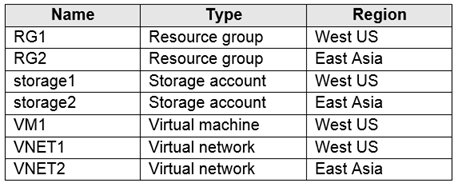
VM1 connects to VNET1. You need to connect VM1 to VNET2. Solution: You move VM1 to RG2, and then you add a new network interface to VM1. Does this meet the goal?

Yes is incorrect because the solution assumes that changing the resource group changes the VM's regional placement, which is not true in Azure. Resource groups are only management containers and do not affect where a resource is deployed. A NIC attached to VM1 would still need to be in West US, while VNET2 exists in East Asia. Because of this regional mismatch, the VM cannot be connected directly to VNET2 using the proposed method.

No is correct because moving VM1 to RG2 does not change the VM's region from West US to East Asia. Azure virtual machines can only attach network interfaces that are connected to virtual networks in the same region as the VM. Since VNET2 is in East Asia, VM1 cannot be directly connected to it by adding a NIC. The proposed steps therefore do not achieve the stated goal.

Question Analysis

Core concept: This question tests Azure virtual machine networking constraints across regions. A virtual machine can only attach network interfaces that are connected to virtual networks in the same Azure region as the VM. Moving a VM between resource groups does not change its region. Why the answer is correct: The proposed solution does not meet the goal because VM1 is in West US and VNET2 is in East Asia. Even if you move VM1 from RG1 to RG2, the VM remains in West US because changing resource groups does not change the resource's region. Therefore, you cannot add a NIC connected to VNET2 to VM1. Key features and best practices: - Azure VMs can only use NICs in the same region as the VM. - VNets are regional resources, and NICs must belong to a subnet in a VNet in the same region. - Moving a resource to another resource group does not move it to another region. - To connect workloads across regions, use VNet peering, VPN Gateway, or recreate/migrate the VM into the target region. Common misconceptions: A common mistake is assuming that moving a VM to a different resource group also changes its location. Resource groups are logical containers and can contain resources from different regions, but a resource's region remains unchanged after a resource group move. Another misconception is that adding a secondary NIC can bypass regional networking limits, but NICs are still region-bound. Exam tips: For AZ-104, remember that region is a property of the resource, not the resource group. If a VM must connect directly to a VNet, both the VM and its NICs must be in the same region as that VNet. When you see cross-region networking questions, think about peering or migration rather than simply moving resource groups.

Other Practice Tests

Practice Test #2

50 Questions·100 min·Pass 700/1000

Practice Test #3

50 Questions·100 min·Pass 700/1000

Practice Test #4

50 Questions·100 min·Pass 700/1000

Practice Test #5

50 Questions·100 min·Pass 700/1000

Practice Test #6

50 Questions·100 min·Pass 700/1000

Practice Test #7

50 Questions·100 min·Pass 700/1000

Practice Test #8

50 Questions·100 min·Pass 700/1000

Practice Test #9

50 Questions·100 min·Pass 700/1000
← View All Microsoft AZ-104 Questions

Start Practicing Now

Download Cloud Pass and start practicing all Microsoft AZ-104 exam questions.

Get it on Google PlayDownload on the App Store
Cloud PassCloud Pass

IT Certification Practice App

Get it on Google PlayDownload on the App Store

Certifications

AWSGCPMicrosoftCiscoCompTIADatabricks

Legal

FAQPrivacy PolicyTerms of Service

Company

ContactDelete Account

© Copyright 2026 Cloud Pass, All rights reserved.

Want to practice all questions on the go?

Get the app

Download Cloud Pass — includes practice tests, progress tracking & more.