CloudPass LogoCloud Pass
AWSGoogle CloudMicrosoftCiscoCompTIADatabricks
Certifications
AWSGoogle CloudMicrosoftCiscoCompTIADatabricks
Microsoft AZ-104
Microsoft AZ-104

Practice Test #5

Simulate the real exam experience with 50 questions and a 100-minute time limit. Practice with AI-verified answers and detailed explanations.

50Questions100Minutes700/1000Passing Score
Browse Practice Questions

AI-Powered

Triple AI-Verified Answers & Explanations

Every answer is cross-verified by 3 leading AI models to ensure maximum accuracy. Get detailed per-option explanations and in-depth question analysis.

GPT Pro
Claude Opus
Gemini Pro
Per-option explanations
In-depth question analysis
3-model consensus accuracy

Practice Questions

1
Question 1

You have an app named App1 that runs on two Azure virtual machines named VM1 and VM2. You plan to implement an Azure Availability Set for App1. The solution must ensure that App1 is available during planned maintenance of the hardware hosting VM1 and VM2. What should you include in the Availability Set?

One update domain does not meet the requirement. If the Availability Set has only one update domain, both VM1 and VM2 are placed in the same UD. During planned maintenance, Azure can reboot that entire UD, causing both VMs to be unavailable at the same time. This fails the goal of keeping App1 available during planned maintenance.

Two fault domains improves resiliency against unplanned failures (for example, a rack/power/network failure affecting one fault domain). However, the question is explicitly about planned maintenance. Fault domains do not control how Azure sequences planned updates/reboots; update domains do. Therefore, two fault domains alone doesn’t ensure availability during planned maintenance.

One fault domain provides no meaningful protection from unplanned hardware failures because both VMs could be placed on the same underlying rack/power/network boundary. It also does not address planned maintenance sequencing. This option is insufficient for both planned and unplanned resiliency goals and is not aligned with Availability Set best practices.

Two update domains is the correct choice because update domains are designed to ensure that planned maintenance impacts only one group of VMs at a time. With at least two UDs, VM1 and VM2 can be placed in different UDs so that when Azure reboots one UD for maintenance, the other VM remains running, keeping App1 available (assuming the app can run on a single instance).

Question Analysis

Core concept: This question tests Azure Availability Sets and how they provide VM resiliency during platform events. Availability Sets use two logical groupings: fault domains (FDs) for unplanned hardware/network/power failures, and update domains (UDs) for planned maintenance (host OS/hypervisor updates). Why the answer is correct: The requirement is specifically to keep App1 available during planned maintenance of the hardware hosting VM1 and VM2. Planned maintenance is handled by update domains. When Azure performs planned maintenance, it takes down one update domain at a time, rebooting VMs in that UD while VMs in other UDs remain running. To ensure App1 stays up when one VM is rebooted, VM1 and VM2 must be placed in different update domains. Therefore, the Availability Set must have at least two update domains so the two VMs can be distributed across them. Key features / best practices: - Update domains: logical groups that Azure updates sequentially; default is typically 5 UDs (region-dependent), but you can configure the number when creating the Availability Set. - Fault domains: protect against rack-level failures; default is typically 2 or 3 FDs depending on region and VM SKU capabilities. - For application availability, you also need the app tier to be able to tolerate one instance being down (e.g., load balancer in front, stateless design, or session persistence strategy). This aligns with Azure Well-Architected Framework reliability principles: redundancy and graceful degradation. Common misconceptions: - Choosing fault domains (B/C) seems relevant because it improves availability, but it addresses unplanned outages, not planned maintenance. - Choosing one update domain (A) would place both VMs in the same UD, meaning both could be rebooted together during maintenance—violating the requirement. Exam tips: - Map the event type to the domain type: planned maintenance = update domains; unplanned hardware failure = fault domains. - For “two VMs must stay available during maintenance,” think “at least two update domains” so instances can be separated. - Remember: Availability Sets help within a datacenter; Availability Zones provide higher resiliency across physically separate locations in a region.

2
Question 2

Note: This question is part of a series of questions that present the same scenario. Each question in the series contains a unique solution that might meet the stated goals. Some question sets might have more than one correct solution, while others might not have a correct solution. After you answer a question in this section, you will NOT be able to return to it. As a result, these questions will not appear in the review screen. You need to ensure that an Azure Active Directory (Azure AD) user named Admin1 is assigned the required role to enable Traffic Analytics for an Azure subscription. Solution: You assign the Owner role at the subscription level to Admin1. Does this meet the goal?

Assigning the Owner role at the subscription level grants Admin1 full management permissions across the subscription, including the ability to configure Network Watcher and enable Traffic Analytics. Traffic Analytics enablement requires creating or updating network monitoring settings (such as NSG flow logs) and integrating with a Log Analytics workspace, which are actions permitted by Owner. Because Owner also includes the ability to manage access (role assignments), it covers any additional permission adjustments that might be needed during setup. Therefore, this role assignment meets the goal.

Answering "No" would imply that the Owner role at the subscription scope is insufficient to enable Traffic Analytics, which is not accurate. Owner provides broad permissions to create, update, and configure the required Network Watcher and Log Analytics-related resources and settings. While some scenarios can fail if permissions are limited to a narrower scope or different subscription, the question explicitly assigns Owner at the subscription level, which is the highest practical RBAC scope for that subscription. Thus, "No" does not align with Azure RBAC capabilities for this task.

Question Analysis

Core concept: This question tests the Azure RBAC permissions required to enable Network Watcher Traffic Analytics for an Azure subscription, and whether assigning a broad built-in role (Owner) at the correct scope satisfies those requirements. Why the answer is correct: Enabling Traffic Analytics is a subscription-scoped operation that typically involves configuring Network Watcher settings and linking to Log Analytics (creating or selecting a workspace, configuring flow logs/traffic analytics settings, and writing diagnostic data). The Owner role at the subscription scope grants full management permissions over all resources in the subscription, including the ability to create/configure Network Watcher resources and configure diagnostic settings and workspace associations. Because Owner includes the necessary Microsoft.Network and Microsoft.OperationalInsights permissions (and can also grant access if needed), assigning Owner at the subscription level is sufficient to enable Traffic Analytics. Key features / configurations: - Azure RBAC scope: Subscription-level role assignment applies to all resource groups and resources in the subscription. - Owner role: Full management permissions (equivalent to Contributor plus the ability to assign roles via Microsoft.Authorization/*). - Traffic Analytics dependencies: Network Watcher + NSG flow logs + Log Analytics workspace (Operational Insights) configuration. - Typical required actions: Enable Network Watcher (region), configure NSG flow logs, enable Traffic Analytics, select workspace, and ensure write permissions to the workspace. Common misconceptions: - Assuming a narrower role (e.g., Reader) can enable Traffic Analytics; Reader cannot create/configure resources. - Confusing Azure AD directory roles (like Global Administrator) with Azure RBAC roles; Traffic Analytics enablement is governed by Azure RBAC at subscription/resource scope. - Thinking only Network Contributor is always enough; in practice, you often also need permissions on the Log Analytics workspace and diagnostic settings. Exam tips: - Prefer identifying the scope: if the task is “for an Azure subscription,” subscription-level RBAC is usually required. - Owner at subscription scope is almost always sufficient for enable/configure scenarios. - Distinguish Azure AD roles (directory) vs Azure RBAC roles (resource management). - When a feature writes to Log Analytics, ensure the principal has permissions on the workspace as well (Owner at subscription covers it if the workspace is in the same subscription).

3
Question 3

You have an Azure virtual machine named VM1 that runs Windows Server 2019. You save VM1 as a template named Template1 to the Azure Resource Manager library. You plan to deploy a virtual machine named VM2 from Template1. What can you configure during the deployment of VM2?

The operating system is defined by the image or OS disk configuration captured in the template. A template created from an existing Windows Server 2019 VM will deploy a VM based on that same OS configuration unless the template itself is edited to reference a different image. The question does not indicate that the template was modified to make the OS selectable. Therefore, operating system is not something you can configure during deployment in this scenario.

The administrator username is part of the VM's OS profile in the template. Although ARM templates can be manually authored to parameterize admin credentials, a saved template from an existing VM does not imply that this field is exposed for change during deployment. In exam wording, you should not assume optional parameterization unless it is explicitly stated. Therefore, administrator username is not a guaranteed configurable setting here.

Virtual machine size is stored in the VM hardware profile within the template generated from VM1. While it is technically possible to edit a template to change the size or author the template with a size parameter, the question asks what can be configured during deployment from the saved template as given. Without explicit parameterization, VM size is not assumed to be selectable in the deployment experience. Therefore, virtual machine size is not the best answer for this exam question.

Resource group is selected as part of the deployment operation, not as a property embedded permanently in the VM definition. When deploying an ARM template in Azure, you choose an existing resource group or create a new one as the target for the deployment. This is always configurable at deployment time regardless of how the template was originally generated. Therefore, resource group is the valid option here.

Question Analysis

Core concept: This question tests what aspects of an Azure Resource Manager template deployment are selectable at deployment time versus what is fixed by the saved template. When you save an existing virtual machine as an ARM template, the template captures the resource definitions and configuration of that VM. During deployment, you can choose the deployment scope such as the target resource group, but the VM properties defined in the template are not assumed to be editable unless the template explicitly exposes them as parameters. A common misconception is to assume that any VM property, such as size or admin settings, can be changed during deployment just because ARM templates support parameters; however, only values actually parameterized in the template are configurable. Exam tip: if a question says a VM was saved as a template and asks what you can configure during deployment without mentioning template customization, the safe answer is the deployment target like the resource group, not internal VM settings.

4
Question 4

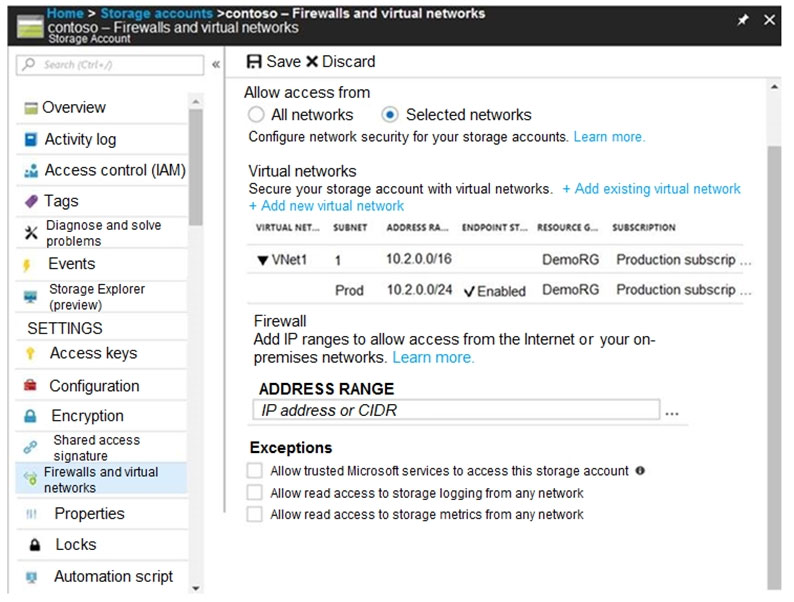
HOTSPOT - You have several Azure virtual machines on a virtual network named VNet1. You configure an Azure Storage account as shown in the following exhibit.

Use the drop-down menus to select the answer choice that completes each statement based on the information presented in the graphic. NOTE: Each correct selection is worth one point. Hot Area:

Part 1:

Select the correct answer(s) in the image below.

question-image

Pass. The exhibit provides enough information to determine the outcomes: - The storage account is configured to allow access from “Selected networks”. - Under Virtual networks, VNet1 is listed and a specific subnet (Prod, 10.2.0.0/24) shows Endpoint state = Enabled, meaning a Microsoft.Storage service endpoint is enabled on that subnet and the subnet is explicitly allowed in the storage firewall rules. - No IP address ranges are added. - The “Allow trusted Microsoft services to access this storage account” exception is not selected. With these details, you can evaluate whether another subnet (10.2.9.0/24) is allowed (it is not listed) and whether Azure Backup can access the storage account for unmanaged disks (it typically requires the trusted services exception or other allowed network path). Therefore, the question is answerable from the graphic.

Part 2:

The virtual machines on the 10.2.9.0/24 subnet will have network connectivity to the file shares in the storage account ______.

Never. The storage account is restricted to “Selected networks”. In the allowed list, only the Prod subnet (10.2.0.0/24) is shown with the Microsoft.Storage service endpoint enabled and associated with the storage account. The subnet in the question is 10.2.9.0/24. Even though it is within the broader VNet1 address space (10.2.0.0/16), it is not the same subnet as 10.2.0.0/24 and is not shown as an allowed subnet in the storage account firewall configuration. Storage account network rules do not automatically allow the entire VNet; they allow only the specific subnets you add (or private endpoints, or public IP ranges). Therefore, VMs in 10.2.9.0/24 will be blocked from accessing Azure Files in that storage account (SMB/REST) because their subnet is not permitted.

Part 3:

Azure Backup will be able to back up the unmanaged hard disks of the virtual machines in the storage account ______.

Never. The exhibit shows the storage account firewall set to “Selected networks” and the “Allow trusted Microsoft services to access this storage account” exception is unchecked. With that configuration, Azure platform services that are not originating from an explicitly allowed subnet/IP cannot access the storage account. Unmanaged disks are stored as VHD blobs in a storage account. For Azure Backup to back up those unmanaged disks, it must be able to read the VHD blobs in the storage account. If the storage account blocks access and you have not enabled the trusted Microsoft services exception (and you have not otherwise allowed the Backup service via network rules), Backup cannot reach the blobs. Because the exception is not enabled and only a specific subnet is allowed, Azure Backup will not be able to back up the unmanaged disks in that storage account under this configuration.

5
Question 5

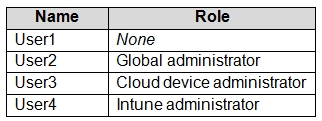
You have an Azure Active Directory (Azure AD) tenant named adatum.com that contains the users shown in the following table.
diagram

Adatum.com has the following configurations: ✑ Users may join devices to Azure AD is set to User1. ✑ Additional local administrators on Azure AD joined devices is set to None. You deploy Windows 10 to a computer named Computer1. User1 joins Computer1 to adatum.com. You need to identify the local Administrator group membership on Computer1. Which users are members of the local Administrators group?

Incorrect. User1 (the joiner) is indeed added to the local Administrators group, but Global Administrators are also granted local admin rights on all Azure AD–joined devices by default. Therefore, User2 must be included as well, making “User1 only” incomplete.

Incorrect. Global Administrators (User2) do have local admin rights on Azure AD–joined devices, but the user who performs the Azure AD join (User1) is also added to the local Administrators group on that specific device. So “User2 only” omits User1.

Correct. User1 joined Computer1 to Azure AD, so User1 becomes a local administrator on Computer1. User2 is a Global administrator, and Global admins are automatically local admins on all Azure AD–joined devices. With “Additional local administrators…” set to None, no other roles are added.

Incorrect. User3 is a Cloud device administrator, but that role is not automatically added to the local Administrators group on Azure AD–joined devices unless configured via “Additional local administrators on Azure AD joined devices” (or another explicit local admin assignment). Since the setting is None, User3 is not included.

Incorrect. Neither Cloud device administrator (User3) nor Intune administrator (User4) are automatically members of the local Administrators group on Azure AD–joined devices by default. They would only be included if explicitly configured (for example, via the “Additional local administrators…” setting), which is set to None.

Question Analysis

Core concept: This question tests Azure AD device join behavior and which identities are automatically granted local administrator rights on an Azure AD–joined Windows 10 device. It also tests the effect of the Azure AD tenant setting “Additional local administrators on Azure AD joined devices” and the built-in role “Global administrator.” Why the answer is correct: When a user joins a Windows device to Azure AD, that joining user is added to the local Administrators group on that device. Therefore, User1 (the user who performed the Azure AD join) becomes a local administrator on Computer1. Additionally, Azure AD Global Administrators are automatically granted local administrator rights on all Azure AD–joined devices. This is a default behavior to ensure tenant-wide administrative recovery and management capability. Therefore, User2 (Global administrator) is also a member of the local Administrators group on Computer1. The setting “Additional local administrators on Azure AD joined devices” controls which Azure AD roles/users are explicitly added as local admins beyond the default behavior. Since it is set to None, no extra roles (such as Cloud device administrator or Intune administrator) are added via this setting. Key features and configurations: - “Users may join devices to Azure AD” set to User1 only restricts who can perform the join; it does not change the default local admin outcomes after a join. - “Additional local administrators…” set to None means only the default principals apply (device joiner + Global admins). - Cloud Device Administrator and Intune Administrator do not automatically become local admins on Azure AD–joined devices unless added via that setting (or via other mechanisms like local group policy/MDM local users and groups policies). Common misconceptions: Many assume that device-related admin roles (Cloud Device Administrator) or management roles (Intune Administrator) automatically become local admins on joined devices. They do not unless configured. Another trap is thinking that restricting who can join devices also restricts who becomes local admin; it only limits join permission. Exam tips: Memorize the two default local admin additions for Azure AD join: (1) the user who joins the device, and (2) Azure AD Global Administrators. Then apply the “Additional local administrators…” setting to determine any extra members. This aligns with least privilege principles from the Azure Well-Architected Framework (Security pillar): grant additional local admin rights only when required.

Want to practice all questions on the go?

Download Cloud Pass — includes practice tests, progress tracking & more.

6
Question 6

You have an Azure Active Directory (Azure AD) tenant named contoso.onmicrosoft.com. The User administrator role is assigned to a user named Admin1. An external partner has a Microsoft account that uses the [email protected] sign in. Admin1 attempts to invite the external partner to sign in to the Azure AD tenant and receives the following error message: Unable to invite user [email protected] " Generic authorization exception.` You need to ensure that Admin1 can invite the external partner to sign in to the Azure AD tenant. What should you do?

Correct. External collaboration settings (B2B) determine whether guest invitations are allowed and who can send them. If invitations are restricted (e.g., only Global Admin or only users with Guest Inviter), a User administrator may receive an authorization error. Updating these settings to permit Admin1 (directly or via allowed roles) resolves the issue.

Incorrect. Adding a custom domain (e.g., contoso.com) is useful for branding, UPNs, and DNS verification, but it does not control B2B guest invitation authorization. Guests can be invited using Microsoft accounts or other identities regardless of whether the tenant has a custom domain configured.

Incorrect. Adding an identity provider in Organizational relationships is used to configure federation/trust for specific external identity sources (and in some cases cross-tenant access settings). It is not the primary control for enabling/disabling guest invitations for Microsoft accounts, and it won’t fix a tenant policy that blocks invitations.

Incorrect. The Security administrator role manages security-related settings (e.g., security policies, alerts) but does not inherently grant permission to invite B2B guest users. Guest invitation capability is controlled by External collaboration settings and/or roles like Global Administrator, User Administrator (depending on policy), or Guest Inviter.

Question Analysis

Core concept: This question tests Azure AD (Microsoft Entra ID) B2B external collaboration. Inviting a guest user is governed by External collaboration settings (B2B) at the tenant level and, optionally, by user/role restrictions. Even if a user has the User administrator role, they can be blocked from inviting guests if the tenant’s external collaboration policy disallows invitations or restricts who can invite. Why the answer is correct: Admin1 receives a “Generic authorization exception” when attempting to invite a Microsoft account user. A common cause is that the tenant is configured to prevent non-admins (or specific admin roles) from inviting guest users, or guest invitations are disabled/restricted. The fix is to adjust External collaboration settings in the Users settings area (Entra admin center) to allow invitations (for example, “Admins and users in the Guest Inviter role can invite” or “All users can invite,” depending on the organization’s policy). Once enabled, Admin1 (as User administrator) will be able to invite the external partner. Key features / configurations: - External collaboration settings control: - Whether guest invitations are allowed - Who can invite (admins only, specific roles like Guest Inviter, or all users) - Guest access restrictions (what guests can see/do) - Best practice (Azure Well-Architected – Security): follow least privilege. Rather than opening invitations to all users, allow only appropriate roles (e.g., Guest Inviter) and use access reviews, conditional access, and entitlement management where applicable. Common misconceptions: - Adding a custom domain does not affect the ability to invite a Microsoft account as a guest. - Adding an identity provider is for enabling additional federation/social IdPs; Microsoft accounts are already supported for B2B in standard configurations. - Assigning Security administrator does not grant B2B invitation rights; it focuses on security policy management. Exam tips: For AZ-104, when you see guest invitation failures with authorization-type errors, first check tenant-level B2B External collaboration settings and “who can invite” controls. Role assignments matter, but tenant policy can still block actions even for admins unless the correct collaboration settings are enabled.

7
Question 7

HOTSPOT - You have an Azure subscription named Subscription1 that contains the quotas shown in the following table. Quota Location Usage Standard BS Family vCPUs West US 0 of 20 Standard D Family vCPUs West US 0 of 20 Total Regional vCPUs West US 0 of 20 You deploy virtual machines to Subscription1 as shown in the following table.

diagram

You plan to deploy the virtual machines shown in the following table. Name Size vCPUs VM3 Standard_B2ms 1 VM4 Standard_D4s_v3 4 VM5 Standard_B16ms 16 For each of the following statements, select Yes if the statement is true. Otherwise, select No. NOTE: Each correct selection is worth one point. Hot Area:

Part 1:

You can deploy VM3 to West US.

Yes. For this type of Azure quota question, the Usage column in the quota table is the authoritative current consumption for the subscription and region. West US shows 0 of 20 used for Standard BS Family vCPUs and 0 of 20 used for Total Regional vCPUs, so the proposed B-series VM fits within both limits. The running or deallocated status of the listed VMs does not need to be recomputed separately because the quota table already reflects current usage.

Part 2:

You can deploy VM4 to West US.

Yes. The quota table shows Standard D Family vCPUs at 0 of 20 used in West US and Total Regional vCPUs at 0 of 20 used. VM4 requires 4 vCPUs, so it is within both the D-family quota and the regional quota. Other VM statuses are not separately relevant here because the displayed quota usage is what Azure uses for the evaluation in the question.

Part 3:

You can deploy VM5 to West US.

Yes. The quota table shows 0 of 20 used for Standard BS Family vCPUs and 0 of 20 used for Total Regional vCPUs in West US. VM5 requires 16 vCPUs, which is within both remaining limits. Therefore, VM5 can be deployed, and alternative reasoning based on recalculating usage from the listed VMs is unnecessary because the quota table already provides the current usage.

8
Question 8

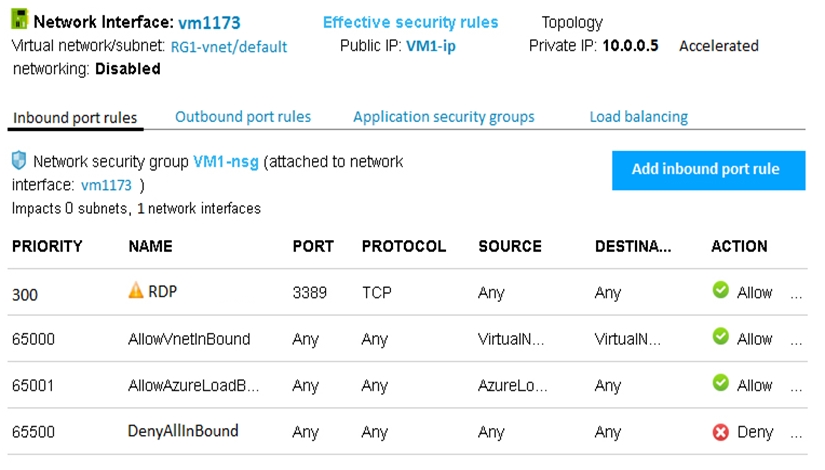
You have an Azure subscription named Subscription1. Subscription1 contains a virtual machine named VM1. You have a computer named Computer1 that runs Windows 10. Computer1 is connected to the Internet. You add a network interface named vm1173 to VM1 as shown in the exhibit. (Click the Exhibit tab.)
diagram

From Computer1, you attempt to connect to VM1 by using Remote Desktop, but the connection fails. You need to establish a Remote Desktop connection to VM1. What should you do first?

Changing the priority of the RDP rule is unnecessary because the current priority of 300 is already evaluated before the default inbound rules at 65000 and higher. That means the allow rule for TCP 3389 will match before DenyAllInBound is considered. There is no evidence of another higher-priority deny rule blocking RDP traffic. Adjusting the priority would not address the actual prerequisite that the VM must be running.

Attaching a network interface is not the correct first action because the question states that the network interface named vm1173 has already been added to VM1. The exhibit confirms the NIC exists, has a private IP, a public IP association, and an NSG applied. Since the NIC is already attached, repeating that action would not help establish connectivity. The more immediate issue is that the VM must be powered on to accept RDP.

Deleting the DenyAllInBound rule is incorrect because it is a default NSG rule intended to block traffic not explicitly allowed. Azure NSG processing is priority-based, so the explicit RDP allow rule at priority 300 takes precedence over the default deny at 65500. Removing the default deny would weaken security and is not required for RDP to function. The presence of DenyAllInBound does not prevent traffic that matches the existing allow rule.

Starting VM1 is the correct first step because a VM cannot accept Remote Desktop connections unless it is running. In Azure, attaching an additional network interface to an existing VM typically requires the VM to be stopped/deallocated beforehand, so the VM would need to be started again after the change. The exhibit already shows that TCP 3389 is explicitly allowed inbound, which means the NSG is not the immediate issue. Restoring the VM to a running state is therefore the first required action before any RDP connection can succeed.

Question Analysis

Core concept: This question tests Azure VM connectivity prerequisites after modifying a VM's networking. In Azure, attaching an additional network interface to an existing VM generally requires the VM to be stopped/deallocated first, which means the VM will not be available for Remote Desktop until it is started again. Why correct: The exhibit already shows an NSG rule allowing inbound RDP on TCP 3389 with a higher priority than the default deny rule, so NSG configuration is not the blocker. Key features: NSG rules are processed by ascending priority number, default DenyAllInBound remains in place by design, and a VM must be running to accept RDP. Common misconceptions: Many candidates think the default deny rule must be removed, but explicit allow rules with higher priority override it. Exam tips: When troubleshooting Azure VM connectivity, verify the VM power state first, then confirm public IP exposure and NSG rules.

9
Question 9

You have an Azure subscription named Subscription1 that contains an Azure virtual machine named VM1. VM1 is in a resource group named RG1. VM1 runs services that will be used to deploy resources to RG1. You need to ensure that a service running on VM1 can manage the resources in RG1 by using the identity of VM1. What should you do first?

Correct. Enabling a managed identity on VM1 (typically system-assigned) is the prerequisite step because it creates the identity (service principal) that can be granted permissions. Until the managed identity is enabled, there is no VM1 identity to use for Azure Resource Manager operations. After enabling it, you can assign RBAC roles on RG1 to that identity.

Not first. RG1 IAM is where you ultimately grant permissions (role assignment) so VM1’s identity can manage RG1 resources. However, you can’t assign a role to VM1’s managed identity until that identity exists. The correct sequence is: enable managed identity on VM1, then configure RG1 IAM to grant the required role.

Incorrect. Setting IAM on VM1 controls who can manage VM1 (the VM resource) and does not grant VM1 permission to manage other resources in RG1. RBAC must be assigned at the scope of the resources being accessed (RG1). VM1’s own IAM settings won’t allow a process on VM1 to deploy/manage resources in the resource group.

Incorrect. Azure Policy is used to enforce standards and assess compliance (e.g., allowed SKUs, required tags, deny public IPs). It does not grant an identity permissions to manage resources. Even with policies configured, the service on VM1 still needs RBAC permissions via a managed identity and role assignment.

Question Analysis

Core concept: This question tests Managed Identities for Azure resources and Azure RBAC. A managed identity lets an Azure resource (VM1) obtain Azure AD tokens without storing credentials. To let a service on VM1 manage resources in RG1 “using the identity of VM1”, you must (1) enable a managed identity on VM1 and then (2) assign that identity an RBAC role on RG1. Why the answer is correct: The question asks what to do first. Before you can grant permissions to VM1’s identity, the identity must exist. Enabling a system-assigned managed identity on VM1 creates a service principal in Microsoft Entra ID that represents VM1. Only after that identity exists can you assign it roles (for example, Contributor) at the RG1 scope. Therefore, the first step is to modify VM1’s Managed Identity settings. Key features / best practices: - System-assigned managed identity is tied to the VM lifecycle (created/removed with the VM). User-assigned identities are reusable across resources. - After enabling the identity, use RG1 Access control (IAM) to add a role assignment for the VM’s managed identity (least privilege: e.g., Contributor for deployments, or more granular roles if possible). - This aligns with Azure Well-Architected Framework security principles: avoid secrets, use identity-based access, and apply least privilege. Common misconceptions: Many assume you start by granting permissions on RG1 (IAM). However, without enabling the managed identity, there is no principal to assign. Another misconception is changing IAM on the VM itself; RBAC must be applied at the scope of the target resources (RG1), not the source VM. Exam tips: For “VM/service uses the VM identity to access/manage Azure resources,” think: enable Managed Identity first, then assign RBAC at the target scope (subscription/resource group/resource). Policies are for governance/compliance, not granting runtime permissions.

10
Question 10

You need to meet the user requirement for Admin1. What should you do?

Modifying Groups in the Azure Active Directory blade changes group membership and group objects in the tenant. While adding Admin1 to a group can be part of an access strategy, it does not by itself grant permissions to Azure resources. You would still need an RBAC role assignment for that group at the subscription (or other) scope. Therefore, this option is incomplete for meeting an access requirement.

Azure Active Directory Properties controls tenant-level settings (for example, directory properties, user settings, and some administrative configurations). These settings do not grant Admin1 permissions to manage Azure resources within a subscription. Resource access is governed by Azure RBAC role assignments, not by changing Azure AD tenant properties. This is a common confusion between identity configuration and authorization to Azure resources.

Access control (IAM) on the subscription is where you assign Azure RBAC roles to Admin1 (or to a group containing Admin1) at the subscription scope. This directly meets requirements related to what Admin1 can do in that subscription (manage resources, read, administer, or manage access depending on the role). It is the correct and expected AZ-104 approach for subscription-level administration.

Subscription Properties typically includes subscription metadata such as subscription name, offer type, and sometimes directory association context, but it does not manage RBAC permissions. Changing properties will not grant Admin1 any ability to create, modify, or delete resources. For authorization requirements, you must use Access control (IAM) to create role assignments at the appropriate scope.

Question Analysis

Core concept: This question tests Azure role-based access control (RBAC) at the subscription scope. In Azure, permissions to manage resources are granted by assigning built-in or custom roles (for example, Owner, Contributor, Reader, User Access Administrator) to security principals (users, groups, service principals, managed identities) at a scope (management group, subscription, resource group, or resource). Why the answer is correct: To meet a requirement for a specific admin user (Admin1), you must grant the necessary permissions at the correct scope. The subscription is a common scope for broad administrative access. The correct place to do this is the subscription’s Access control (IAM) page, where you add a role assignment for Admin1 (or a group containing Admin1). This directly controls what Admin1 can do in that subscription and is the standard method for meeting “admin access” requirements in AZ-104 scenarios. Key features / best practices: RBAC is evaluated by Azure Resource Manager and is additive across scopes (effective permissions come from all assignments inherited from parent scopes). Follow least privilege: assign the minimum role needed (often Contributor rather than Owner; use User Access Administrator only when Admin1 must manage role assignments). Prefer group-based assignments for operational manageability. This aligns with Azure Well-Architected Framework (Security pillar): centralized access management, least privilege, and auditable access via role assignments and activity logs. Common misconceptions: Many confuse Azure AD settings (users/groups/properties) with Azure RBAC. Azure AD blades manage identity objects, not resource permissions. Changing subscription “Properties” affects metadata (name, tags, directory association in some contexts), not access. Only IAM (RBAC) changes who can administer resources. Exam tips: When the requirement mentions “access,” “permissions,” “can manage resources,” or “admin for a subscription/resource group,” think RBAC and go to Access control (IAM). If it mentions “create users/groups,” “reset passwords,” or “tenant settings,” think Azure AD roles and Azure AD blades. Always identify the scope (subscription vs resource group) and choose the smallest scope that satisfies the requirement.

Other Practice Tests

Practice Test #1

50 Questions·100 min·Pass 700/1000

Practice Test #2

50 Questions·100 min·Pass 700/1000

Practice Test #3

50 Questions·100 min·Pass 700/1000

Practice Test #4

50 Questions·100 min·Pass 700/1000

Practice Test #6

50 Questions·100 min·Pass 700/1000

Practice Test #7

50 Questions·100 min·Pass 700/1000

Practice Test #8

50 Questions·100 min·Pass 700/1000

Practice Test #9

50 Questions·100 min·Pass 700/1000
← View All Microsoft AZ-104 Questions

Start Practicing Now

Download Cloud Pass and start practicing all Microsoft AZ-104 exam questions.

Get it on Google PlayDownload on the App Store
Cloud PassCloud Pass

IT Certification Practice App

Get it on Google PlayDownload on the App Store

Certifications

AWSGCPMicrosoftCiscoCompTIADatabricks

Legal

FAQPrivacy PolicyTerms of Service

Company

ContactDelete Account

© Copyright 2026 Cloud Pass, All rights reserved.

Want to practice all questions on the go?

Get the app

Download Cloud Pass — includes practice tests, progress tracking & more.