CloudPass LogoCloud Pass
AWSGoogle CloudMicrosoftCiscoCompTIADatabricks
Certifications
AWSGoogle CloudMicrosoftCiscoCompTIADatabricks
PL-300: Microsoft Power BI Data Analyst

Practice Test #3

50개 문제와 100분 시간 제한으로 실제 시험을 시뮬레이션하세요. AI 검증 답안과 상세 해설로 학습하세요.

50문제100분700/1000합격 점수
기출 문제 보기

AI 기반

3중 AI 검증 답안 및 해설

모든 답안은 3개의 최고 AI 모델로 교차 검증하여 최고의 정확도를 보장합니다. 선택지별 상세 해설과 심층 문제 분석을 제공합니다.

GPT Pro
Claude Opus
Gemini Pro
선택지별 상세 해설
심층 문제 분석
3개 모델 합의 정확도

기출 문제

1
문제 1

You are creating a report in Power BI Desktop. You load a data extract that includes a free text field named coll. You need to analyze the frequency distribution of the string lengths in col1. The solution must not affect the size of the model. What should you do?

2
문제 2

Note: This question is part of a series of questions that present the same scenario. Each question in the series contains a unique solution that might meet the stated goals. Some question sets might have more than one correct solution, while others might not have a correct solution. After you answer a question in this section, you will NOT be able to return to it. As a result, these questions will not appear in the review screen. You are modeling data by using Microsoft Power BI. Part of the data model is a large Microsoft SQL Server table named Order that has more than 100 million records. During the development process, you need to import a sample of the data from the Order table. Solution: You write a DAX expression that uses the FILTER function. Does this meet the goal?

3
문제 3
(2개 선택)

You have a report that contains four pages. Each page contains slicers for the same four fields. Users report that when they select values in a slicer on one page, the selections are not persisted on other pages. You need to recommend a solution to ensure that users can select a value once to filter the results on all the pages. What are two possible recommendations to achieve this goal? Each correct answer presents a complete solution. NOTE: Each correct selection is worth one point.

4
문제 4

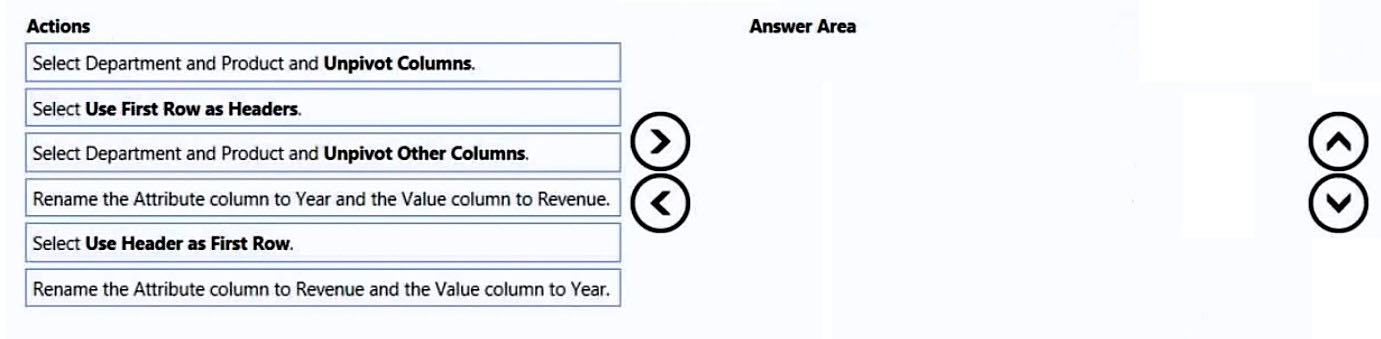
DRAG DROP - You receive revenue data that must be included in Microsoft Power BI reports. You preview the data from a Microsoft Excel source in Power Query as shown in the following exhibit. Column1 Column2 Column3 Column4 Column5 Column6 Valid: 100% Valid: 100% Valid: 100% Valid: 100% Valid: 100% Valid: 100% Error: 0% Error: 0% Error: 0% Error: 0% Error: 0% Error: 0% Empty: 0% Empty: 0% Empty: 0% Empty: 0% Empty: 0% Empty: 0%

Department Product 2016 2017 2018 2019 Bikes Carbon mountainbike 1002815 1006617 1007814 1007239 Bikes Aluminium road bike 1007024 1001454 1005842 1007105 Bikes Touring bike 1003676 1005171 1001669 1003244 Accessories Bell 76713 10247 60590 52927 Accessories Bottle holder 26690 29613 67955 71466 Accessories Satnav 83189 40113 71684 24697 Accessories Mobilephone holder 68641 80336 58099 45706 You plan to create several visuals from the data, including a visual that shows revenue split by year and product. You need to transform the data to ensure that you can build the visuals. The solution must ensure that the columns are named appropriately for the data that they contain. Which three actions should you perform in sequence? To answer, move the appropriate actions from the list of actions to the answer area and arrange them in the correct order. Select and Place:

파트 1:

Select the correct answer(s) in the image below.

question-image

Pass is appropriate because the transformation sequence is determinable from the scenario and the listed actions. The required end state is a long table with columns like Department, Product, Year, Revenue. To get there, you must (1) promote the first row to headers so the year columns are correctly named (2016, 2017, 2018, 2019) rather than Column1–Column6; (2) select Department and Product and use Unpivot Other Columns to convert all year columns into rows (this is preferred over Unpivot Columns because it automatically includes any additional year columns that may appear later); and (3) rename Attribute to Year and Value to Revenue so the columns are semantically correct for modeling and visuals. Therefore, the correct response is that you know the answer (Pass).

5
문제 5

DRAG DROP - You are modifying a Power BI model by using Power BI Desktop. You have a table named Sales that contains the following fields. Name Data type Transaction ID Whole Number Customer Key Whole Number Sales Date Key Date Sales Amount Whole Number You have a table named Transaction Size that contains the following data. Transaction Size ID | Transaction Size | Min | Max 1 | Small | 0 | 10,000 2 | Medium | 10,001 | 100,000 3 | Large | 100,001 | 999,999,999 You need to create a calculated column to classify each transaction as small, medium, or large based on the value in Sales Amount. How should you complete the code? To answer, drag the appropriate values to the correct targets. Each value may be used once, more than once, or not at all. You may need to drag the split bar between panes or scroll to view content. NOTE: Each correct selection is worth one point. Select and Place:

파트 1:

Select the correct answer(s) in the image below.

question-image

The calculated column must first capture the current row's Sales value, then identify the matching row in the Transaction Size table where the amount falls between Min and Max. FILTER is required to return the matching range row(s), and AND is required so both boundary conditions are true at the same time. CALCULATE then evaluates DISTINCT('Transaction Size'[Transaction Size]) in the context of that filtered row, returning Small, Medium, or Large. ALL is incorrect because it removes filters rather than applying the range match, OR would match too many rows, and SUM is unnecessary because this is a row-by-row calculated column using the current Sales value.

이동 중에도 모든 문제를 풀고 싶으신가요?

Cloud Pass를 다운로드하세요 — 모의고사, 학습 진도 추적 등을 제공합니다.

6
문제 6

HOTSPOT - You have two CSV files named Products and Categories. The Products file contains the following columns: ✑ ProductID ✑ ProductName ✑ SupplierID ✑ CategoryID The Categories file contains the following columns: ✑ CategoryID ✑ CategoryName ✑ CategoryDescription From Power BI Desktop, you import the files into Power Query Editor. You need to create a Power BI dataset that will contain a single table named Product. The Product will table includes the following columns: ✑ ProductID ✑ ProductName ✑ SupplierID ✑ CategoryID ✑ CategoryName ✑ CategoryDescription How should you combine the queries, and what should you do on the Categories query? To answer, select the appropriate options in the answer area. NOTE: Each correct selection is worth one point. Hot Area:

파트 1:

Combine the queries by performing a: ______

Use Merge because you need to combine columns from Categories into Products by matching rows on a key (CategoryID). In Power Query, Merge performs a join (typically Left Outer from Products to Categories) and returns a new column containing a nested table of matching category rows, which you then expand to bring in CategoryName and CategoryDescription. Append is incorrect because it stacks rows from two queries with similar schemas; it does not match on keys and would produce more rows rather than add category attributes to each product. Transpose is unrelated; it swaps rows and columns and is used for reshaping data orientation, not relational combination. Therefore, Merge is the only option that produces a single Product table with the required additional category columns based on CategoryID.

파트 2:

On the Categories query: ______

Disable the query load for Categories. You still need the Categories query to exist in Power Query so the Products query can merge against it during refresh, but you do not want Categories to appear as a separate table in the dataset because the requirement is a single table named Product. Deleting the query would break the merge (or require embedding the logic elsewhere), making it harder to maintain and potentially invalidating the transformation steps. Excluding the query from report refresh is not appropriate because the merge depends on Categories being evaluated during refresh; if it does not refresh, the Product table could become stale or the transformation could fail. Disabling load is the standard staging-query pattern: keep it for transformations, don’t load it to the model.

7
문제 7

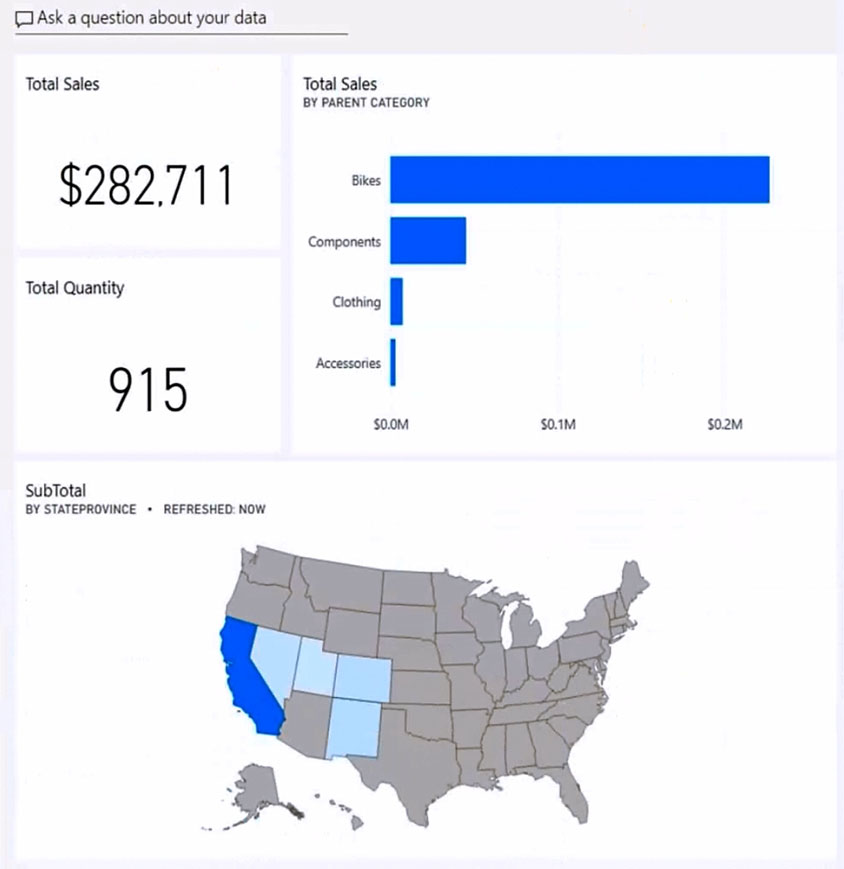
HOTSPOT - You have the Power BI dashboard shown in the Dashboard exhibit. (Click the Dashboard tab.)
diagram

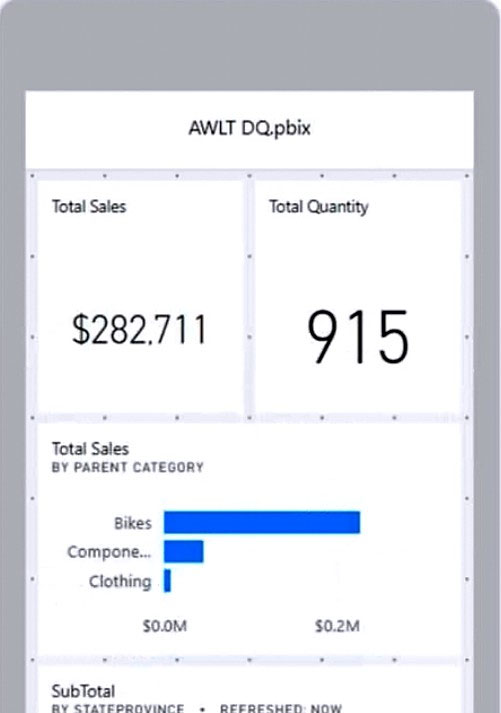
You need to ensure that when users view the dashboard on a mobile device, the dashboard appears as shown in the Mobile exhibit. (Click the Mobile tab.)
diagram

What should you do? To answer, select the appropriate options in the answer area. NOTE: Each correct selection is worth one point. Hot Area:

파트 1:

Update the layout in the: Dashboard mobile layout

Yes. You must update the *Dashboard mobile layout* because the requirement is explicitly about how the dashboard renders on a mobile device. In Power BI, dashboards have a dedicated mobile layout editor in the Power BI service that lets you choose which tiles appear on mobile and how they are arranged. Without editing the dashboard mobile layout, the mobile app will either use an automatic/default tile flow or an existing mobile layout that may not match the desired design. The Mobile exhibit shows a deliberate arrangement (two KPI tiles side-by-side, then the bar chart, then the map), which is exactly what the dashboard mobile layout is intended to control.

파트 2:

Update the layout in the: Dashboard web layout

No. You do not need to update the *Dashboard web layout* because the goal is only to control the appearance on mobile devices. The web layout is what users see in a browser and is independent of the dashboard mobile layout. Power BI allows you to keep the web layout optimized for large screens (as shown in the Dashboard exhibit) while separately designing a mobile-friendly layout. Changing the web layout would be unnecessary and could negatively impact the desktop/browser experience without providing additional benefit for the mobile requirement.

파트 3:

Update the layout in the: Report mobile layout

No. You do not need to update the *Report mobile layout* because the visuals shown are on a *dashboard* (tiles pinned from reports), not a report page being viewed directly. Report mobile layout is configured in Power BI Desktop for report pages and affects how a report page renders in the mobile app when users open the report. However, when users open a dashboard in the mobile app, the dashboard’s own mobile layout rules apply. Therefore, editing report mobile layout would not ensure the dashboard appears like the Mobile exhibit.

파트 4:

Resize and move: The SubTotal map tile

Yes. The SubTotal map tile must be resized and moved in the dashboard mobile layout to match the Mobile exhibit. On the web dashboard, the map is wide and placed across the bottom. On mobile, the available width is limited, and the exhibit shows the map positioned below other tiles in a vertical flow. To achieve that exact placement and sizing, you must explicitly drag and resize the map tile within the dashboard mobile layout editor. If you don’t, the map may appear too large, too small, or in an unintended order relative to the KPI and bar chart tiles.

파트 5:

Resize and move: The Total Sales and Total Quantity tiles

Yes. The Total Sales and Total Quantity tiles must be resized and moved in the dashboard mobile layout. The Mobile exhibit shows these two KPI tiles aligned side-by-side at the top, each occupying roughly half the screen width. This is not guaranteed by default behavior; it requires manual placement and sizing in the mobile layout grid. If you leave them unmodified, they may stack vertically or appear in a different order/size, which would not match the required mobile appearance.

파트 6:

Resize and move: The Total Sales by Parent Category tile

Yes. The Total Sales by Parent Category tile must be resized and moved in the dashboard mobile layout. In the web layout, it appears to the right of the KPI cards. In the Mobile exhibit, it is placed below the KPI cards and resized to fit the narrower mobile canvas. Achieving that specific arrangement requires editing the dashboard mobile layout and adjusting the tile’s position and dimensions. Without resizing/moving it, the chart could be truncated, appear in the wrong sequence, or consume an inappropriate amount of vertical space.

8
문제 8
(2개 선택)

You have a report that contains three pages. One of the pages contains a KPI visualization. You need to filter all the visualizations in the report except for the KPI visualization. Which two actions should you perform? Each correct answer presents part of the solution. NOTE: Each correct selection is worth one point.

9
문제 9

A business intelligence (BI) developer creates a dataflow in Power BI that uses DirectQuery to access tables from an on-premises Microsoft SQL server. The Enhanced Dataflows Compute Engine is turned on for the dataflow. You need to use the dataflow in a report. The solution must meet the following requirements: ✑ Minimize online processing operations. ✑ Minimize calculation times and render times for visuals. ✑ Include data from the current year, up to and including the previous day. What should you do?

10
문제 10

You have a Power BI tenant. You have reports that use financial datasets and are exported as PDF files. You need to ensure that the reports are encrypted. What should you implement?

다른 모의고사

Practice Test #1

50 문제·100분·합격 700/1000

Practice Test #2

50 문제·100분·합격 700/1000

Practice Test #4

50 문제·100분·합격 700/1000

Practice Test #5

50 문제·100분·합격 700/1000
← 모든 PL-300: Microsoft Power BI Data Analyst 문제 보기

지금 학습 시작하기

Cloud Pass를 다운로드하고 모든 PL-300: Microsoft Power BI Data Analyst 기출 문제를 풀어보세요.

Get it on Google PlayDownload on the App Store
Cloud PassCloud Pass

IT 자격증 문제풀이 앱

Get it on Google PlayDownload on the App Store

자격증

AWSGCPMicrosoftCiscoCompTIADatabricks

법률

FAQ개인정보 처리방침서비스 약관

회사

문의하기계정 삭제

© Copyright 2026 Cloud Pass, All rights reserved.

이동 중에도 모든 문제를 풀고 싶으신가요?

앱 받기

Cloud Pass를 다운로드하세요 — 모의고사, 학습 진도 추적 등을 제공합니다.